Welcome

Welcome to the AWIPS Convective Warning Fundamentals VLab page!

This reference provides an introduction to the fundamental AWIPS functionality supporting convective warning analysis and decision making. It is composed of a series of web pages with embedded job sheets used to practice fundamental skills on a live AWIPS or WES-2 Bridge. This training mostly focuses on CAVE basics and the D2D perspective (not GFE, AvnFPS, etc.), and it is followed by separate WES-2 Bridge exercise videos that step through using the tools with an archived dataset. Following review of the VLab web pages, practicing with the embedded job sheets, and practicing along with the WES-2 Bridge exercise videos, proficiency is assessed with a locally proctored AWIPS proficiency exam. Most of the content in this reference does not change from build to build, but some of the differences between the live AWIPS builds and some of the older AWIPS in the WES-2 Bridge versions are listed below. The 17.3.1 WES-2 Bridge local machines are being replaced by a 19.3.4 WES-2 Bridge that is available through a WFOCluster machine in the cloud that the local facilitator organizes. 

Key Build Differences from 17.3.1 (note: the build changes VLab page identifies significant build changes and has references to the short informational overviews available in from the CLC).

18.1.1

  • supports Mid-Volume Rescan of Low Level Elevations (MRLE) display
  • The "Dam Break Threat Area" button in WarnGen has been changed to "Preset Threat Area" to be more appropriately labeled for using in airport weather warnings, dam break flash flood warnings, and burn scar flash flood warnings.
  • National Blend of Models version 3.1 supports
    • CONUS - echo tops, simulated max reflectivity,and VIL
    • OCONUS - ceiling, visibility, lowest cloud base, QPF, and PPI
  • the Ensemble Tool Matrix Viewer works has been fixed and no longer locks up CAVE
  • the PGEN Palette menu has been added to the Tools menu and allows sharing of overlays
  • the Dataset Discovery Browser has implemented friendly naming conventions for some parameters and models
  • the Climate perspective was implemented to replace the previous climate software, but full deployment will wait until the next build when all the bugs are fixed
  • there is a new search option in the Localization perspective

18.2.1

  • Radar
    • Dual-pol precip bias has N/A label
    • Tear off menus are allowed for both Z and V for the same dedicated radar
    • New VCP 112 improves range folding by combining back to back SZ-2 velocity scans at 0.5, 0.9, 1.3 degrees
    • Reflectivity cross section can now be loaded from the volume browser without having to worry about mapping error
    • Saved NSHARP display can now be loaded without errors
    • Time-Match basis is preserved in bundles
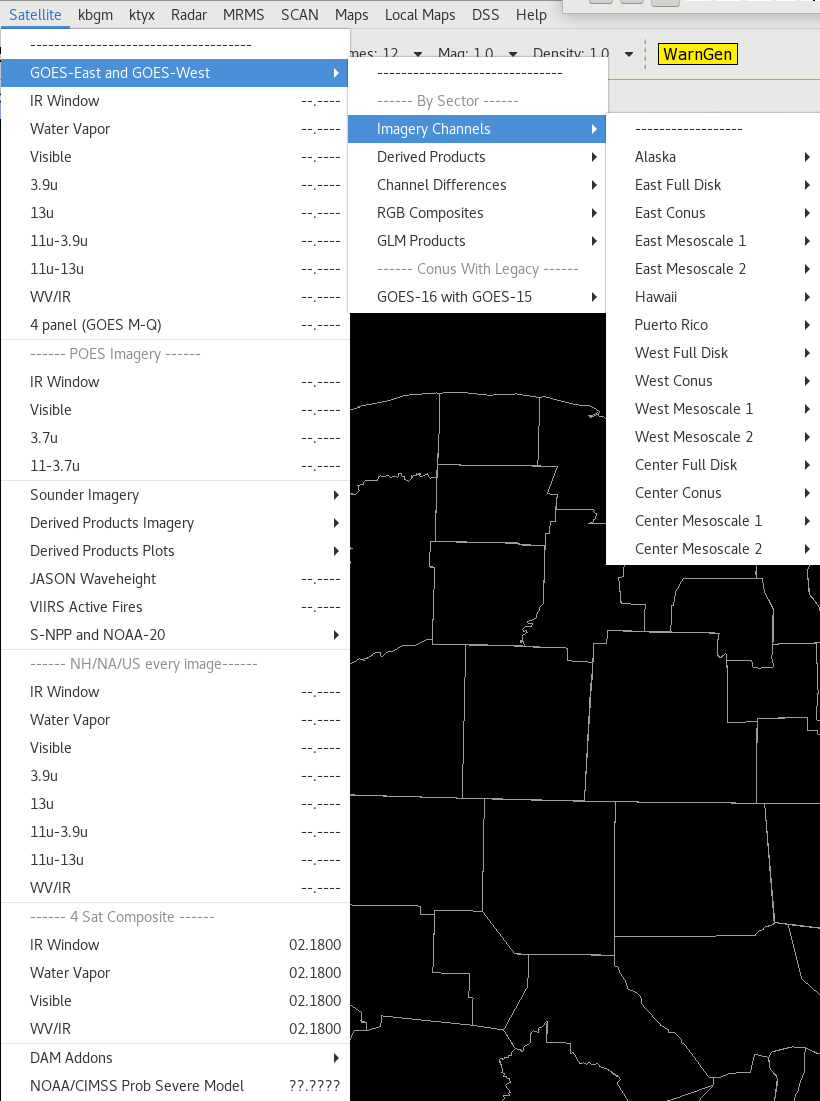
  • GOES-R
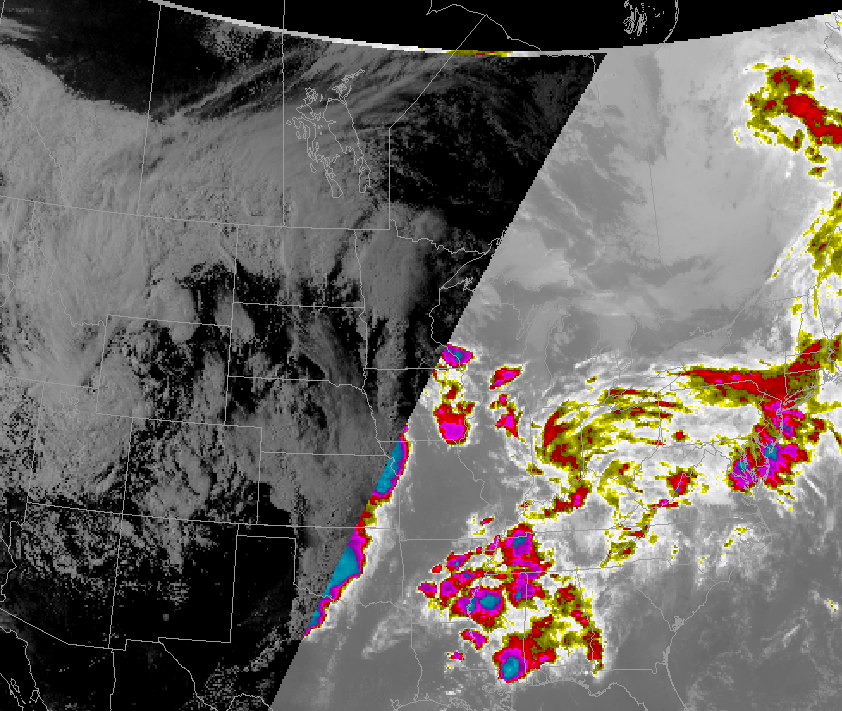
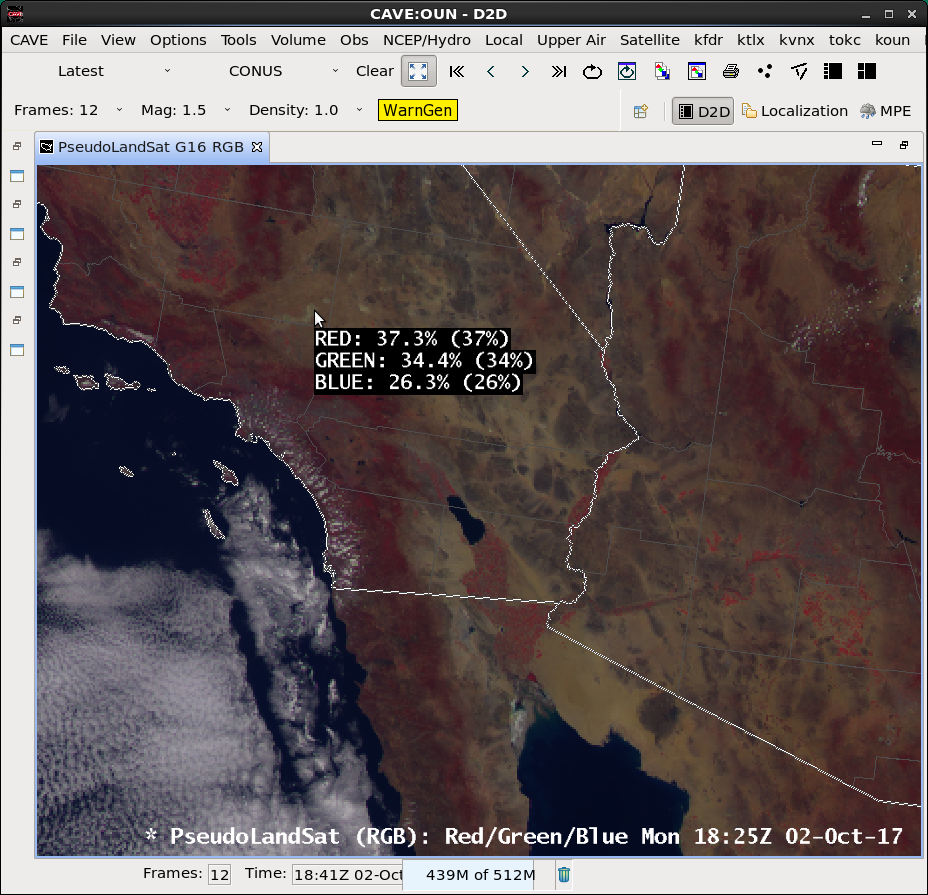
    • Improved sampling to include channel name and gamma setting
    • submenu re-organization
  • WarnGen
    • 0.75" hail changed from dime to penny sized in the template of the Significant Weather Advisory and Special Weather Statement
  • Unrestricted Mesoscale Analysis (URMA)
    • Hourly RFC Stage IV precipitation accumulation products have been added 
  • Misc
    • Significant Tornado Parameter (STP) loads from Volume Browser
    • Display regional flood advisories without issues
    • Time of Arrival Tool has no more "Unrealistic Point of Arrival" label for point and circular front

19.2.1

  • Climate perspective now operational
  • Radar
    • MRLE tab in VCP Change Request
    • MSL/AGL height cursor sampling of negative angles
    • Power Removed Control product replaces Clutter Filter Control
    • AMDA/Microburst product available on SAILS/MRLE scans
    • Alphanumeric supplemental data incorporated in the DSA product
  • IBW Flash Flood templates in WarnGen will be used in practice mode first before going operational
  • NSHARP auto updates and can loop upon loading when the loop icon is pressed
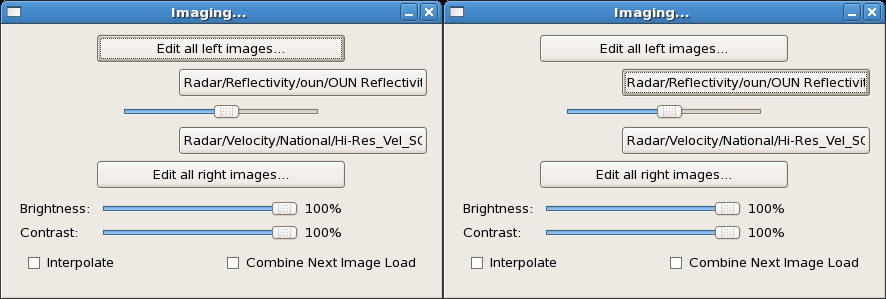
  • "Load as Image and Combine" feature in the product legend right click menu combines 2 image plots
  • MRMS Version 12 experimental feed menus 
    • baseline version 12 feed not expected until later in 2020, but offices can ingest experimental feed from LDAD before then
    • new baseline MRMS menus for QPE Multi Sensor Pass 1, Pass 2, and 60min lightning, and OCONUS subset
  • Model-derived wind chill units changed to Fahrenheit
  • Submenus maintain check boxes when torn off
  • FFMP basin trends plot forward in time for 1hr, 3hr, 6hr, 12hr, and 24hr plots
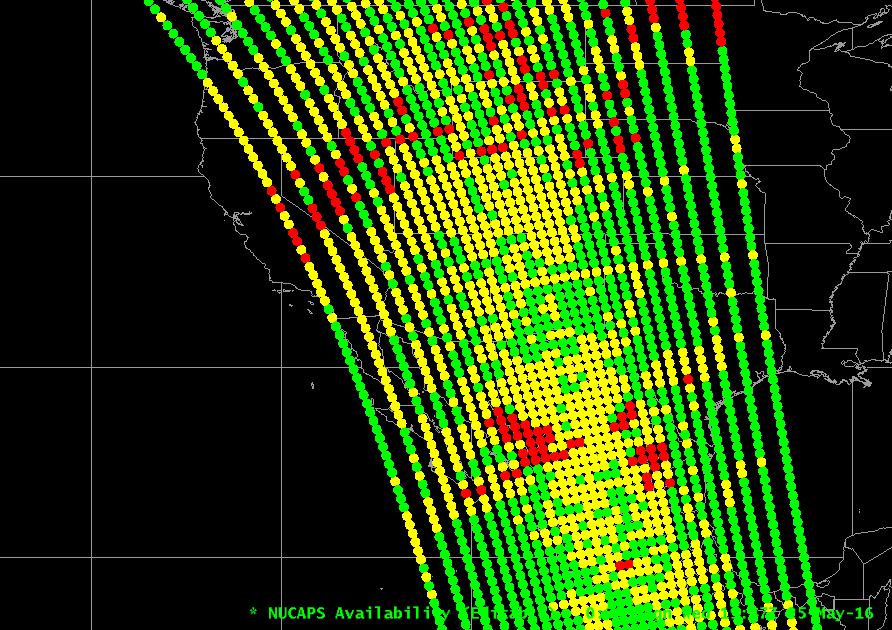
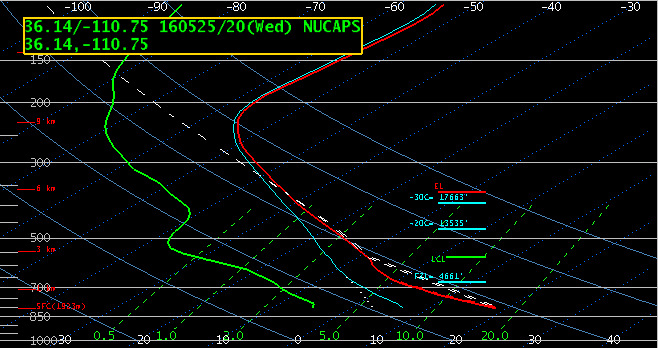
  • NUCAPS data can be plotted in plan view
     

19.3.1 (Note: Hazard Services is currently a standalone course taken after the main AWIPS Fundamentals)

  • Hazard Services hydro watch/warning/advisory generation is available in practice mode and then operational mode after major configuration and training
  • Distance Scale Tool: can change units to nautical miles and kilometers by right clicking on the legend text and selecting "units"
  • "Time match basis" legend option available for surface obs
  • NSHARP hail and tornado additions
    • Large Hail parameter - new addition to the parameter section of the NSHARP window to aid in hail forecasting
    • Vrot (button at bottom of NSHARP window)- estimate tornado intensity based on the radar derived rotational velocity value
    • HAIL (button at bottom of NSHARP window) - estimate hail size based on the Hail model and the Sounding Analog Retrieval System (SARS)
    • CondTOR (button at bottom of NSHARP window) - estimate tornado intensity based on the significant tornado parameter (STP) value
  • PGEN Static Overlay
    • Tool that allows you to overlay a PGEN graphic in CAVE and save it in a bundle
  • 19.3.3-15 and 19.3.4 have numerous DR fixes for Hazard Services and a few other applications)


20.2.3 

  • RiverPro Hazard generation discontinued
  • Hydro HazSimp becomes available 
  • IBW template changes 
  • Two, six, and nine-panel layouts are now available in CAVE (only 4-panel was available previously)
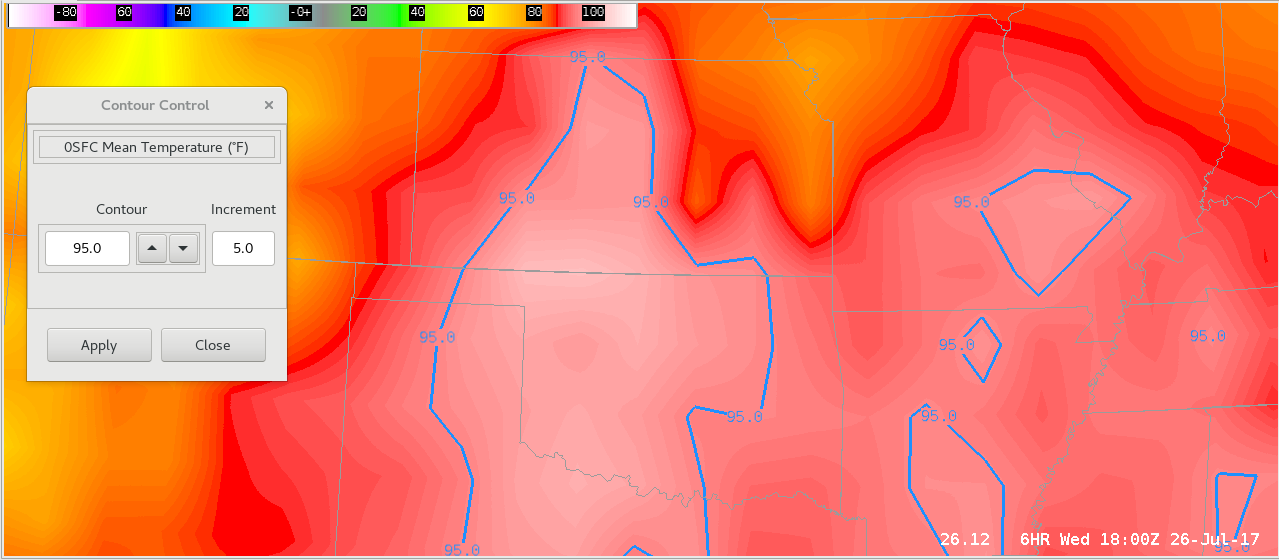
  • Custom contouring available. Contour style options can be adjusted with color, interval, range, smoothing, and line type via an override of d2dContourStyleRules.xml. Reference this Jobsheet for Custom Contouring
  • Faster looping options, now up to 30 frames per second. Reverse and refresh options also available
  • Can now load up to 3 previous model runs
  • -0.2 elevation scans are available for KGJX and KFSX. 0.2 elevation scan is available for KDLH.
  • Dual Pol raw data products are now restored in Data Quality menu for elevations below 0.5 degrees. 
  • FFMP Basin table loads properly
  • Frame number is displayed at the bottom of the CAVE window 
  • Reference on Product available in GFE, Hydro, and MPE perspectives


21.4.1 

  • Non-Precipitation Weather (NPW) and winter weather Hazard Services is added to the existing hydro (Hazard Services currently a standalone course taken after AWIPS Fundamentals)
  • CAVEs are now allocated 8GB of memory at WFOs and 31GB of memory at the National Centers
  • Ongoing LX workstation replacement is increasing video card memory to 5GB
  • Ongoing new monitor replacement is replacing 19" monitors with a 27" monitor that can be rotated
  • NSEA Digital Cursor Readout is now baselined for all sites
  • NSHARP tool from the Tools menu allows point and click loading on a map for upper air and bufrUA soundings
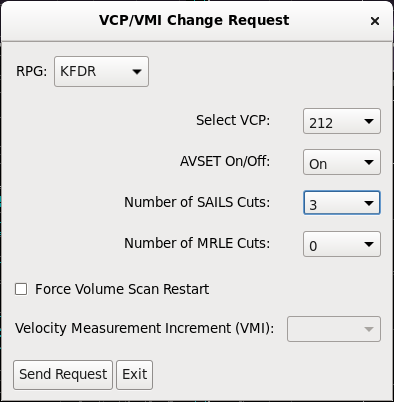
  • Velocity Measurement Increment (VMI) has been added to the VCP/VMI Change Request GUI for making RPG changes
  • New keyboard shortcuts for zooming in to larger multi-panel layouts
  • MRMS is on the SBN
  • Volume Browser radar menu now contains the local radars instead of a generic Radar source (note setting the Home tool to the radar location is no longer necessary except for Standard Environmental Data Packages)
  • Backup Services allows for new control sending and receiving localization files
  • Updated guidance on performance preferences settings in CAVE

23.2.1 

  • New multi-panel layouts available from right click in CAVE editor
  • Rain Rate Classification radar product
  • Canadian radar display (Canadian radar ingest has been paused due to transmission issues)
  • Legacy LSR application removed
  • SPC day4-8 probability of severe in NCEP/Hydro menu
  • NSHARP Tool from Tools menu now supports multiple soundings
  • AWIPS Interactive Reference searches working again
  • New D2D TAF display from Upper Air menu
  • GFE experimental HeatRisk product for all CONUS sites

How to Use this Guide

This VLab reader for AWIPS Fundamentals has several features which allow you to navigate through and customize your viewing experience.

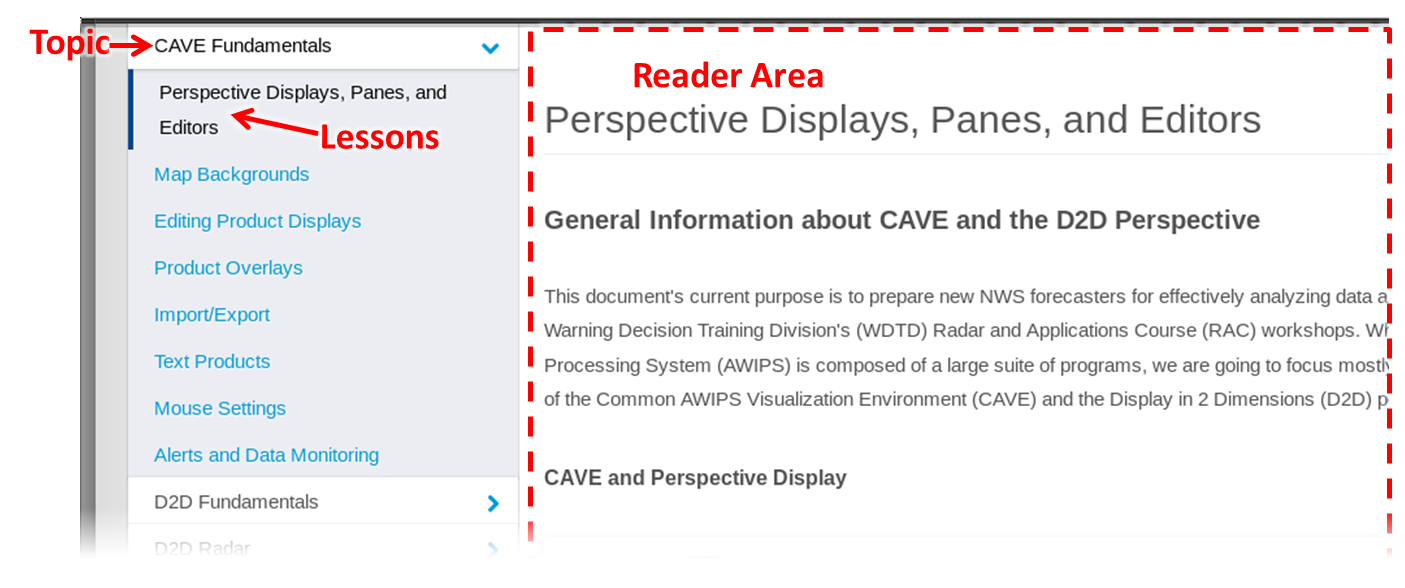
To view a lesson, click on the parent topic in the menu to the left, and then on one of the lessons in the expanded menu below it.  This will reload the page with your selected lesson loaded in the main reading area.

Basic navigation for the AWIPS Fundamentals VLab page includes a menu with topics and lessons, and a reader area for the selected lesson

You can also use the buttons in the bottom toolbar to move to the previous or next lesson in order.  A table of contents button in the middle of this lower toolbar displays an expanded view of the entire AWIPS Fundamentals reference, which you can use to click on any lesson to go directly to it.

The lower toolbar for AWIPS Fundamentals VLab viewer assist in navigating to the previous or next lessons, or with viewing the entire table of contents

There are several options for customizing the reader appearance, all located on the top toolbar.  Click on "Close Menu" to hide the left-hand navigation menu, and, if you need to bring it back, click on "Menu" in the same location on the upper toolbar to show it again.  If you'd like even more viewing space, use the "Fullscreen" button to the right of the upper toolbar (you can also maximize your browser window for even more space).  Finally, some viewers may prefer a dark background with light text, and this is what the "Night" option in the upper toolbar is for, with a corresponding "Day" button for turning off the night view once it's been enabled.

The upper toolbar of the AWIPS Fundamentals VLab viewer includes features for customizing the reader appearance

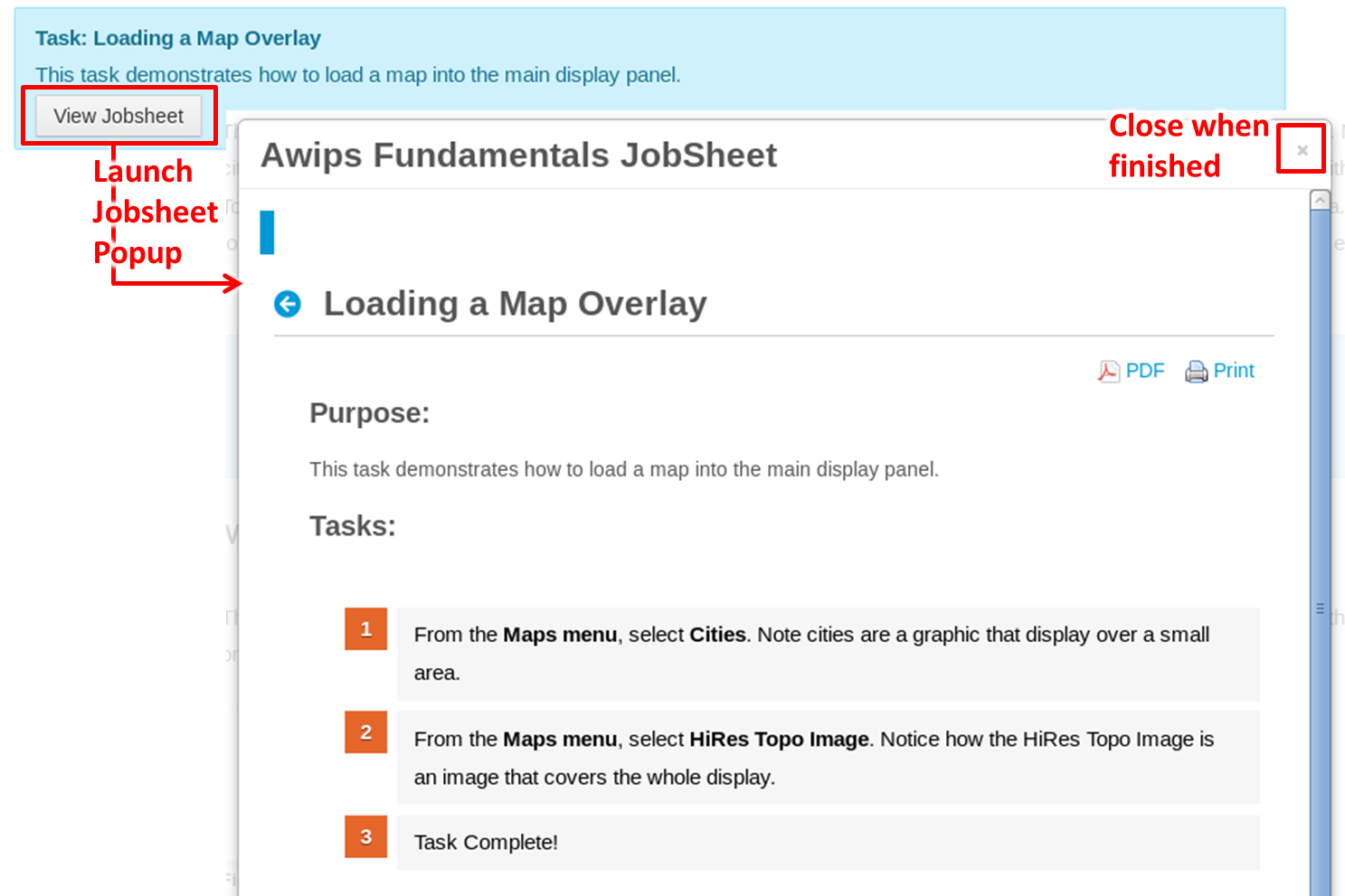
In some lessons, you will find one or more jobsheets.  These are to practice important AWIPS skills.  Click on the "Jobsheet" button to launch a popup window with these tasks.  When done, close the jobsheet with the upper-right "x" button.

Blue ribbons are jobsheets related to the current lesson. Click "View Jobsheet" to launch a popup viewer for those tasks, and use the "x" button to close this popup when complete.


D2D Applications

Last modified date: May 14, 2026

Table of Content

WarnGen

Last modified date:

This lesson provides some background information on WarnGen. While this lesson presents basic instructions, more details and examples are available in WES Exercise #6 (WarnGen).

These exercises are only to be completed on WES-2 Bridge and NOT a live AWIPS, to ensure no warnings are accidentally sent out.

Note: the WES-2 Bridge AWIPS Fundamentals case is currently being updated to support IBW, so if you access this page or any of the AWIPS Fundamentals WarnGen videos before the case is updated you will see slight different formatting.

Required WES Exercise #6 (WarnGen)

Setting Up the Main Display Panel Prior to Loading WarnGen

The primary tool in AWIPS for issuing short-term non-hydrological warnings and follow-up statements for things like severe thunderstorms, tornadoes, marine, dust, etc. is the application called WarnGen. Hydrological products are currently issued using Hazard Services which will be covered in a future course update. WarnGen proficiency is critical to support effective warning operations. Prior to using WarnGen, you should configure a map editor in the D-2D perspective to use in conjunction with WarnGen, ideally with a procedure (see RAC Procedures Download Page). WarnGen can be loaded within a procedure bundle or after the bundle is loaded.  In the map editor, you want to load useful product(s), relevant maps, and the optimal number of frames prior to starting WarnGen.  

WarnGen Drag me to storm loaded on a 12 frame loop of Z/SRM8 with reduced 63% brightness and overlays of warning polygons, cities, counties, county names, interstates, Bunkers Right/Left motion vectors and 0-6km shear vectors.

Map Editor Tips

  • Keep the frame count at or below the default frame count of 12 (many use 6 frames). In WarnGen you are usually focused on the most recent data.

  • Load the phenomena-specific products (and maps) in the display panel used to generate the warning. For short-fuse severe convective-warnings, an ideal starting product is a 0.5 Z and SRM or V combination with Bunkers right/Bunkers left/0-6km shear vectors on top of cities, counties, and roads.

  • In general do not use an all tilts or four-panel products in the same display panel with WarnGen. It can be easy to lose track of WarnGen or storms requiring warnings outside of the current view when using all tilts or four-panel layouts. All tilts may not have enough time steps needed for tracking.

  • Reduce clutter and only load useful maps and products. Right click in the map editor and select Hide Legends to get rid of verbose text legends (or cycle using the Enter key on the keypad), leaving just the time stamp. You can also toggle off any overlays by clicking on their text legends, but hiding legends is more efficient.

  • In general, limit number of WarnGen displays on a workstation to one or maybe two in rare circumstances. Having multiple WarnGen windows can lead to confusion on what has been issued and at what step in the process the warning is in when analyzing data across multiple panes and multiple monitors. One WarnGen per monitor should suffice most of the time.

Starting WarnGen and Using the WarnGen GUI

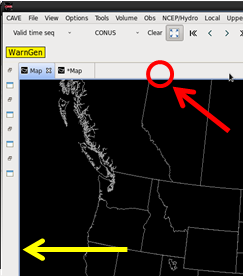
The yellow WarnGen button in the CAVE D2D toolbar

The WarnGen application can be used with any D2D standard map editor and can be run on multiple displays simultaneously. The yellow button that launches WarnGen is located in the upper right-hand side of the D2D perspective in CAVE.

Once WarnGen is started, the "Drag me to storm" WarnGen storm centroid marker appears in the center of the main display panel (see map editor image above), and the WarnGen GUI will appear in a separate window. You will configure WarnGen for a particular type of warning before you track the storm and then "Create Text" in the last step. To get an idea of how WarnGen is used for issuing severe thunderstorm and tornado warnings, here is a list of the general steps involved after loading WarnGen on a CAVE editor with appropriate radar data:


WDTD 10 Steps to Issue Severe Thunderstorm/Tornado Warnings and Statements

  1. Select the warning product type
  2. Check the duration and potentially change
  3. Place the "Drag me to storm" point or line on the threat to be tracked
  4. Track the threat and check your storm motion
  5. Create and/or trim the warning polygon (use Track button and Warned Hatched Area button)
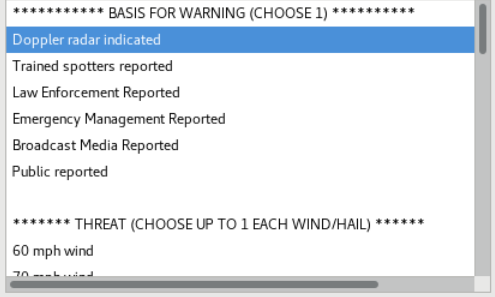
  6. Select the source (basis) and any corresponding tags like a considerable tornado tag
  7. Select the hazards/intensity and calls-to-action
  8. Create text, quality control, and send the product
  9. Hit restart to deselect the warning and start the "Drag me to storm" over
  10. Write down the warning information (ETN, type, expiration, etc.) on your tracking sheet

While the layout of the main WarnGen GUI is relatively intuitive, there are lots of options and product-specific behavior that require context-specific practice to master. The rest of this page will introduce a comprehensive overview of functionality that you are not expected to memorize. This can be a good reference as you learn the nuances of WarnGen. Because the interface is customized at every site, expect to see some differences in the interface from the images used below.

The jobsheets at the bottom of the page and the WES exercises focus on relatively simple proficiency of issuing a warning and a follow-up statement. Creating effective warnings will be addressed in later parts of the Radar and Applications Course (RAC) including the workshop primer and RAC workshop. More training on effective warnings is also provided in the Warning Operations Course (WOC). 

The WarnGen GUI that floats above CAVE.

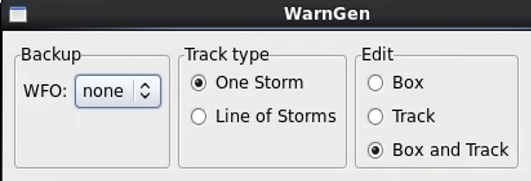
The Backup, Track type, and Edit entries at the top of the WarnGen GUI.

Backup: Use this to select service backup sites when backing up an office.

Track type: Use this to select the single storm tracking (dot tool) and line of storms tracking (line tool). 

Edit box: Sets the editable properties of the box and track with default box and track. This is not commonly changed.

The Track button, Warn/Hatached Area button, Dam Break Threat Area button, and Warned Area Visible checkbox.

Redraw Box on Screen from: Use these buttons and toggle to preview polygon area characteristics associated with tracking changes and clipping rules.

  • Track: In most severe weather circumstances you want your polygon to be redrawn based off changes with your manual tracking of the threat. You must click on the track button after you are done tracking a storm for the polygon to be redrawn from your track. 
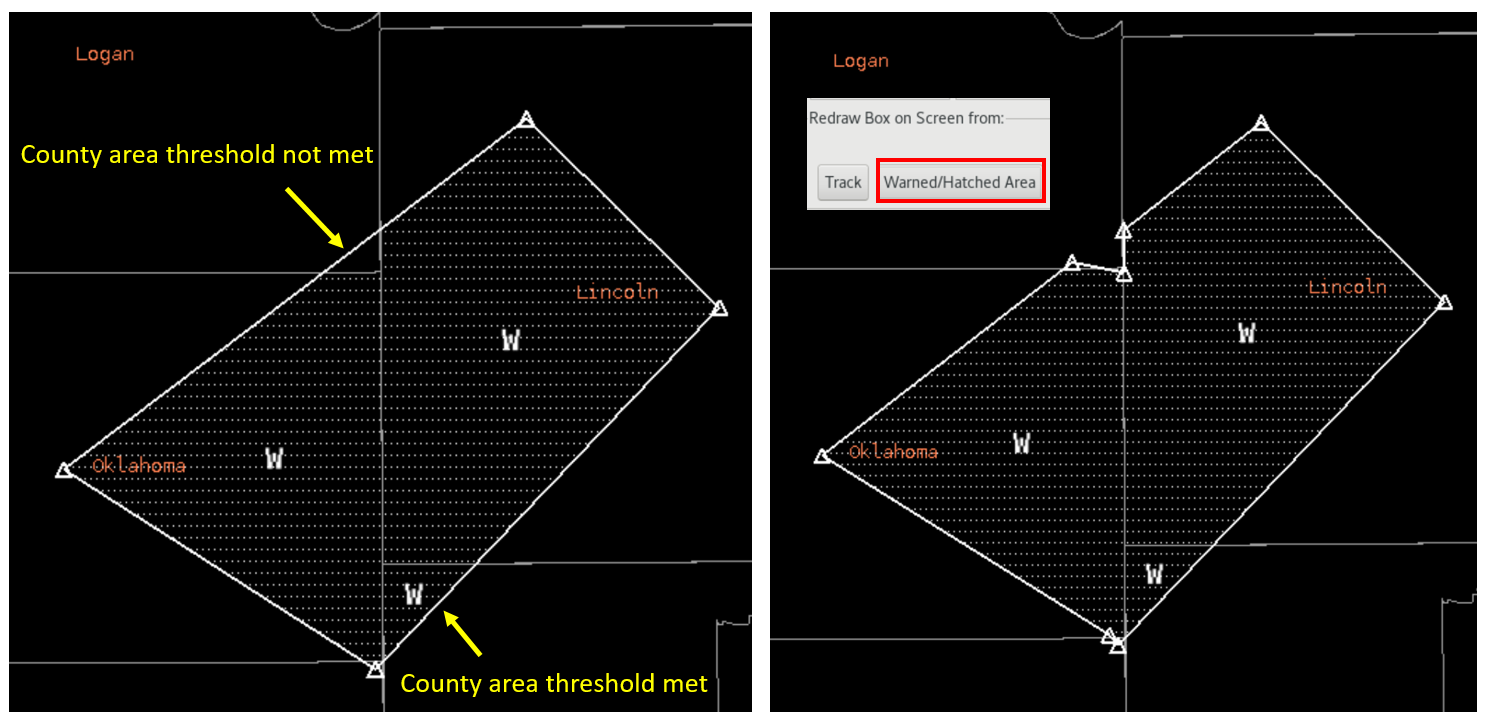
  • Warned/Hatched Area: This button is commonly used to preview the polygon clipping rules that will be applied prior to sending the warning, so the forecaster can then make edits if appropriate. Polygons are automatically clipped to less than 20 vertices based off the county warning area and locally-configured polygon and county overlap thresholds tuned to local county sizes. The polygon area % values are typically 0-5%, and the area square mile thresholds are typically 0-15 square miles. There are also marine/land overlap settings (e.g. 5 miles overlap) that allow land or marine products to extend slightly beyond their native land or marine areas.

    Counties included in the warning are annotated with a W overlay (see image below). The hatched areas indicate valid areas under the clipping rules (assuming the Warned Area Visible checkbox is selected as is the default). The clipping rules and polygon simplification are enforced when you click on the "Create Text" button. Right clicking on a county can in some instances be used to add or remove the county and corresponding W and hatching when allowed, but you should always click on the Warned/Hatched Area button to preview changes to determine if further modification is needed.Warned/Hatched Area button previewing the clipping routine for polygon area overlapping county. Hatching indicates valid area in the warning and Ws indicate counties included in the warning.(click to zoom image)
     
  • Dam Break Threat Area: Your office can create preset threat areas for things like airport weather warnings where you can select pre-configured polygons for some warnings. Note while dam breaks are facilitated by Hazard Services, this button is still used in WarnGen in a generic sense to access pre-configured polygons. See your local WarnGen focal point for more information on whether you have any preset threat areas.
  • Warned Area Visible: This checkbox (default is on) hatches the area inside the polygon. Paying close attention to your hatched area is very important to understand when your partial county area clipping thresholds have been met.

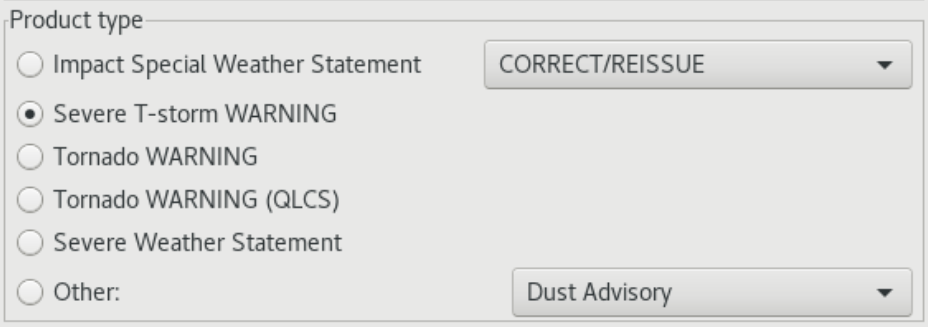
The Product type section of WarnGen.

Product Type: For the most part, WarnGen is product-type driven which is fundamentally different from other applications like Hazard Services which is threat area-driven (covered later).  Selecting product type is usually one of the very first steps, before dragging the dot or line to the storm and tracking. The product type list is configured locally to include the most frequent used products at that site in the main WarnGen GUI. The general workflow for severe weather is to issue new warnings or text corrections of new warnings by selecting the warning product type (e.g. Severe T-storm WARNING). 

Severe weather statements are used to follow up the content of severe thunderstorm and tornado warnings with new information on location/expected threat/timing/reports, but severe weather statements cannot be used to increase the area of a warning. Clipping will snap it back on you. Severe weather statements should be issued multiple times during the warning when there is new information to pass along. With each update the threat should be tracked to provide a new location/timing, and the polygon should be trimmed back. New warnings should be drafted 10min before the warning expires and issued to ensure adequate lead time for areas downstream as well as no drop off in coverage.

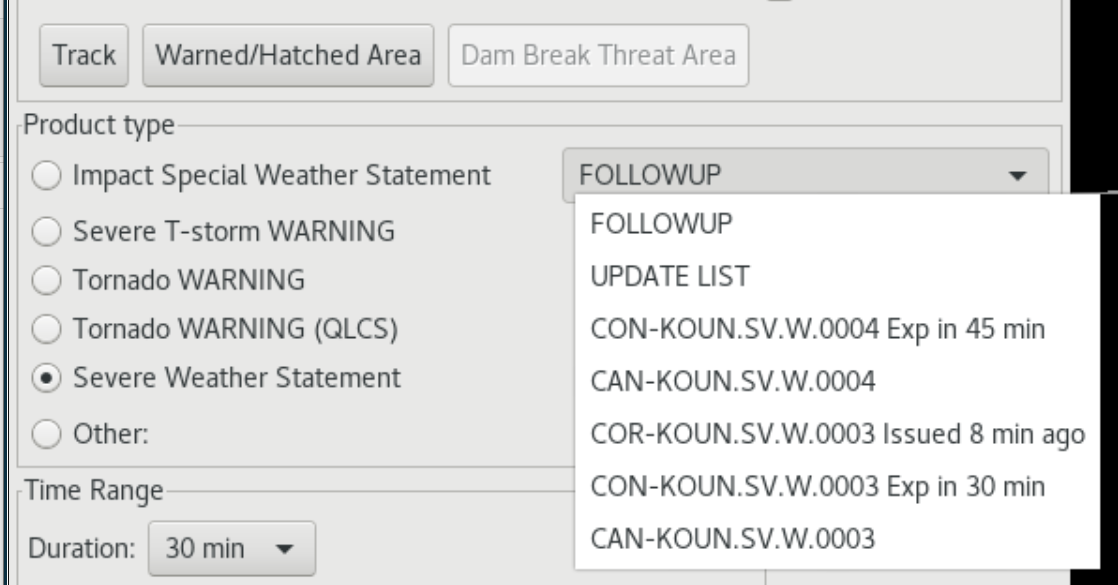
The "Other:" radio button product type at the bottom of the Product type section allows you to enter the submenu to select less commonly-used products not on the main GUI. The pullout menu in the upper right is where the user selects different VTEC actions (see image below) allowed for following up the selected product type. The VTEC actions are organized by product type and Event Tracking Number (ETN), so the forecaster must keep track of their warnings, ETNs, and when warnings expire. 

The pulldown menu in the top of the Product type section showing VTEC actions allowed for the Severe Weather Statement selected.

  • VTEC Actions
    • CON - The continue option is only available until 5 minutes prior to the warning expiring, then it disappears. CON is facilitated using a severe weather statement. If you trim back your polygon to no longer include a county and continue another, you will receive a CON segment and CAN segment in your warning.
    • CAN - The cancel option is only available until 10 minutes prior to the warning expiring, then it disappears.
    • COR - The correction option is only available in the first 10 minutes after the warning is issued and is intended for correcting typos, not major changes to the warning. Vertices are locked with a COR. Significant changes to area or content is supposed to be facilitated using the appropriate follow-on statement. 
    • EXP - The expire option is only available to the severe weather statement starting 10 minutes prior to a severe/tornado warning expiring and up to 10min after the warning has expired. Use this to inform when the threat has weakened or moved out of the area when a CAN has not been issued.
    • EXT - This is not available for severe and tornado though some offices may be in transition to using Hazard Services and might have this set up for hydro. The option for flash flood and areal flood products to reissue the same polygon (vertices locked) as an extension in time with the same VTEC information is available after the warning is issued until 5 min before warning expires.
    • NEW - New warning option appears 20 min prior to warning expiring and persists for 30 min after warning expires in case the polygon is to be reused (uncommon).

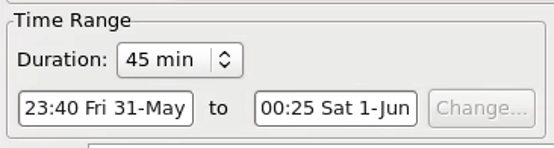
The Time Range section where the Duration is selected.

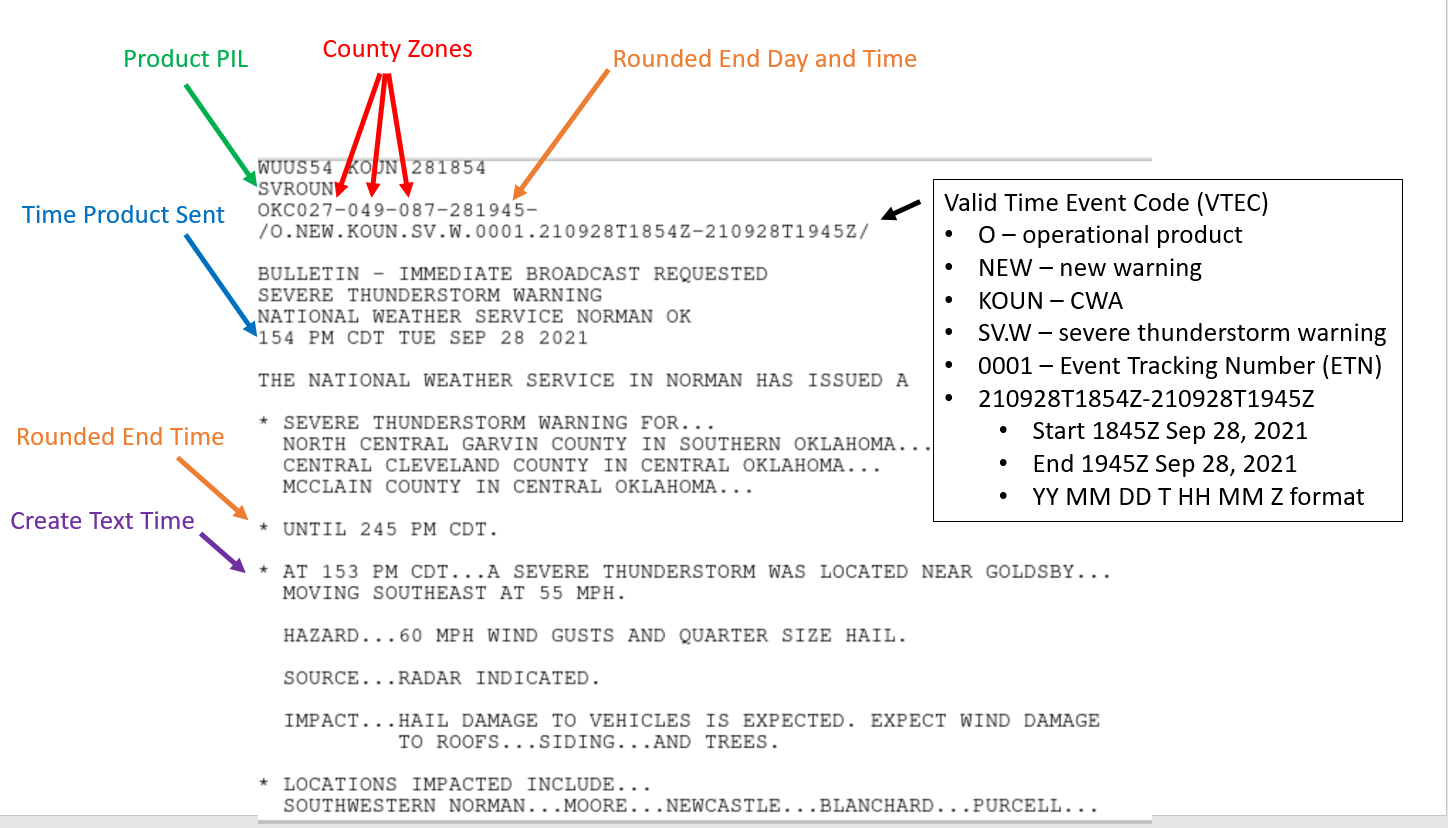
Time Range: WarnGen is duration driven where the timing of the warning is determined from the duration choice of the forecaster. The start and end times are updated automatically when the Create Text button is pressed, and the start time only is updated when the warning is issued. The first guess start and end times for the duration selected update every minute in the WarnGen GUI, but the actual end time will be rounded to the nearest 15 minute interval when you hit the Create Text button.

The official start time of the product in the VTEC header and top of the warning is when the warning is sent (see image below) while the time in the basis bullet comes from when the Create Text button was pushed. This allows you to begin drafting a warning and then quickly issue it, though you need to pay careful attention to the details of your areas and times to make sure they are consistent as well as valid. The rounded end times are not updated when the sent button is pushed, so it is not a good idea to enter the warning text and keep that open for a long period of time before sending.

Severe thunderstorm warning product with VTEC header, Create Text time, product sent time, and the rounded end time.

WarnGen GUI main area the forecaster uses to select basis, threat intensities, calls to action, etc.

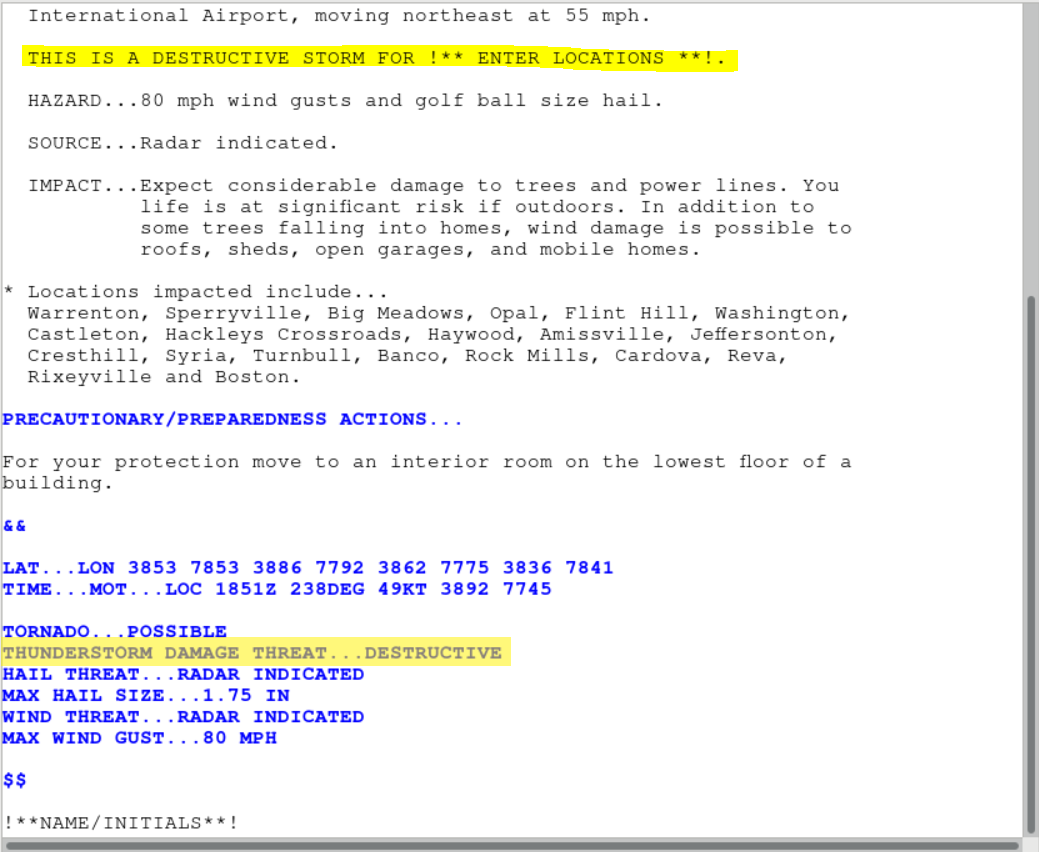
Main WarnGen Content Selection Window (with scrollbar): Most of the details of the warning such as basis (e.g. radar or spotter indicated), threat (e.g. golf ball hail), additional reports, locations impacted, and calls to action are selected in the main section on the bottom of the WarnGen GUI with a scroll bar. Selections such as additional reports will include framed text with !** and **! to identify where text needs to be replaced before the warning can be issued.

Warning with framed text that needs to be updated before the warning can be sent.

The THREAT selections for hail size and wind speed will trigger unique IMPACT sections of severe thunderstorm warnings. The hail threat has no impact on tornado warning IMPACT statements (note there is no wind threat option for tornado warnings).

Hail

  • 7/8"
    • IMPACT...!**YOU DID NOT SELECT ANY SEVERE WIND OR HAIL THREATS.
                 PLEASE CLOSE THIS WINDOW AND RE-GENERATE THIS WARNING!**!
  • 1-1.25"
    • IMPACT...Damage to vehicles is expected.
  • 1.5-2.5"
    •   IMPACT...People and animals outdoors will be injured. Expect
                 damage to roofs...siding...windows...and vehicles.
  • 2.75-4"
    • IMPACT...People and animals outdoors will be severely injured.
                 Expect shattered windows...extensive damage to roofs...
                 siding...and vehicles.

Wind

  • 60mph
    • IMPACT...Expect damage to roofs...siding...and trees.
  • 70mph
    • IMPACT...Expect considerable tree damage. Damage is likely to
                 mobile homes...roofs...and outbuildings.
  • 80mph
    • IMPACT...Flying debris will be dangerous to those caught without
                 shelter. Mobile homes will be heavily damaged. Expect
                 considerable damage to roofs...windows...and vehicles.
                 Extensive tree damage and power outages are likely.
  • 90mph
    • IMPACT...You are in a life-threatening situation. Flying debris
                 may be deadly to those caught without shelter. Mobile
                 homes will be heavily damaged or destroyed. Homes and
                 businesses will have substantial roof and window damage.
                 Expect extensive tree damage and power outages.
  • 100mph
    •   IMPACT...You are in a life-threatening situation. Flying debris
                 may be deadly to those caught without shelter. Mobile
                 homes will be destroyed. Expect considerable damage to
                 homes and businesses. Expect extensive tree damage and
                 power outages.

Tornado

  •   IMPACT...Flying debris will be dangerous to those caught without
               shelter. Mobile homes will be damaged or destroyed.
               Damage to roofs...windows...and vehicles will occur. Tree
               damage is likely (Base Tag).
  • IMPACT...You are in a life-threatening situation. Flying debris
               may be deadly to those caught without shelter. Mobile
               homes will be destroyed. Considerable damage to homes...
               businesses...and vehicles is likely and complete
               destruction is possible (Considerable/Catastrophic Tags). 
  • IMPACT...Expect damage to mobile homes...roofs...and vehicles.
               (Landspout/Very Weak Tornado)         

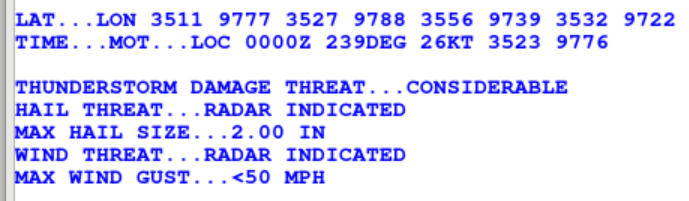
Severe thunderstorm warning IBW tags.

The hail and wind threats also will trigger:

  • "max hail size" IBW tags
  • "max wind gust" IBW tags
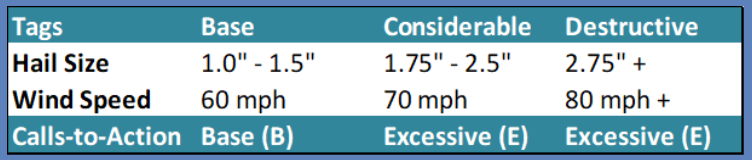
  • considerable "thunderstorm damage threat" tags for hail 1.75"-2.5" and wind 70mph
  • destructive "thunderstorm damage threat" tags for hail 2.75"+ and wind 80mph+

Note: The tornado possible option in a severe thunderstorm warning will also trigger a "tornado" tag (e.g. TORNADO...POSSIBLE).

Base (B) and excessive (E) Calls To Action (CTA) are also chosen in the main WarnGen entry window to supplement messaging. Here is a summary of the potential CTAs for severe at the forecaster's discretion along with the impact statements generated automatically by WarnGen.

Instructions section with tips on what can be done at this time.
Instructions: The instructions section provides some tips on what can be done in WarnGen in the current state.

Create Text, Restart, and Close buttons on the bottom of the WarnGen interface.

Create Text, Restart, Close: The Create Text is the very last step in the process for WarnGen. All product specification in the GUI and all polygon edits need to be completed before pressing Create Text. Clicking Create Text will launch a text editor if the Text Workstation is loaded. The Restart button will clear the display and restore the Drag me to storm dot. Restarting WarnGen after sending the warning or when WarnGen has a rare unusual problem is a best practice to ensure a clean start of a new product while avoiding accidentally updating the last product sent. The Close button will close the WarnGen window and make the application not in the editable state. After using the Close button you can make WarnGen editable by middle clicking on the WarnGen text legend or right clicking on the WarnGen text legend and selecting Editable. Once WarnGen is editable it will always pop up when the CAVE editor containing the editable WarnGen is clicked.

WarnGen Workflow Tips

The basic workflow in WarnGen is to enter the metadata for the warning in the WarnGen GUI first, then track your storm and adjust the polygon, and lastly to click Create Text. More WarnGen philosophy is provided in the convective storms topic and at the RAC workshop, but here are some general WarnGen workflow tips for future reference:

  • Tornado Overtaking Severe Warnings - Tornado warnings generally cover tornado and large hail threat while attempting to limit false alarm area unless there is a large separation between the two and separate but slightly overlapping severe thunderstorm and tornado warning polygons are possible. When issuing a tornado warning over a severe thunderstorm warning, the severe thunderstorm warning is not canceled because that can cause confusion and mixed messaging. The severe thunderstorm warning is typically allowed to expire and not reissued if the area is covered by the tornado warning.
  • Polygon Areas Adjustment - The default polygon in WarnGen is intended to be modified by the forecaster to anticipate uncertainty in threat movement and include or exclude cities. Large polygons can unnecessarily warn those who don't have a significant threat, and small polygons can cause areas to not be warned or require sliver warnings to cover threats that move outside the polygon (remember polygons can never be increased in size). Good polygons start with identifying the current threat area and extending that based off tracking and forecaster experience. The Bunkers right and left motion vectors can be useful in anticipating deviate motion of the threat area for right and left moving supercells. More training on this is provided in the RAC course including the primer and workshop.
  • One Storm Tracking - Start dragging your dot to the trackable threat on the most recent frame.  Then step back 3-4 frames from the last frame of the loop before moving the dot. WarnGen creates a linear estimate from the last two positions modified and using more frames provides better motions. Moving the dot on successive frames tends to generate erratic storm motions. Click the Track button to preview the track and click on Warned/Hatched Area to preview clipping, then trim accordingly. Watch out for clipping counties and cities not likely to experience significant threat.
  • Line Storm Tracking - Start dragging the line to the trackable threat on the most recent frame. Then add extra vertices (middle click on line or right click and Add Vertex) to allow fitting the line to the threat. When you have the shape fit to the feature on the most recent frame, then step back 3-4 frames and drag the line tool by grabbing the line (not the vertices) with a left click and hold and dropping it on the best fit location for the feature being tracked. Avoid the urge to tweak the vertices on the older frames of data as that will not likely fit on the most recent frame. Step through the loop and ensure you end on the threat on the most recent frame and that you are roughly tracking the line. If you need to further adjust the line tool location, do so very carefully and sparingly on the most recent frame or 3-4 frames ago. Click the Track button and then Warned/Hatched Area button to preview the track and clipping and trim accordingly. Watch for clipping counties and make sure to extend the threat back behind the line to cover threats behind the leading edge.
  • Duration Choice - Severe thunderstorms are typically configured to default to 45min and tornado warnings to 30min. Consider going with longer warnings (e.g. 60min severe and 45min tornado) with persistent high confidence events where you are consciously trying to provide more lead time. Longer warnings can lead to more false alarm area and polygon update problems if storms do not behave as forecasted or your tracking is not good. Shorter warnings are ideal for low confidence events where you can manage more frequent updates or events like a storm leaving a CWA border.
  • Add/Remove Vertices - Middle click on the polygon to add vertices and fit the shape of the threat better or right click and hold and select Add Vertex. Right click and hold on vertices and select Delete Vertex to remove a vertex.
  • Hide Legends - Right click on the background and select Hide Legends (or cycle legends using the Enter key on the keypad) to get rid of verbose overlays if they are cluttering your display.
  • Additional Reports - Use the Additional Reports option in WarnGen to add reports in a standard location. Manually type in the time of the report in that section of framed text along with the specifics of the report and location. Note that the time of the report many times is different than the time you hit Create Text and the corresponding basis statement lead in phrase. Ensure the language accurately reflects the time of the WarnGen tracking and the report separately if they are not the same time.
  • Tip of the Arrow - WarnGen shows where the threat being tracked will be at the end of the warning using an arrow at the end of the track. A little extra polygon buffer at the end of the track is provided with the Track button to account for some degree of motion uncertainty.  When you have accurately tracked the leading edge of the threat and the storm is well behaved, you can trim the end of the polygon closer to the tip of the arrow. If there is significant threat ahead of what is tracked (e.g. large hail preceding a tornado being tracked), then you should factor where that would be at the end of the warning beyond the tip of the arrow.
  • Clipping
    • WarnGen is constrained by policy to reduce polygons to 20 vertices and clip to county warning area borders. It also supports local-offices to configure how much polygon area overlap with a county will trigger inclusion in the automatic clipping logic. There are both area percentage thresholds (typically 0-5%) and fixed area thresholds (typically 0-15 square miles) that can be used in different combinations to improve the clipping in small and large-county CWAs. While storm-based warnings is theoretically intended to be agnostic toward geopolitical borders, county inclusion can unfortunately cause confusion in messaging warning products and sometimes undesired responses. For instance, some emergency managers still key off the county inclusion and not the polygon for sounding tornado sirens. Therefore, it is a general best practice to avoid clipping counties on the edges of the warnings where the threat is much less likely, particularly when impacting large metro populations.
    • Low Area Thresholds and Removing Counties
      • If your office has configured a low threshold, then any slight overlap can trigger county inclusion. To watch for including too many counties you should pay attention to the Ws indicating counties being included in the warning as well as the hatched area indicating the local clipping logic. It is also important to read your list of counties in the warning before sending the warning. Once you have identified a county you want to exclude, you can manually adjust your vertices (moving or adding/removing) until the W and hatching disappears from the county, or you can right click on the county to remove the county/hatching/W and then preview the clipping with the Warned/Hatched Area button.
    • Higher Area Thresholds and Adding Counties
      • If your office has configured larger thresholds for county overlap then some combination of area percentage (typically 1-5%) or area (1-15 square miles) will prevent county inclusion in areas you wish to include. If you need to include a county that is failing to be included because the area overlap is below the local clipping threshold, then your only recourse is to adjust your vertices (moving or adding/removing) to increase the area in that county until the hatching and W triggers.
    • Marine Extension Area Thresholds
      • WarnGen allows offices to specify the distance polygons can extend beyond complex coastlines (e.g 5 miles), and it allows the minimum distance between two vertices to be set to simplify the vertices reduction. The configuration works for both land and marine products. Polygon simplification is tough along complex county borders and marine areas, and mitigating undesirable clipping is typically facilitated by adjusting/adding/removing vertices and previewing the clipping logic using the Warned/Hatched Area button by trial and error.
  • Impact Based Warning (IBW) Philosophy
    • Severe thunderstorm warnings
      • The IBW tags for severe thunderstorms are derived from the forecaster-selected threat intensities, source (radar indicated or an observed basis), and whether the tornado possible tag is selected:

        IBW tags for severe thunderstorm warning.

      • TORNADO...POSSIBLE tag - select in WarnGen GUI if tornado likelihood is increasing but is still below threshold for issuing a tornado warning
      • THUNDERSTORM DAMAGE THREAT tag - CONSIDERABLE or CATASTROPHIC based on the user-selected threat intensities

        Hail and wind intensities and calls to action related to Base, Considerable, and Destructive categories.

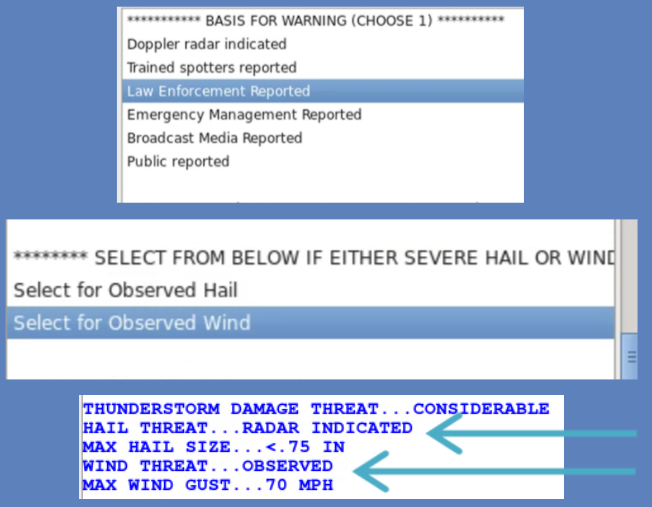
      • HAIL THREAT tag - RADAR INDICATED or OBSERVED based on the basis selection and the "Select for Observed Wind" or "Select for Observed Hail" option
      • MAX HAIL SIZE tag - comes from the user-selected hail size
      • WIND THREAT tag - RADAR INDICATED or OBSERVED
      • MAX WIND GUST tag - comes from the user-selected wind speed
      • Tip - Most IBW tags flow from the selections, but the one thing the forecaster needs to manually select is when there was either observed hail or observed wind:

        The 'Select for Observed Wind' choice changing the WIND THREAT to OBSERVED with HAIL THREAT RADAR INDICATED.

    • Tornado warnings
      • The IBW tags for tornado warnings are derived from the forecaster-selected damage threat, source, and max hail size selected:
        • TORNADO - RADAR INDICATED or OBSERVED from forecaster selected basis
        • TORNADO DAMAGE THREAT - CONSIDERABLE or CATASTROPHIC from forecaster selected choice
          • The IBW tags for considerable tornado and catastrophic (A.K.A. tornado emergency) tornado are manually selected by the forecaster unlike severe thunderstorm warnings that follow from the forecaster-specified intensity thresholds.
        • MAX HAIL SIZE - from forecaster selected hail size
      • There is a special basis for tornado warnings when a Tornado Debris Signature (TDS) is observed which can confirm a tornado in the absence of tornado reports.
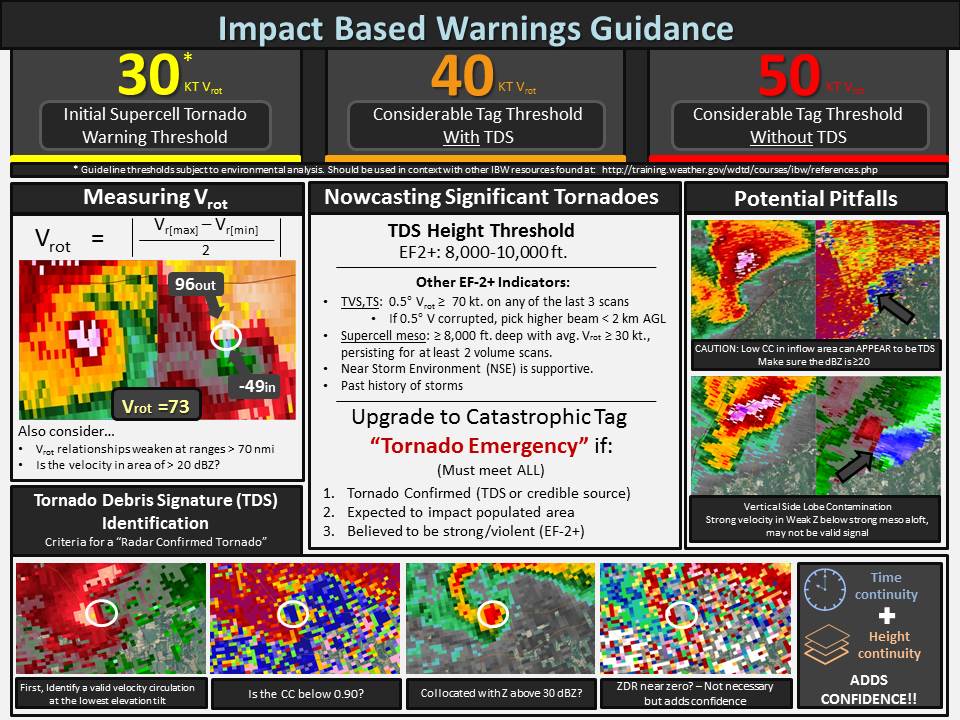
      • WDTD recommends strongly considering issuing tornado warnings with rotation velocities of 30kts or greater in environments favorable for tornadoes when the Significant Tornado Parameter is >0. An upgrade to considerable is appropriate when rotational velocities exceed 50kts or 40kts with a TDS.
  • Trimming Cities
    • The cities in the list should follow from the polygon. To remove isolated cities not in the track, the polygon should not intersect the WarnGenloc map file. You can load WarnGenlocl from the map menu if you can't understand why a city is or is not included. If you have too many cities in large urban areas, trimming the city list to well known cities is appropriate.
  • Limiting Counties
    • Large numbers of counties should be avoided in warnings in order to limit false alarm area and be able to effectively follow up warnings with observations and information relevant for the area covered. This is more of a problem for large wind-driven events. One strategy is to break up large areas of the line into slightly overlapping segments. Too many polygons can be difficult to maintain, so there is a happy medium that is dependent on many things including workload.
  • Pathcast
    • The option in WarnGen to include detailed time of arrival using pathcast is difficult to use effectively because the timing of the point tracked with nuances in areas of cities and how people interpret this information. WDTD recommends this not be used by default, and if you choose to use it, pay particular close attention to the tracking and timing details.

WarnGen can be used to quickly issue warnings and follow-up statements in the time pressure of warning operations, and developing proficiency takes experience. While there are many things to potentially consider when making storm-based warning polygons, it is important to recognize that ultimately warning decisions need to be executed quickly. As you initially develop proficiency for warning operations, start with the basic principles of being able to relatively quickly track a storm and issue updates. You can improve polygonology over time, but you don't want to spend too much time on small details that can put you behind a busy warning shift. The proficiency for this initial training on WarnGen will be relatively simple warning creation and follow ups. Much more training is provided later in the RAC training and primer/workshop, so adjust your expectations accordingly.

Note: WES-2 Bridge is currently being updated on field machines to support IBW severe format warnings, so some of the labels may be slightly different in the jobsheets and WES videos until this is done.

Task: Starting WarnGen and Generating a Severe Thunderstorm Warning
This task demonstrates the basic steps of starting WarnGen in the D-2D perspective and creating a severe thunderstorm warning. Other WarnGen exercises are also available for use on your local WES machine using WES Exercise #6 (WarnGen).
NOTE: This task is only to be completed on WES-2 Bridge and not a live AWIPS, to ensure no warnings are accidentally sent out.
View Jobsheet


Task: Following Up a Severe Thunderstorm Warning With a Severe Weather Statement
This task demonstrates the basic steps of issuing a severe weather statement follow up to the severe thunderstorm generated in the previous task. This task is only designed for the WES-2 Bridge workstation and not a live AWIPS, to prevent accidental submission. Other WarnGen exercises are also available for use on your local WES machine using WES Exercise #6 (WarnGen).
View Jobsheet

FFMP

Last modified date:

This lesson presents information on the Flash Flood Monitoring and Prediction (FFMP) application. This includes a synopsis of the High-resolution Precipitation Estimator (HPE) and the High-resolution Precipitation Nowcaster (HPN). While this lesson presents the basics, more detailed tasks and examples are included in WES Exercise #7(Flash Flood Monitoring and Prediction) on your local WES-2 Bridge machine. RAC will also provide substantial training on FFMP and its inputs, and this lesson is intended to cover the basic procedural knowledge to interrogate precipitation estimates with FFMP.

Required WES Exercise #7 (Flash Flood Monitoring and Prediction (FFMP))

About FFMP

The Flash Flood Monitoring and Prediction (FFMP) system allows you to interrogate radar precipitation estimates and compare to flash flood guidance (FFG) and average recurrence interval (ARI) data on a user-specified duration in support of flash flood warning operations. River Forecast Center FFG is the amount of precipitation required for a given duration to cause flash flooding (e.g. 2.5" in 1 hr). ARIs are the recurrence intervals in years for a given precipitation amount over a given duration based off climatology (e.g. a 4.2" accumulation in 3hrs occurs every 10 years). FFMP conducts its precipitation analysis on a basin-scale, meaning that all of the calculations are done over the area of a drainage basin or larger areas of basin aggregations called Hydrologic Unit Cycle (HUC) layers. 

Starting FFMP Table

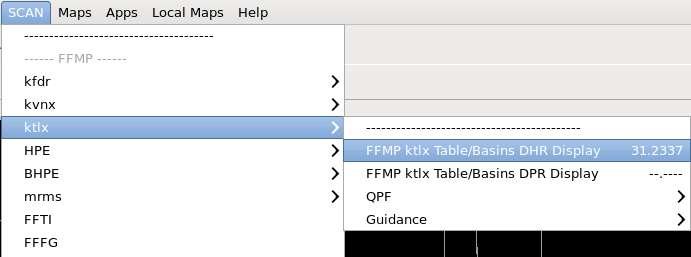
All of the FFMP product suite products are available underneath the SCAN menu in the D-2D perspective of CAVE. The FFMP products are grouped together in the “FFMP” section and they are grouped together by quantitative precipitation estimate (QPE) input source. FFMP is configured to use any of your WFOs dedicated radars’ DHR and DPR data as a QPE source, and it is configured for displaying the High-resolution Precipitation Estimator (HPE) and Bias High-resolution Precipitation Estimator (BHPE). The Multi-Radar Multi-Sensor (MRMS) is another QPE source that uses the Surface Precipitation Rate (SPR) products.

FFMP menu.

FFMP can display Quantitative Precipitation Forecast (QPF) data under the QPF menu which are all 1hr forecasts by default. While QPF data is difficult to use because of its accuracy (note: MRMS QPF doesn't exist and the menu should not be there), the best QPF source is the HPE Nowcast which uses a sophisticated precip tracking and extrapolation scheme. Under the Guidance menu, the RFC FFG for a given day can be loaded as well as the static ARI precipitation values for different intervals (e.g. ARIFFG100->FFMP ktlx ARIFFG100 3.0 HR Display will load the precipitation map for a 100-year precipitation recurrence interval for a 3hr duration). 

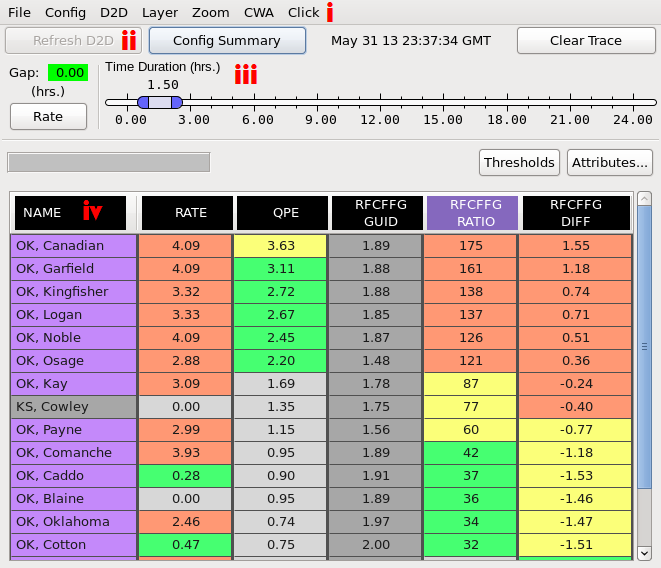
After selecting a FFMP Table/Basins Display product to load, FFMP displays a GUI, called the FFMP Basin Table, and an interactive image in the main display panel of the D-2D perspective.

Task: Loading the FFMP Basin Table
This task demonstrates how to load the FFMP Basin Table in the D-2D perspective in preparation for using the GUI. Besides this simple task description, several other sample tasks can be performed on your office’s WES-2 Bridge workstation in the WES Exercise #7 on your local WES machine.
View Jobsheet

The FFMP Basin Table

The FFMP Basin Table contains comprehensive data on all the drainage basins in your CWA at multiple spatial scales (uses FFMP Basins->FFMP Small Stream Basins and FFMP Small Stream Basins Links maps visible under the Maps menu).

The FFMP GUI

The GUI is divided into five different sections, each discussed below.

Menu bar

The Menu bar (referred to by label "i" in the FFMP GUI image) contains numerous menu buttons that allow users to access many functions and features in FFMP. Many of the menus are not routinely used, but some are used more than others:

  • File - Used primarily to save or retrieve FFMP configuration settings.
  • Config - Allows users to change the FFMP configuration settings for Link to Frame (i.e., time matching between FFMP Basin Table and main display), Worst Case (aggregate FFMP data will show worst case data vs. average), and Auto-Refresh.
  • D2D (commonly used)- Changes what attribute is used to fill county and basin level plots in the main display (typically change between QPE, ratio, and diff to analyze flash flood threat for different durations).
  • Layer (commonly used once)- Allows users to change how FFMP Basin Table and FFMP editor display aggregate (i.e., average) data (typically use All & Only Small Basins for primary analysis and County aggregation when identifying individual basin names).
  • Zoom - Changes settings for how FFMP Basin Table and FFMP editor display behave when a user selects a county in the Basin Table.
  • CWA - Allows users to trim the Basin Table and FFMP editor display down to only counties and basins in a particular CWA.
  • Click (commonly used)- Configures the function of the right click in the FFMP editor display (display upstream and/or downstream basin trace or display basin trend graph).

Utility bar

The Utility bar (referred to by label "ii" in the FFMP GUI image) contains three buttons (“Refresh D2D,” “Config Summary,” and “Clear Trace”) and the date/time for the currently displayed data. These buttons are infrequently used. “Refresh D2D” will update the Color Image in the main display panel of the D-2D perspective if you turn off the Auto Refresh. Selecting the “Config Summary” button will display a pop-up window with the current settings for several of the FFMP configuration properties. “Clear Trace” clears the basin trace in the display if you generate one.

Time Duration

The Time Duration section of the FFMP Basin Table GUI (referred to by label "iii" in the FFMP GUI image) allows users to configure the duration of the precip accumulations and flash flood guidance (FFG) displayed in the table and in D2D (e.g. 1hr accumulations, 2.5hr accumulations). The “Gap” value indicates the cumulative amount of time (in hours) that data are not available for the specified duration window. The “Rate” button toggles on/off the display of instantaneous precipitation rate information (i.e., changes Time Duration to 0 hrs) in the FFMP editor display (Note: The Table Body in the FFMP Basin Table will be void of any data when the “Rate” feature is activated).

Attribute Column Titles and Buttons

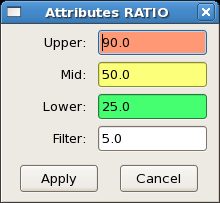
The attribute column titles (referred to by label "iv" in the FFMP GUI image) are the labels designating which attributes are displayed in the table body. Selecting the title of an attribute sorts the data in the table body by that column. You can select which attributes (e.g. ARIs) you want to display in the table body by selecting the “Attributes...” button.  From the "Thresholds" button you can select the coloring of the cells in the table for each attribute and what gets filtered from the display (requires clear and reload FFMP table to fully apply):

FFMP configuration of the threshold values used to color-code Basin Table data, edited in the FFMP Attributes GUI

If the data for the attribute falls below the predefined “Filter” value (see above image), that county or basin will not be displayed in the Table Body (except when sorted by Name, then all counties/basins will display in the table). The defaults for attribute coloring and filtering are typically pretty good, so this is not routinely changed.

The Table Body

The FFMP Table can be configured to display the precipitation (QPE, RATE, and QPF) and guidance data (FFG or ARI) in the Table Body. If there is no rainfall over all the geographic entities for the specified precipitation data source and time duration, the table indicates “NA”. The main display is linked to the table. After pressing the Left-Mouse Button on an identifier in the “Name” column of the Table Body, the main display panel zooms and re-centers on that particular county or basin and places an “X” at the centroid of that geographic region. The D-2D display can be sampled, and it will match the contents of the table when they are linked (controlled by Config->Link to Frame option).

Task: Assessing QPE, Ratio, and Diff
This task demonstrates how to interrogate QPE, Ratio, and Diff.
View Jobsheet

FFMP Basin Trend Graphs

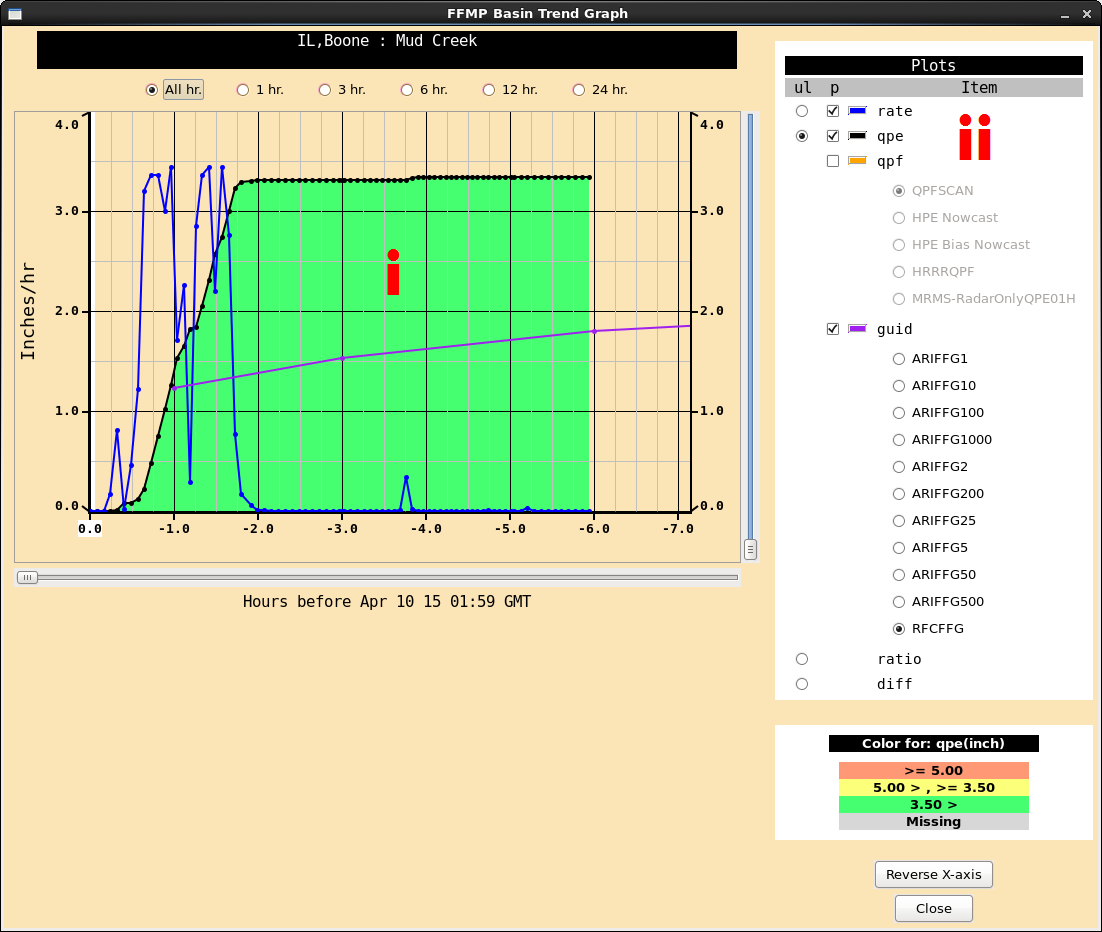
One of the more complex and useful analysis tools of FFMP is the basin trend graph. The basin trend graph allows you to view a time trend of rainfall rates, accumulations, and other attributes. The GUI is divided into three different sections, which will be discussed below.

The FFMP Basin Trend Graph GUI

Trend Graph

The trend graph (referred to by label "i" in the FFMP Basin Trend image) plots the time (hours; x-axis) vs. the rainfall rate (inches per hour; y-axis left side) and accumulation (inches; unlabeled y-axis right side which is the same as left-side axis). The default basin trend graph plots the instantaneous rainfall rate (blue line) and the running QPE accumulation (black line with color fill) with respect to time. The default time axis starts with Time = 0.0 hours on the left and scrolls over to Time = -24.0 hours on the right (with “All hr.” selected). The x-axis can also be reversed using the “Reverse X-axis” button in the lower-right portion of the GUI. The time axis has a few different meanings depending on which attribute you are analyzing:

  • For Rainfall Rate: Each instantaneous precipitation rate (inches/hr) is plotted with a blue dot in hours before the current time identified on the bottom of the basin trend. As time becomes more negative, the data is farther in the past. For example, if the rainfall rate is 4.09" at Time = -2.0, then that means it rained two hours ago (note that 4.09" inches/hr is the max instantaneous precip rate using the default hail cap at the RPG).
  • For QPE: When analyzing the QPE product, time represents the accumulation period for each product. Each black dot represents the accumulation relative to now. For example, if the QPE is 2.5 inches at Time = -3.0, then that means the three hour precipitation accumulation is 2.5 inches.
  • For QPF: When analyzing the 1hr QPF products, time represents the accumulation period for each product valid 1hr from now. For example, if the forecast is for 1” of rain in the next hour, and 3.5 inches is plotted at Time = -3.0, then this means the three-hour precipitation accumulation one hour from now is 3.5 inches. QPF is not routinely used on this graph because meaningful QPF is challenging.
  • For GUID: When analyzing RFC FFG products, time represents the duration required to trigger flash flooding. If the FFG is 2 inches at Time = -3.0, then than means the 3hr FFG is 2 inches, and if the 3hr QPE is > 2 inches, then flash flooding is possible.

The y-axis scale is fixed, while the radio buttons right above the trend graph allows you to toggle the scale of the x-axis between 1, 3, 6, 12, and 24 hours (note that “All hr.” = 24 hours). The fixed hour graphs (e.g. 6hr) start accumulating on the left axis and can only be compared to FFG at the current time

Plots

This section of the basin trend graph (referred to by label "ii" in the FFMP Basin Trend image) allows you to toggle on/off the different products (particularly toggling on the RFCFFG and ARIs guidance under "GUID") and underlay color shading within the trend graph. The radio buttons in the underlay (“ul”) column allows you to choose which product (“rate,” “qpe,” “ratio,” and “diff”) you want to have color shading (colors come from FFMP table; not frequently used).

Task: Loading an FFMP Basin Trend Graph and Downstream Basin Trace
This task demonstrates how to launch an FFMP Basin Trend Graph from the FFMP Basin Table or the FFMP image display in the D-2D perspective.
View Jobsheet
Task: Closing the FFMP Table
To close the FFMP Table you need to use the Clear button in CAVE.
View Jobsheet

SCAN

Last modified date:

This lesson presents information on the System for Convection Analysis and Nowcasting (SCAN) application. While this lesson presents the basics, more detailed examples are included in WES Exercise #8 on your local WES-2 Bridge machine.

Required WES Exercise #8 (System for Convection Analysis and Nowcasting (SCAN))

About SCAN

The System for Convection Analysis and Nowcasting (SCAN) is an application suite for monitoring single radar algorithm output from the RPG and a few other related convective storm datasets. SCAN provides popup tables outside the CAVE editor in D-2D that can be used to sort storms by their attributes, generate time trends of WSR-88D algorithms like maximum expected hail size and time-height trends of Digital Mesocyclone Detection (DMD) output. There are two main SCAN tables for each radar source, the Storm Cell/Site Storm Threat table (primarily driven by the Combined Attributes Table from the Composite Reflectivity product, the Mesocyclone Detection product, and the Tornado Vortex Signature product) and the DMD Icons and Table (driven by the Digital Mesocyclone Detection product).

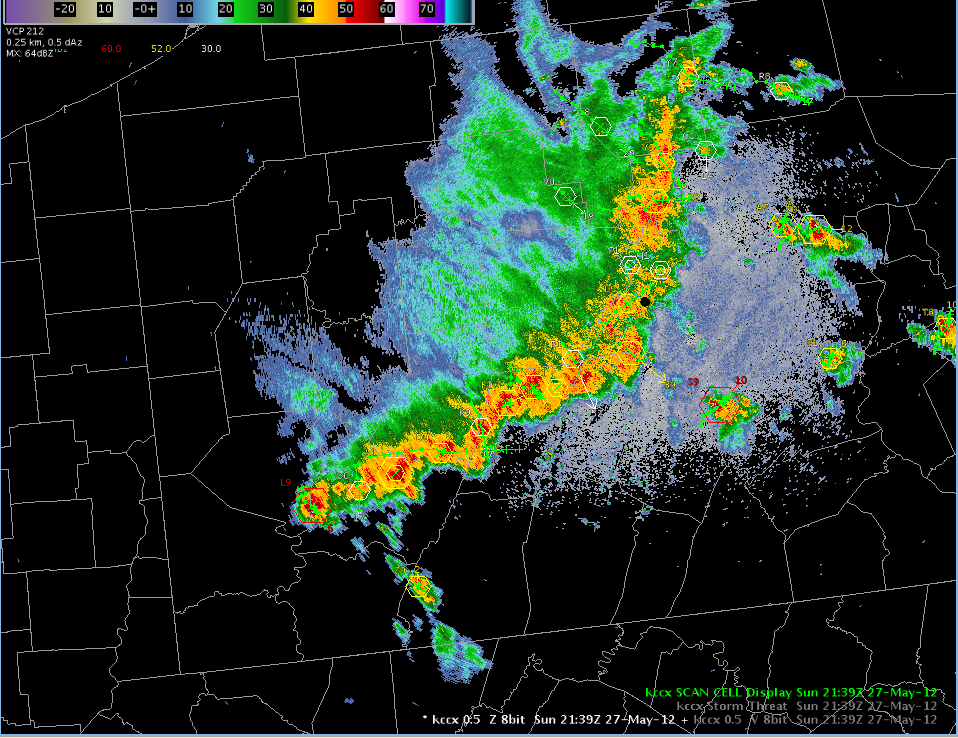
An example of the SCAN product overlaid on radar data. Some SCAN table data can be represented in D-2D with symbols overlaid on data to assist in storm monitoring, as shown above.

SCAN displays a few of its own products such as VIL density (VIL divided by Echo Tops), Quantitative Precipitation Forecast (QPF) probability estimates, and an instantaneous precipitation rate (based off the Digital Hybrid Reflectivity). SCAN also calculates a few of its own severe weather parameters such as a severe weather and heavy precipitation threat using relatively limited datasets that have limited utility over different areas of the US. SCAN has extensive configurability on table colors and alert monitoring thresholds that can be configured to alert the user for reaching thresholds, and it can highlight areas where thresholds are met and no warning has been issued for a particular county. While many of the alerting features of SCAN may look attractive to new warning forecasters, many offices have found them to be distracting in warning environments and have turned them off. In general, the default settings in SCAN are suitable for most uses.

Much of the RPG algorithm data SCAN displays can be displayed using simple D-2D radar graphics, but SCAN’s strength is in its ability to tabularize this output and provide displays of time trends. Radar algorithms in general have lots of limitations when used for making warning decisions, and expert warning forecasters tend to rely more on base data analysis, so WDTD recommends algorithm data and tools like SCAN be used carefully, only when needed, in more of a safety net capacity (with holes!). SCAN use will vary greatly from office to office and many offices choose not to use SCAN. While SCAN will be available in the RAC workshop for you to experiment with, WDTD will be focusing primarily on base data analysis and issuing effective storm-based warnings. Before you make your own decision about whether you want to use SCAN you should have a basic proficiency with loading and manipulating SCAN. You will notice the mouse clicks and table conventions in SCAN are similar to other applications in D-2D like FFMP, SNOW, SAFESEAS, and the Fog Monitor.

Starting SCAN

All SCAN tables and products are loaded from the SCAN menu in CAVE. The SCAN products are grouped together by radar input source. Loading the Storm Cell table or the DMD table will launch a separate popup table and a linked display in the CAVE editor. When loading this product, you will likely want to load a base reflectivity (or even a composite reflectivity) product into this same display to better visualize what storms SCAN is triggering on at a given time.

Selecting the Storm Cell table from the SCAN menu

If your CWA has multiple dedicated radars that provide optimal coverage of certain areas, you will need to choose which radar source is best for loading SCAN (usually the closest radar). In general you don’t want to load multiple instances of SCAN because of the overhead with having multiple tables.

SCAN has a number of products available in the menus:

  • QPF - probability of QPF for different thresholds and 1hr rainfall forecast
  • SCAN CWA Threat Index - SCAN threat values based on the SCAN Severe Weather Probability algorithm, whether there is a mesocyclone or TVS, and also VIL and composite reflectivity.
  • Hail Diagnostic Grids - VIL Density Grids
  • Precipitation Rate - instantaneous precip rate in in/hr from DHR product
Task: Loading a SCAN Storm Cells Table
This task demonstrates how to launch a SCAN Storm Cells table in the D-2D perspective, and it requires deep convection and radar algorithm products (best done on WES-2 Bridge).
View Jobsheet

Using SCAN

The SCAN Storm Cell Table and the DMD Table are the primary tables loaded from the SCAN menu. While the Storm Cells table is primarily organized around storm-cell information, you can also drill down further into the MESO and TVS tables from the Tables menu.

The SCAN CELL Table, loaded for example radar kccx. The meaning of each column is explained in this section

The Storm Cell/Site Storm Threat table includes the following parameters:

  • ident - storm cell id from WSR-88D SCIT algorithm
  • azm - azimuth in degrees
  • rng - range in nmi
  • tvs - Y or NONE from TVS algorithm
  • mdaSR - mesocyclone algorithm strength rank (note 3, 5, 7 rule of thumb for weak, moderate, and strong rotation)
  • posh - probability of severe hail from WSR-88D hail algorithm
  • poh - probability of hail
  • hSize - maximum expected hail size in inches from the WSR-88D Hail Index algorithm
  • VIL - cell-based VIL in kg/m2 (note different than gridded VIL image loaded from the radar menu)
  • dbz - maximum reflectivity in dBZ
  • dbzHt - height of maximum reflectivity in Kft
  • top - storm top from SCIT
  • dir - direction of motion
  • spd - speed in kts
  • polh - SCAN algorithm probability of “large” hail (2 cm which is ~ 0.79” and not large by today’s operational standards)
  • svrwx - SCAN severe weather probability which uses VIL, freezing level, wind speed
  • hvyPr - heavy precip probability
  • pPos - percent positive NLDN cloud-to-ground lightning
  • cgRate - cloud-to-ground NLDN lightning rate in flashes/min
  • cape - CAPE from RAP13 model (can be configured)
  • sreh - storm-relative environmental helicity from RAP13 (can be configured)
  • county - state and county name

Some of the main functionality of the Storm Cell table includes the following:

  • Left-Mouse Button on column header - rank rows by selected attribute
  • Left-Mouse Button on cell ident - zoom in on cell
  • Right-Mouse Button on cell ident - generate trend set time trend
  • Left-Mouse Button on parameter value - generate time trend (some trends like dbzHt highlight radar tilts; note axis are colored red when very high values exist)
  • File menu - save and load configuration settings
  • Configurations menu- configure hexagons displayed and their characteristics based off user-defined parameter, define alarm settings, box colors, and trend set configurations
  • Rank menu - identifies what table is ranked by (note ranked parameter is also colored purple)
  • Attributes menu - configurable attributes in table
  • Tables menu - launch MESO and TVS tables
  • Link to Frame toggle - keeps table in sync with D-2D display
  • CWA Filter toggle - filters contents by CWA
  • Unwarned toggle - configure unwarned county based on thresholds and whether warning exists for that county
  • Vert - vertical or horizontal table orientation toggle
  • Tips - tooltips toggle
Task: Interacting with the SCAN Storm Cells Table
This task demonstrates how to interact with the SCAN Storm Cells table, and it requires deep convection and radar algorithm products (best done on WES-2 Bridge).
View Jobsheet

While the Cell Table is mostly dominated by reflectivity information, you can drill down into mesocyclone and TVS algorithm output using the Tables button in the CELL Table. The MESO and TVS Tables do not have dynamic time trend capabilities with the Left and Right-Mouse Clicks.

The MESO table includes the following parameters:

  • strmID - MD storm ID
  • ident - SCIT cell id
  • azm - azimuth
  • rng - range in nmi
  • mdaSR - MDA Strength Rank
  • llVr - low-level rotational velocity (outbound velocity - inbound velocity divided by two) in kts
  • llgtg - low-level gate-to-gate velocity difference (velocity difference across two azimuths at constant range) in kts
  • base - base of mesocyclone in Kft
  • depth - depth of mesocyclone in Kft
  • relDep - relative depth of mesocyclone in Kft
  • maxVr - maximum rotational velocity in kts
  • htMxVr - height of maximum rotations velocity in Kft
  • tvs - TVS detected Y or N
  • dir - direction of meso motion from
  • spd - speed of meso motion
  • msi - mesocyclone strength index (integrated rotation parameter)
  • county - state and county

The TVS table includes the following parameters:

  • strmID - SCIT storm ID
  • ident - TVS id
  • type - TVS type
  • azm - azimuth
  • rng - range in nmi
  • avgDv - vertically averaged velocity difference delta V in kts
  • llDV - low-level gate-to-gate velocity difference (velocity difference across two azimuths at constant range) in kts
  • maxDv - maximum velocity difference in kts
  • mxDvHt - height of maximum velocity difference
  • base - base of TVS in Kft
  • depth - depth of TVS in Kft
  • top - top of TVS in Kft
  • shear - max shear in per seconds
  • shrHt - height of max shear in per seconds
  • county - state and county
Task: Launching the MESO and TVS Tables
This task demonstrates how to launch the MESO and TVS Tables from the Storm Cell Table, and it requires mesocyclone and TVS products (best done on WES-2 Bridge).
View Jobsheet
Task: Closing the SCAN Cell Table
To close the SCAN Cell Table you need to use the Clear button in CAVE.
View Jobsheet

Location

Last modified date:

Baselines tool

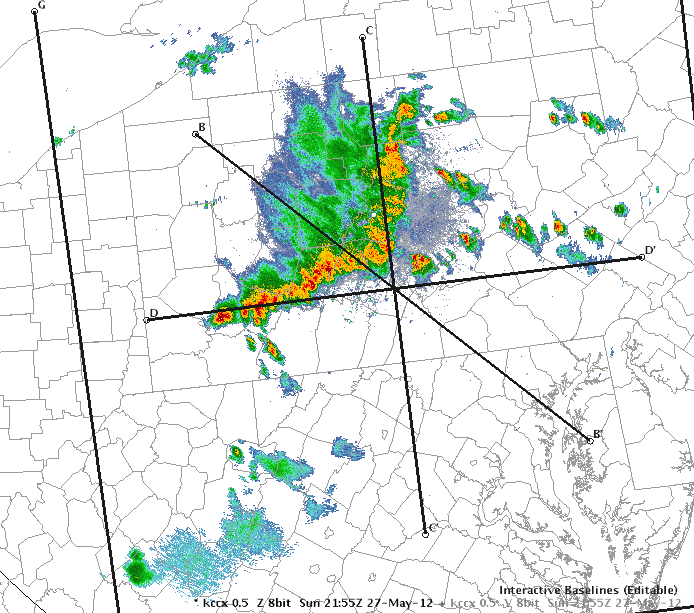
The Baselines tool, when selected, displays 10 different lines on the main display panel. These lines, labeled A-A’ to J-J’, are used to construct cross-sections from model and radar data from within the Volume Browser. These lines are “editable” by default and can be moved anywhere in the main display and adjusted to almost any length. Vertices can be added to make complex lines with a Middle-Mouse Button on the line. The Middle-Mouse Button to add vertices is a common feature to many line tools in AWIPS.

The Baselines tool overlaid on radar data

Home tool

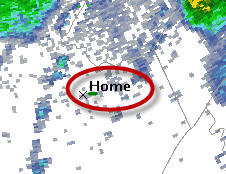
The Home tool displays a marker (denoted with an “x” and labeled with “Home”) that is used as a reference point for displaying azimuth and range (AZ/RAN) values when sampling is enabled. The home location serves other purposes like identifying which radar the Volume Browser will use to create radar-derived graphics (nearest radar to cursor home location). The Home location is not editable by default, but can be made editable by pressing down on the scroll wheel while hovering over the Home product listing in the product menu. When editable, the Home location can be moved with a Left-Mouse Button and drag.

The Home tool, marked by a labeled “x”

Choose By ID tool

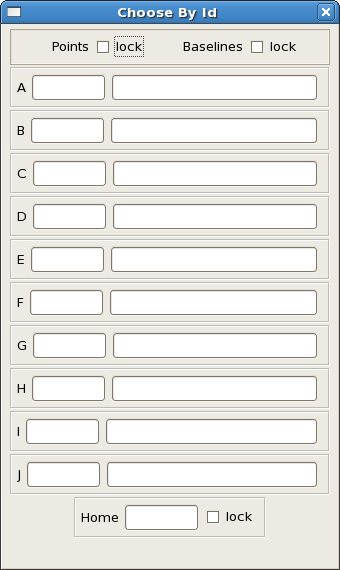
The Choose By ID tool is a method to assign a point to the location of a Digital Mesocyclone Display (DMD) algorithm id by entering the id in the left-most box next to the point letter for display through the Volume Browser (not common). This tool allows the AWIPS operator to monitor the same feature over time as it moves (as long as the DMD algorithm continues to identify that feature).

The Choose By Id GUI

Besides its use for the DMD algorithm, the Choose By ID tool can also be used to set Points, Baselines, and Home at specific locations by entering METAR, RAOB, and radar names. The left box next to the letter is for points (requires single location), and the right box is for baselines (requires two locations). You must hit the enter key to register your location entered.

Put Home Cursor tool

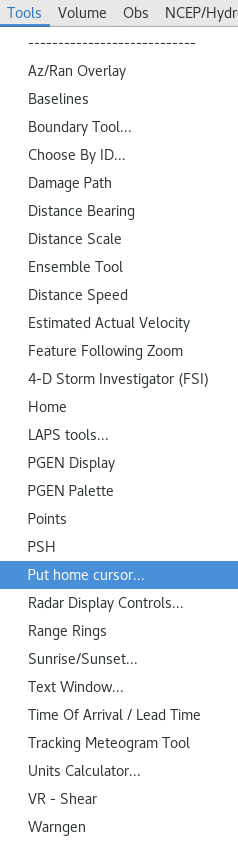
The Put Home Cursor tool allows the AWIPS operator to quickly identify the location of a specific METAR station, city, or Latitude/Longitude coordinate. This tool uses the Put Home Cursor GUI when the AWIPS operator specifies the method used to put Home in the new location.

Task: Defining the Location of Cursor Home
This task demonstrates two different methods to position the Home cursor location: Positioning Home in the main display panel and by using the Put Home Cursor Tool.
View Jobsheet

Points tool

The Points tool, when selected, displays ten points in the main display panel. These points, labeled A through J, can be used to generate model soundings, vertical wind profiles (using profilers and WSR-88D VAD Wind Profiles), time-height cross-sections, time series, and variable vs. height plots in CAVE using the Volume Browser. These points are editable when loaded and can be moved to any location visible in the main display panel. You can create your own points and control their name and size separately. The points can also be launched from the button with the three dots on the CAVE toolbar.

Distance Time Motion

Last modified date:

Distance Bearing tool

The Distance Bearing tool, when selected, displays six different lines in the main display panel. Each line shows the AZ/RAN information for the labeled end of the line relative to the unlabeled end of the line. The lines are made editable by default.

The Distance Bearing tool overlaid on radar data

Distance Speed tool

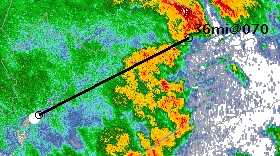
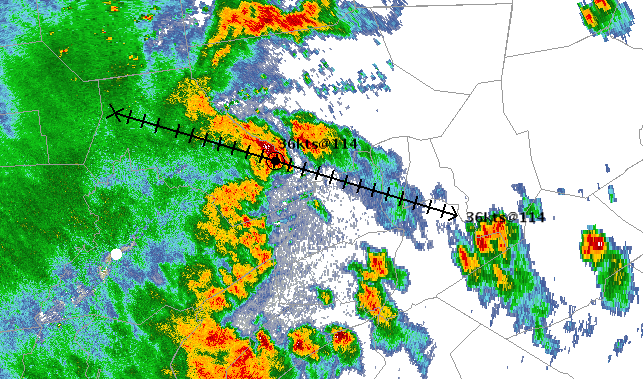
The Distance Speed tool can be used to determine the linear speed and direction of a storm or other meteorological feature by tracking a point or polyline (note vertices can be added to the line with a Middle-Mouse click). When this tool is selected, a circular marker will be displayed in the main display panel that the AWIPS-2 operator can move to the feature they wish to track. By moving the frames forward/backward to a different time, and moving the marker again to the feature, the forecaster will get a motion track with the speed or time information based on the previously edited location and the newly edited location. With "Speed" selected, the track's direction (in degrees) and speed (in knots) are displayed. With "Time" selected, the times of the beginning, end, and future position are displayed. When using the polyline mode the line must be grabbed and not the dot. Because the tool only uses two positions to create the track, an important best practice is to step multiple frames between repositioning the dot, so you won’t generate noisy, poor-quality motions. This tool works similarly to the WarnGen storm motion tool (see “WarnGen”).

The Distance Speed tool overlaid on radar data

Task: Using the Distance Speed Tool
This task demonstrates how to use the Distance Speed tool to determine the linear speed and direction of motion of a storm or feature.
View Jobsheet

Feature Following Zoom (FFZ)

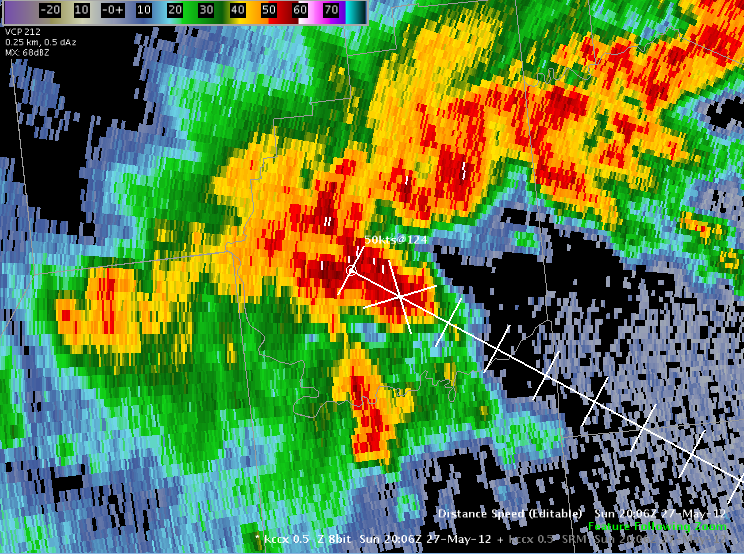
The Feature Following Zoom (FFZ) tool allows a forecaster to loop a series of images that stays centered on a specific tracked feature rather than staying centered on a geographic point. The FFZ can also be used on any zoom scale. Overall, this has two primary benefits for a forecaster. One, the forecaster can perceive relative evolution more effectively with the feature always in the center of the display. Two, they can zoom in and see far greater detail throughout the loop than they could with a geographic based center for the loop.

Feature Following Zoom pans the display to follow the track configured with your Distance Speed tool

The FFZ utilizes the Distance-Speed tool to determine where the floating center point will be located. This brings up two key points to remember when using FFZ. The first is that the most recent Distance-Speed tool or WarnGen track loaded will be used by FFZ. In other words, any update to these tools will cause FFZ to update. Second, the Distance-Speed tool only allows for linear motion, and it typically works best if the earliest and latest times in the frame sequence are used to track the feature. Non-linear motions of storms cannot be followed with FFZ.

Task: Set up the Feature Following Zoom Tool in CAVE
This task will demonstrate how a forecaster can load the Feature Following Zoom tool in CAVE.
View Jobsheet

Time of Arrival / Lead Time tool

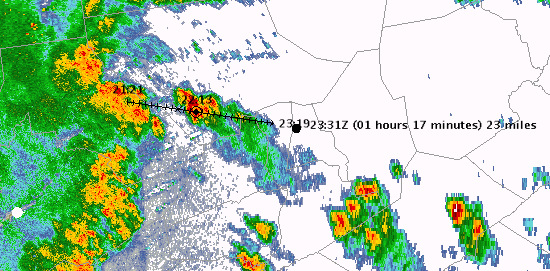
The Time of Arrival / Lead Time tool is used to create a track for a point or line similar to the Distance Speed Tool, but it also allows the user to identify a point to calculate time of arrival. The Arrival Point can be dragged along and ahead of the track, within a circular front that expands along the track, and the time of arrival of that front is displayed.

The Time of Arrival/Lead Time tool overlaid on radar data

Sunrise/Sunset

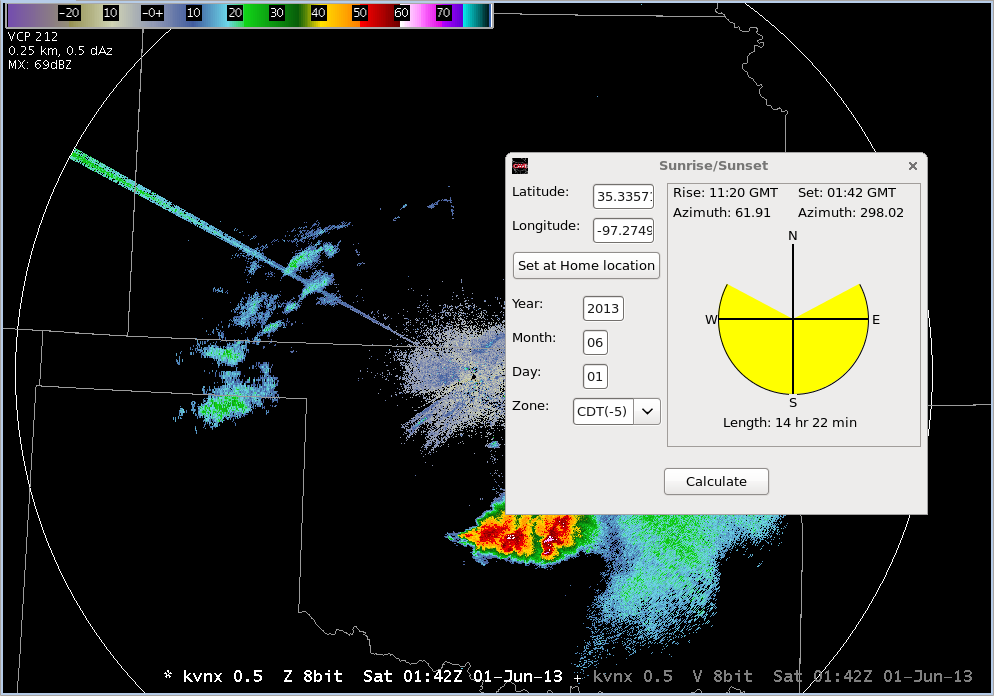
Radr reflectivity product showing a spike caused by sunset.

The sunrise/sunset calculator displays the times and azimuths of sunrise and sunset at a given point for a given date (either lat/lon or using cursor home). Just enter in your location/time and click the Calculate button. This can be used to explain the daily sunrise and sunset spikes in radar data.

Radar

Last modified date:

There are a number of radar tools that directly interact with radar data loaded in D-2D, including VR-Shear, Radar Display Controls, and Estimated Actual Velocity.

VR-Shear tool

The VR-Shear tool is used in conjunction with a Radial Velocity (or Storm Relative Mean Radial Velocity Map) product to calculate Rotational Velocity and shear-related quantities. The AWIPS operator positions the two endpoints of the VR-Shear tool over the desired range gates. When positioned, the VR-Shear tool determines the Rotational Velocity (in kts), the distance between end points (in nautical miles), the shear which is the velocity difference divided by the distance between points (in s-1), and it includes the distance from the radar (in nautical miles). Rotational velocity is a very important parameter in warning-decision making, and it is calculated by taking the velocity difference between two gates across azimuths (not necessarily immediately adjacent) at similar ranges and dividing by two (e.g. 40 kt outbound and -40 kt inbound yields a 40kt rotational velocity). Note the VR-Shear tool provides rotational velocity and not velocity difference. Many expert warning forecasters find it faster and easier to sample the peak velocities in a shear signature and mentally subtracting them and dividing by two, but this tool can help you with the math if you are not used to doing that, though it can take some time to get the end points where you want.

The VR-Shear tool overlaid on radar data

Positive shear values measured by the tool indicate cyclonic shear, while negative shear values indicate anticyclonic shear. If either end point is not directly over a range gate with valid velocity data, the phrase “no data” will appear in place of the shear value. Shear values with small signatures over a few azimuths are extremely sensitive to noise in the data and the distance between azimuths, so rotational velocity is usually a more stable parameter in warning decision making.

NOTE: If you pan the main display panel while using the VR-Shear tool to the point where you no longer see the tool endpoints, pressing the Right-Mouse Button in the main display panel will cause the tool to snap to the point where you clicked the button. This feature is common to many of the line tools in AWIPS.

Radar Display Controls tool

The Radar Display Controls GUI.

The Radar Display Controls tool is a GUI that gives the AWIPS operator control over the appearance of several different radar products. The most common use of Radar Display Controls is to enter a storm motion used in the display of the SRM products to better bring out peak velocities in rotational signatures as a balanced couplet of inbound and outbound velocities.These products are managed in user override files, so the settings will follow the user when logged in to different workstations

  • STI (Storm Track)
    • when displaying STI loaded from the radar menu, this filter controls how many storm tracks are shown and whether to plot the past and/or future tracks
  • HI (Hail Index)
    • when displaying HI loaded from the radar menu,
      • Probability of Hail (POH) defines the % threshold used in displaying open (default 30%) and filled (default 50%) small triangles (typically superseded by POSH large triangles)
      • Probability of Severe Hail (POSH) defines the % threshold used in displaying open (default 30%) and filled (default 50%) large triangles
  • TVS (Tornado Vortex Signature)
    • when displaying TVS loaded from the radar menu, "Show elevated TVS" displays elevated TVSs and is off by default due to higher false alarm rate
  • DMD, MD, TVS (Digital Mesocyclone Display, Mesocyclone Display, Tornado Vortex Signature)
    • when displaying DMD, MD, or TVS loaded from the radar menu, "Show extrapolated features" allows the extrapolated features to be displayed (default is off)
  • DMD (Digital Mesocyclone Display)
    • when displaying DMD loaded from the radar menu,
      • "Min feature strength" - mesocyclone clutter filter specifies the minimum 3D strength rank use to display a mesocyclone
        • default is 5 (minimal mesocyclone ~ rotational velocity [Vr] 30kts; note 3 (~20 kt Vr), 7 (~40kt Vr), and 9 (~50kt Vr)
      • "Show overlapping Mesos" toggles overlapping mesocyclones (default off)
      • Tracks pullout menu specifies whether to display past and forecast tracks
  • MBA (Automated Microburst Detection Algorithm Micro-Burst Alert)
    • when displaying MBA loaded from the radar menu,
      • "Show Wind Shear" lowers the display threshold to include wind shear detections (default off)
        • wind shear 0.5 degree divergence delta-V < 23kts, area < 1.2 miles
        • microburst 0.5 degree divergence delta-V > 23kts, area < 2.5 square miles
        • macroburst 0.5 degree divergence delta-V > 23kts, area > 2.5 square miles
  • SRM (Storm-Relative Mean Radial Velocity Map)
    • The motion used in the SRM display is specified in the Radar Display Controls and is displayed on the upper corner of the SRM product. Setting the storm motion subtracts out a constant from the velocities displayed in SRM to better highlight balanced peak inbound and outbound velocities in rotating storms (note that this will not impact divergence and shear calculations which are Galilean Invariant). 
      • Storm Motion from WarnGen Track - user override that applies the motion from that user's last WarnGen track or that user's last Distance Speed Tool track
      • Average Storm Motion from STI - average motion computed each volume scan from the STI product for the radar displaying SRM
      • Custom Storm Motion - user override that applies that user's last custom motion defined in the Custom Storm Motion entry using the slider bars, spin boxes, or typed in text
  • SAILS 
    • "Enable SAILS Frame Coordinator"
      • toggle on (default) - keyboard shortcuts change where tilting up from 0.5 degree SAILS tilt will step to the next higher tilt (similar to GR2 Analyst) and Ctrl right arrow will step to the most recent tilt available for any elevation angle
      • toggle off - keyboard shortcuts change where tilting up from 0.5 degree SAILS tilt will not go anywhere (old confusing behavior) and Ctrl right arrow will step to the most recent time of the current tilt
    • For a summary of all-tilts keyboard shortcuts, see the All-Tilts reference page.
Task: Change the SRM Product Storm Motion in the Radar Display Controls GUI
This task will demonstrate how forecasters can update the storm motion estimate used by the Storm-Relative Velocity Map (SRM) product. There are three different ways to change the velocity estimate for SRM in the Radar Display Controls GUI. This task will show how to set a custom storm motion. The other two methods (use the storm track from WarnGen and use the STI average motion) are implemented in a similar manner.
View Jobsheet

Estimated Actual Velocity (EAV) tool

The Estimated Actual Velocity (EAV) tool is a radar analysis tool that allows forecasters to estimate the actual wind speed based on a user defined wind direction, the measured radial velocity, and the intersection angle between the radar beam and wind direction. This tool may be useful to some forecasters during situations where a more exact wind speed is desired to include in a warning, follow-up statement, or other text product when you know the wind direction accurately (say from spotters or from surface observations in widespread damaging wind situations).

The EAV tool overlaid on radar data

When the angle between these two vectors is relatively small (i.e., less than 45 degrees) and the forecaster has a good estimate of the actual wind direction, than this tool’s wind speed values can be more representative of what is actually occurring. When this angle is less than 20 degrees, the wind speeds returned by the tool will be similar to the radial velocity values and provide little additional benefit. When this angle is greater than 45 degrees, the equation used by the EAV tool becomes too sensitive to incremental changes in the angle to reliably determine the actual velocity.

The tool allows users to obtain the actual wind speeds in two different manners. First, the wind speed and direction are listed at either end of the line tool that forecasters use to indicate the wind direction. Second, users can access the EAV estimated velocity at any given point by using sampling which will apply the direction of the EAV tool orientation to the calculation of the velocity estimate at the sampled range gate.

When using the EAV tool, there are some guidelines you should follow:

  • You should only use the EAV tool on velocity (V) data
  • DO NOT use the EAV tool on Storm-Relative Velocity Map (SRM) product displays
  • Only use the EAV tool in well-sampled radial velocity areas and where the wind direction is likely to be unambiguous.

More information on the EAV Tool can be found in WES Exercise 2 D2D Radar-Related Tools Estimated Actual Velocity video.

FSI

Last modified date:

The Four-Dimensional Stormcell Investigator (FSI) has been disabled at most WFOs due to performance reasons, and is slated to be removed in build 23.4.1 when Redhat 8 is deployed. Most forecasters can skip this section.

The Four-Dimensional Stormcell Investigator (FSI) is a volumetric radar  base data display program that combines combines dynamic horizontal and vertical cross section capabilities. The FSI tool is based on the National Severe Storm Laboratory (NSSL) Warning Decision Support System - Integrated Information (WDSS-II), and is mostly separate from the CAVE and D-2D architecture. FSI is launched from D-2D after loading it from the menu, but it displays in a separate window outside of CAVE, so it cannot interact with CAVE or D-2D. 

FSI Basics

FSI allows forecasters to view a single radar’s volume scans of base data in a four-panel layout separate from CAVE. FSI is only available for dedicated radars that ingest full volume scans of data (this is changing in future builds), and some of the additional tilts, like SAILS, are filtered from the volumetric FSI display. Forecasters can view any of the four standard base data products (i.e., Reflectivity, Velocity, Storm-Relative Mean Velocity Map, and Spectrum Width) or Dual-Pol variables (Differential Reflectivity, Correlation Coefficient, Specific Differential Phase (i.e. RhoHV), and the Hydrometeor Classification (HC) one at a time, from four different displays provided in each panel. These displays are:

  • Upper Left - The Plan Position Indicator (PPI), or constant vertical elevation angle, Panel;
  • Upper Right - The Constant Altitude Plan Position Indicator (CAPPI) Panel;
  • Lower Left - The Vertical Dynamic Cross Section (VDX) Panel; and
  • Lower Right - The Three-Dimensional Flier (3DF) Panel.

The FSI main display with each panel labeled to indicate its use

These different panels provide forecasters vantage points for dynamically analyzing the vertical and horizontal structure of base radar data. FSI is an intensive system-resource application that only allows one instance per workstation.

Loading FSI

FSI can be launched from within the D-2D perspective from two different locations:

  • The Tools menu
  • The “Applications” section of any radar menu or “Radar Tools” menu in the Radar menu

Selecting FSI from the Radar menu

While you are not required to load radar data before launching FSI, it is usually convenient to load radar data first to identify the location you want to launch FSI centered on.

After you initially launch the application, you will need to press the Right-Mouse Button in the editor in the vicinity of a feature you wish to interrogate. If you forget, the product legend for FSI in the main display panel reminds you of this. If your CWA has multiple dedicated radars, a radar list menu will pop up, and you will need to select the radar you want FSI to use.

Case review with FSI in WES-2 Bridge requires unique data handling, and popup messages will warn you when you can select a radar to launch FSI with after WES-2 Bridge is done creating the data. This is not an issue with running a simulation in WES-2 Bridge.

Using FSI

FSI displays data from any base moment and variable, but the same product appears in all four display panels simultaneously. The displays are linked so that when the user toggles a new product, zooms, or pans in one display, all of the other displays will update accordingly. Users can toggle between radar base products by using the following keyboard shortcuts from the main typing area of the keyboard (i.e., not the numeric keypad):

  • Base Reflectivity - “Z” or “1”
  • Base Velocity - “V” or “2”
  • Storm-Relative Velocity Map (SRM) - “S” or “3”
  • Spectrum Width - “W” or “4”
  • Differential Reflectivity - “D” or “5”
  • Correlation Coefficient - “O” or “6”
  • Specific Differential Phase - “K” or “7”
  • Hydrometeor Classification Algorithm - “H” or “8”

The following sections provide a brief overview of each display panel, the general uses for both the menu bar and button panel items, and some other important points about FSI to know prior to working on the WES Exercise 4 D2D Four-Dimensional Stormcell Investigator Basics video.

The PPI Panel (upper left)

The PPI Panel displays an elevation-based radar product similar to what you’ve seen in D2D base data displays. Users can toggle up-and-down in elevation or back-and-forth in time to change the appearance of this display panel using the menu bar, button panel, or numeric keypad (more details on how to perform these tasks in Sections v-vii).

In addition to the base data, the PPI Panel contains the vertical cross-section control tool. This tool is a dashed white line with five points that indicate and control the position of the vertical cross-section axis displayed in the VDX panel. You can press and hold on one of these points of the cross-section to dynamically adjust the image in the VDX display using the following controls:

  • The circle at the middle of the cross-section allows the user to adjust the horizontal position of the entire axis;
  • The square points at either end of the cross-section allows the user to adjust the end points of cross-section; and
  • The square points between the end and center of the cross-section allow the user to rotate the axis around the center point of the line.

The CAPPI Panel (upper right)

The CAPPI Panel allows forecasters to quickly visualize base moment data at a constant elevation which can be useful for comparing storms at different ranges. FSI allows forecasters to display CAPPIs and change their MSL height quickly. To adjust the height above MSL (AGL heights are not available in FSI) of the CAPPI, use the blue vertical bar immediately to the right of the display panel.

The VDX Panel (lower left)

The VDX Panel shows a vertical cross-section of base data represented by the vertical cross-section control tool in the PPI and 3DF Panels. Changing the location, length, or orientation of the cross-section axis in either of the previously mentioned panels will result in the VDX Panel updating dynamically. In addition to altering the display with the vertical cross-section control tool, users can adjust the vertical scale of the cross-section by using the blue vertical bar immediately to the right of the display panel.

The 3DF Panel (lower right)

The 3DF Panel plots both the vertical cross-section and either the PPI or CAPPI displays in true 3-D earth coordinates. As in the PPI Panel, the vertical cross-section tool is visible in the 3DF Panel and can be used to dynamically adjust the display in the VDX Panel using the same controls as mentioned previously in the PPI Panel. The 3DF Panel allows forecasters to visualize WSR-88D volumetric data on a single display. Novice forecasters who are not familiar with viewing three-dimensional radar visualization products may require some time to become confident at interpreting data in the 3DF Panel.

Menu bar

The menu bar contains several menus:

  • File - Used primarily for saving current or restoring default settings as well as to exit the FSI extension
  • Navigate - Contains a complete list of traditional volume navigation and some alternative volume browsing hot keys
  • Camera - Contains a list of some alternative display navigation hot keys
  • Options - Contains a list of additional display option hot keys
  • Products - Contains a list of product selection hot keys
  • Map - Map overlays can be added, hidden, removed, or configured here for all of the display panels
  • Help - Contains an about screen for FSI

The FSI menu and button panel

Button panel

The Button Panel contains several features that can be accessed by selecting the following buttons:

  • Preferences - Used to open the “Edit Preferences” pop-up window
  • Readout (Data Sampling) - Toggles data sampling on/off
  • Snapshot - Opens the “Take Snapshot” pop-up window to make image captures of FSI
  • Color Key - Toggles the color key off/on under the FSI Button Panel
  • Loop - Toggles looping on/off (NOTE: Loop preferences are editing using the “Edit Preferences” pop-up window)
  • Auto-Update - Toggles automatic radar data updates on/off
  • Plan View - Resets the viewing angle of the 3DF Panel to the default position
  • Reset - Restores the FSI Extension panels to the initial conditions of when you last launched FSI
  • Back - Steps the display panels back one volume scan while maintaining the current elevation angle
  • Next - Steps the display panels forward one volume scan while maintaining the current elevation angle
  • Latest - Steps the display panels forward to the current (or latest volume scan available) while maintaining a constant elevation angle
  • Radar Status Bar - Continuously updating readout showing the date, time, VCP, and elevation angle of the most recently completed elevation scan from the radar and the product being viewed

Basic panel controls

These mouse-based control features are:

  • Zoom - Press and hold the Middle-Mouse Button while moving the mouse forward (zoom in) or backward (zoom out). Alternatively, roll up (down) on the scroll wheel to zoom in (out).
  • Pan - Press and hold the Left-Mouse Button while moving the mouse to “pull” the image to the desired location
  • 3D Rotate- With the mouse cursor over the 3DF panel, press and hold the Left-Mouse Button and <SHIFT> key while moving the mouse forward (increase viewing angle) or backward (decrease viewing angle) to adjust the viewing angle in the 3DF Panel

The numeric keypad is the easiest way to navigate through the radar volumes and alter the camera views (note the D2D All Tilts navigation arrows do not work with FSI). The numeric-keypad controls are (NOTE: For the following commands to work, you will need to have “Num Lock” toggled on):

  • “8” Key - Move up one elevation angle in traditional volume scan
  • “2” Key - Move down one elevation angle in traditional volume scan
  • “4” Key - Move backward one volume scan at constant elevation angle
  • “6” Key - Move forward one volume scan at constant elevation angle
  • “9” Key - Move up one elevation angle in virtual volume scan
  • “3” Key - Move down one elevation angle in virtual volume scan
  • “.” Key - Toggle between Reflectivity and Storm-Relative Velocity Map products
  • “+” Key - Zoom camera view in
  • “-” Key - Zoom camera view out
  • “/” Key - Tilt camera view up in 3DF Panel
  • “*” Key - Tilt camera view down in 3DF Panel

Other Important Issues with FSI

In addition to all of the previous features and controls discussed, there are a handful of other important items to mention related to FSI. These items are:

Interpolation

FSI allows users to toggle on data interpolation for the CAPPI, VDX, and 3DF Panels. This interpolation feature is turned on by default. Interpolation can be toggled using the “I” keyboard shortcut or by using the Options menu to be able to visualize radar sampling limitations of gaps between beams. More on the interpolation feature will be discussed in the WES Exercise 4 D2D Four-Dimensional Stormcell Investigator Basics video.

FSI vertical cross-section showing data with interpolation on (left) and interpolation off (right)

City name labels

FSI allows the user to add various map overlays to all of the display panels. One of these overlays (Cities --> NAME) has been shown to severely limit the performance of FSI. We strongly recommended not using the Cities--> NAME overlay in FSI.

Using triangles for more accurate sampling

While you have to ability to toggle sampling on, the accuracy of that sampling will vary depending on one of your settings in the “Edit Preferences” window. That setting, called “Use Triangles over Textures” (found under Advanced Settings --> Display --> OpenGL), will result in more accurate sampling when turned on and is recommended. However, there is a reduction in performance when this option is turned on. More on this issue with sampling will be discussed in the WES Exercise 4 D2D Four-Dimensional Stormcell Investigator Basics video.

FSI PPI showing data with triangles turned off (left) vs. turned on (right)

Virtual volume scan

FSI renders the latest volume scan as a 3D cube prior to all the data being collected. It does this by using the previous volume scan as a first guess and updating the tilts as they come in. Thus, while data is arriving on the current volume scan, there will be a discontinuity as the old data is routinely replaced with the new data.

TDWR in FSI

TDWR data can be displayed in FSI if there is a TDWR in or near a forecaster’s CWA. The primary advantage of TDWR in FSI is volumetric analysis using dynamic vertical and horizontal cross-sections. However, there are a few caveats you must remember when viewing TDWR in FSI:

  • Some tilts are omitted to allow FSI to display the data
    • Long-range reflectivity
    • Four of the 0.5 degree scans
  • First tilt of second sub-volume is adjusted in time
  • Large data gaps in vertical can hinder volumetric analysis (use interpolation)

As a final reminder, D-2D will continue to display all of the TDWR data, so if a forecaster wants to continue to use all the TDWR data available, they will have to use D-2D. However, if a forecaster is interested in volumetric analysis of TDWR data (e.g. vertical cross sections), that can be done now in FSI.

To see FSI in action, see this previous training video.

Damage Path

Last modified date:

Tornado damage path drawn by the AWIPS user.

GeoJSON Properties Editor window within the Damage Path Tool.

The Damage Path Tool (DPT) is a D-2D tool that is used to provide first responders with near real-time damage polygons containing comments. After loading the Damage Path Tool from the D-2D Tools menu, the user creates a polygon using a polygon editing tool similar to WarnGen or using a special tornado track tool. With the tornado track tool, the user modifies a D-2D baseline along the track of a tornado vortex signature, and the tool creates a tornado track with a width that is a function of the radar tornado location uncertainty that increases with range from the radar. With uncertainties of ~ 0.5 mile at 40 nmi and ~ 1 mile at 80 nmi, the tornado path width varies from 1 mile at 40 nmi to 2 miles at 80nmi to account for radar range-dependent uncertainty in radar vortex location and actual tornado damage location at the surface.

After the user creates a polygon, a right mouse click on the polygon is used to launch the Set Properties dialog which is used to specify information about the damage. The DPT supports the following damage types:

Preliminary Tornado

Significant Wind Damage

Hail

Flood

Extreme Ice or Snow

Other Man Made/Natural Hazard

After creating the polygon and inputting damage metadata, the user can right click on the damage path to export to a GeoJSON file that can be posted to the web or emailed to local first responders. The DPT also has a right click option to send the damage path to the Damage Assessment Toolkit server where first FEMA and first responders can get access to the data.

There is no directive on the DPT use, and a significant amount of preparation needs to happen before an office would consider issuing polygons. The situations where an office will choose to use it need to be defined and coordinated with local stakeholders to ensure they are prepared to use this type of information. While the DPT was originally designed for use for providing near real-time significant tornado damage paths in rare high-impact situations, it supports a wide variety of decision support situations. For more on the DPT, see the Damage Path Tool training in the CLC and the DPT VLab reference page.

Tracking Meteogram Tool

Last modified date:

Tracking Meteogram Tool overlaid on a Z/V radar paired product.

The Tracking Meteogram Tool (TMT) allows the user to track meteorological features using circles on each frame of data to create time trend plots of the data loaded. The TMT is loaded from the Tools menu and utilizes the familiar Drag Me to Feature icon to track a desired feature through space and time. Once loaded, the user interacts with the TMT by right clicking on the circle or graph to configure its properties.


The tool is compatible with any gridded image data including: satellite, radar, model, and total lightning density. It utilizes a 100x100 grid box that encompasses a tracking circle that the AWIPS operator can position over the data. The tool performs calculations inside the circles based on the math operation specified by the AWIPS operator (max, min, sum, mean, median, standard deviation, range difference, and amplitude). In addition to tracking features in space, the Tracking Meteogram Tool can also monitor data at a single point by snapping all circles to a single location.There are a few limitations to using the tool, including: breaking of keyboard shortcuts, non-functionality with all-tilts data, and inability to save settings like graph colors and fonts in procedures.

The Tracking Meteogram Tool will not be used in RAC, but if you would like to learn more about it, see the training in the CLC and the Tracking Meteogram Tool VLab reference page for the accompanying reference and job sheets.


Ensemble Tool

Last modified date:

Legends tab of the Ensemble Tool displaying the mean surface temperature of the 21 GFS Ensemble members as an image field with a 95 degree contour overlayed.

The Ensemble Tool is designed to create new display fields from gridded ensemble datasets (mean, min, max, median, range, sum, and standard deviation) and to facilitate cycling through multiple model family displays. There are two important tabs. The Legends tab and the Matrix tab.


Legends Tab

The GFS Ensemble Forecast System (GEFS) is the primary ensemble dataset available in AWIPS for use with the Ensemble Tool at WFOs. The AWIPS GEFS dataset contains a 21-member ensemble of surface temperature and precipitation, as well as a 12-member ensemble of Mean Sea-Level Pressure, max temperature, min temperature, and a wide variety of fields (height, temperature, relative humidity, and wind) at standard pressure levels (1000mb, 925mb, 850mb, 700mb, 500mb, and 250mb).

To use the Ensemble Tool to create new derived field displays, the user first loads the tool from the Tools menu and then uses the Volume Browser to load a parameter in the ensemble dataset. Each member loads as a separate color that can be toggled on or off, and the user clicks the gear button to choose what field will be calculated for the visible members toggled on. For example, to compute the minimum value at each point among all the members, the user selects Min. The minimum value is then computed and added as a contoured image in the display. Derived fields cannot be converted to images, however. The derived fields do allow for specific contour control that is unique to this tool.

The Ensemble Tool also allows for sampling of all the fields in the display, and it also contains a distribution viewer (also accessible from the gear menu) for creating probability density function/cumulative density function graphs. After loading the distribution viewer, as the user samples the display, the distribution graph of all the members updates for the location of the mouse pointer.

Probability Density Function (PDF) within the Ensemble Tool.

In the distribution graph, each ensemble member value is indicated by a red tic mark on the x axis. The range of data is broken up into bins and the number of values in the bins is plotted along with the cumulative percentage at and below the values. This can be particularly useful in diagnosing different solution modes, say for when half the members have large precip and half have none and an average value can be misleading. 


Matrix Tab

The Matrix tab of the Ensemble Tool allows the user to load groups of model family parameters available from the Volume menu and rapidly cycle through the different models. The are different model family presets that can be selected from the initial menu upon clicking on the Matrix tab, each tailored for use in different meteorological scenarios (winter, severe weather, etc.). While you can combine different models in a four panel display, the Matrix tab within the Ensemble Tool is a more dynamic and relatively easy way to load and cycle through multiple models at different times. In 17.3.1, the Matrix tab will have problems that will be fixed in 18.1.1.

Matrix Viewer within the Ensemble Tool.

The Ensemble Tool will not be used in RAC, but if you would like to learn more about it, see the Ensemble Tool VLab reference page with job sheets.

Boundary Tool

Last modified date:

 
The Boundary Tool used to track a moving gust front.

The Boundary Tool was designed for the Aviation Weather Center to track boundaries, and users can create boundary overlays that can persist in time up to 8 hours. The boundary tool uses a familiar-looking distance speed line tool that is overlaid on a feature to be tracked. These boundaries cannot be shared, though they can be saved and reloaded. While this tool can be used by others than the Aviation Weather Center, it is sensitive to the order of certain commands and can take some time to get used to.

The Boundary Tool will not be used in RAC, but if you would like to learn more about it, see the Boundary Tool VLab reference page and associated job sheets.

Configuration Other

Last modified date:

There are a few other D-2D tools worth mentioning, including Text Window, PGEN, LAPS tools, Units Calculator, and WarnGen. 

Text Window

Text window loaded from the Tools menu.

While on an operational AWIPS you typically have the text workstation loaded on a separate monitor from CAVE, you can additionally load a text window from the Tools menu if you want to view a text product from the database.

Product Generator (PGEN)

Boundaries and text created using the PGEN tool.

The National Centers use PGEN to draw annotations and generate all their products, and it is included in D-2D to support Center Weather Service Units (CWSUs) making AWC-style SIGMETs. While this is not intended to be used for other purposes, there are a number of unique drawing and annotation tools that can be used to make images using the CAVE->export->Image once a display has been created. "PGEN Palette" under the Tools menu can be  used to draw, annotate, and open/save displays. "PGEN Display" under the Tools menu can only be used to retrieve saved PGEN sessions.

Local Analysis and Prediction System (LAPS) Tools

There is a LAPS tool for the LAPS focal point to identify what data was ingested in the LAPS objective analysis and to view and redefine the LAPS analysis domain.

Unit Calculator

Units Calculator GUI.

If you ever need to convert units in D-2D, you can use the Units Calculator from the Tools menu. Just select the desired unit checkboxes, enter a number, and hit enter.

WarnGen

You can load WarnGen from the Tools menu or the D-2D yellow button on the toolbar.

Issued Products Displays

Last modified date:

The issued products display in D-2D are spread throughout multiple menus. Some of these, like warning polygons, will be used extensively in RAC, while many others will not. 

Hazard-related displays are located in the Hazards section of the Obs menu. You can display Local Storm Reports (LSRs), significant weather advisories (SPS), marine warnings, severe/tornado warnings, and flood warnings locally, regionally, or nationwide. For severe weather warning products, the Event Tracking Number (ETN), product PIL, and product times are identified next to the display polygon. Sampling will provide more readout of warning information.

Hazards section at the bottom of the Obs menu.

Most of the non-local issued product displays are available from the NCEP/Hydro menu. National Center menus include the Storm Prediction Center (SPC), Tropical Prediction Center (TPC), the NCEP Central Operations (NCO), Hydrologic Prediction Center (HPC; now known as Weather Prediction Center-WPC), Marine Prediction Center (MPC; now known as Ocean Prediction Center-OPC), Climate Prediction Center (CPC), and Aviation Weather Center (AWC). The National Center products cover a wide range of threats including severe, fire, marine, tropical, climate, aviation, hydrology, and weather summaries. In addition to National Centers, the River Forecast Center guidance is also available. In RAC we will use some of the severe weather outlook and watch displays as well as the RFC flash flood guidance. The SPC watches are displayed as a hatched area and not a polygon, so color adjustment is required to be able to combine it with other products effectively.

NCEP/Hydro pulldown menu.

RFC Flash Flood Guidance in the NCEP/Hydro menu is used heavily in RAC for flash flood decision making to compare precipitation estimates to thresholds that can cause flooding. The 1km x 1km FFG data that is updated up to 4 times per day can be loaded be loaded as a mosaic for 1hr, 3hr, and 6hr durations, or it can be loaded from each RFC's menu.

Some other hydro-related products worth mentioning include the 1hr WFO local Multi-Sensor Precipitation Estimator (MPE) which is an hourly estimate of precipitation accumulation that can be configured to use multiple sensors by the local hydrology focal point. The 1hr Auto SPE (Satellite Precipitation Estimate) is a routine satellite-based precipitation estimate provided by National Environmental Satellite, Data, and Information Service NESDIS (non-routine SPEs are available from the manual submenu).

While spot forecast requests for fire weather are not issued products, it is something closely related and worth mentioning. The Spot Forecast Request menu available from the NCEP/Hydro menu provides a map of the request, where you can get more information by sampling the displays.

Aviation-related issued products are available from the Upper Air->Aviation submenu. There are products like Significant METeorological Information (SIGMET), Airmen's Meteorological Information (AIRMET), and National Convective Weather Forecast (NCWF) products. There are also Climate Prediction Center 500mb height and anomaly products.

Upper Air Displays

Last modified date:

Plan View Plots

The Upper Air menu contains plan view (horizontal) and vertical profiles of wind, temperature, and humidity upper air observations from weather balloons, radar, profilers, and aircraft. It also contains aviation-related issued products.

Upper Air pulldown menu.

Standard RAOB pressure surface charts, like 850mb, are located in the UA plots menu for 12hr intervals.

Some regions are providing limited profiler data to certain sites, but most sites won't have access to profiler data in AWIPS.

The VWP plots provide rapidly updating plots of winds derived from single-Doppler radar data. Because VWPs require sufficient scatterers to derived accurate wind estimates, you will typically find more continuous data in low-levels, which can be great for resolving the rapid intensification of features like the low-level jet.

If you have significant airports in your CWA, the aircraft temperature, dewpoint, and wind observations provide a valuable look at what is going on above the ground in between RAOB times. The Pilot Weather REPorts (PIREPS) are more scattered reports, while the Meteorological Data Collection and Reporting System (MDCRS) contain more widespread aircraft observations. These observations can be critical in winter weather situations in diagnosing the strength of a mid-level jet streak or elevated warm layers that can influence precipitation type in winter weather situations.

While some of these raw upper-air observations can provide critical observations of the environment that can be useful in some warning operations, in RAC we will spend more time focusing on sounding analysis of the vertical profiles of the near-storm environment in NSHARP.

NSHARP

The NSHARP display in D2D Skewt Standard Screen Configuration (default)

The D2D Configuration NSHARP control buttons tab in their default configuration. You may need to drag top of window to see bottom buttons.

This lesson covers the National Center Sounding and Hodograph Analysis and Research Program (NSHARP). This program is based on the Storm Prediction Center’s sounding display tool, BigSHARP and the online available Python version, SHARpy. NSHARP is loaded within the D-2D perspective in CAVE as a new map editor when RAOBs and model soundings are requested. NSHARP was originally designed in the National Centers Perspective for National Centers, and it has been modified for WFO use in the D-2D perspective. The AWIPS version of NSHARP is relatively new to WFOs and has evolved significantly to address some of the unique needs of WFOs. With many other sounding packages available online, NSHARP use will vary significantly from WFO to WFO. Many of the latest severe weather analysis advances at the SPC are regularly incorporated into NSHARP, and so there is a lot of new science available to WFOs that is beginning to be incorporated into WFO operations.

NSHARP soundings are loaded by default for RAOBs in the Upper Air menu, soundings in the Volume Browser, or NUCAPS soundings from the Satellite-> NPP Products-> NUCAPS Sounding Availability menu (and circles on the display). In 21.4.1 a new NSHARP tool has been added to the Tools menu that allows you to load upper air and high-resolution bufr model forecasts from a point and click map. See this 21.4.1 jobsheet for more information on that.

Task: Load NSHARP into your CAVE Display
This task covers the different ways you can launch NSHARP within the D-2D perspective in CAVE. Note that there is an additional way to launch NSHARP using the National Centers perspective that will not be covered here.
View Jobsheet

The NSHARP Display

The NSHARP display has four different screen configurations:

SPC Wide - most comprehensive capability for insets and graphs (minus the timeline/station inventory panel) but takes up more real-estate

D2D Skewt Standard - default for WFOs, larger SkewT with timeline/station inventory panel, no wind vs ht, no temperature advection, no insets, and no graphs (relative to SPC Wide Screen Configuration)

D2D Lite - Skew-T, table, and inventory only

OPC - Ocean Prediction Center display

For this training it will be most helpful to review the SPC Wide Screen Configuration first because it has most of the capabilities turned on.

Task: Change NSHARP Configurations
This task covers changing the NSHARP Display Pane Configuration using the NSHARP(D2D) tab containing the NSHARP control buttons.
View Jobsheet

In the SPC Wide Screen Configuration there are seven different sections (some sections removed for the D2D versions) and an NSHARP(D2D) control buttons tab. The following pages contain a basic summary of each section and any tasks relevant to each of the displays.

The NSHARP control button tab (discussed in section i), in its SPC configuration

If you would like to interactively explore the different graphical areas in NSHARP on the Web, see the NSHARP Interactive Overview (note only available on the Web). 

D2D Skewt Standard Screen Configuration with section labeled with Roman numerals.

SPC Wide Screen Configuration with sections labeled with Roman numerals.

NSHARP(D2D) Control Buttons Tab

There are a series of buttons that control the functionality and display of NSHARP. We will highlight some of the basic functions needed to run NSHARP throughout this lesson. You may need to drag the top of the control buttons window higher to display the bottom row of buttons, particularly in the SPC Wide Screen Configuration. See the NSHARP Interactive Overview on the Web for more information.

Skew-T Display

The Skew-T display (referred to by label "ii" in the NSHARP schematic images) depicts a vertical profile of temperature, dew point, and wind for RAOBs and model point soundings using a Skew-T Log-P diagram. The Skew-T is loaded by default and is controlled by the “S” button in the NSHARP(D2D) control buttons window. The Skew-T can be changed to a turbulence display (“T” button) or an icing display (“I” button). The main location for identifying the sounding and time in the Skew-T is in the box in the upper-left. This box is linked to the cursor readout triggered when the mouse pointer moves over the Skew-T. The first number in the cursor readout is the temperature at the cursor location, and the rest of the numbers are the temperature, dewpoint, wind direction and speed, pressure, height AGL, and RH of the Skew-T trace at that level. Use the AWIPS NSHARP Interactive Overview page for more information about the Skew-T display.

Windspeed vs Height and Inferred Temperature Advection (only on SPC Wide Screen)

The windspeed vs height and inferred temperature advection with height plot (referred to by label "iii" in the NSHARP schematic images) is situated next to the Skew-T to show the values at the same heights. Inferred temperature advection is from the thermal wind. Use the AWIPS-2 NSHARP Interactive Overview page for more information about the Skew-T display.

Hodograph Display (not on D2D Lite)

This panel contains the hodograph display from the sounding data (referred to by label "iv" in the NSHARP schematic images). The rings in the hodograph represent the wind speed in 20 knot increments. The hodograph trace uses different colors to highlight wind observations in 3 km height increments. This display also contains information such as the mean wind, Bunkers Left/Right Moving storm motion, upshear and downshear Corfidi vectors, and a user-defined motion. Use the AWIPS NSHARP Interactive Overview page for more information about the hodograph display.

Insets (only on SPC Wide Screen)

In the SPC Wide Screen Configuration there are four small insets beneath the hodograph containing storm-relative windspeed versus height, a Storm Slinky, Theta-E vs Pressure, Possible Watch Type, Thea-E vs Height, and storm-relative wind vectors (referred to by label "v" in the NSHARP schematic images). There are buttons in the NSHARP(D2D) control button tab that toggle the six possible contents in the four boxes. Use the AWIPS NSHARP Interactive Overview page for more information on the tables and a list/definition of the parameters available.

Table Output Displays

The Table Output Displays (referred to by label "vi" in the NSHARP schematic images) contains five different pages of parameters ranging from parcel instability to storm relative shear to severe hazards potential. Use the AWIPS NSHARP Interactive Overview page for more information on the tables and a list/definition of the parameters available.

Graphs/Statistics (only on SPC Wide Screen)

In the SPC Wide Screen Configuration there are two graphs boxes under the insets (referred to by label "vii" in the NSHARP schematic images), and they can display information on Enhanced Bulk Shear, Significant Tornado Parameter, Significant Hail Parameter (SHIP), Winter Weather, Fire Weather, Hail model (not implemented), and the Sounding Analog Retrieval System (SARS). There are buttons in the NSHARP(D2D) control button tab that toggle the six possible contents in the two boxes. Use the AWIPS NSHARP Interactive Overview page for more information on the tables and a list/definition of the parameters available.

Sounding Inventory (not on SPC Wide Screen)

This section (referred to by label "viii" in the NSHARP schematic images) controls the inventory of the soundings that have been loaded for potential display in NSHARP. The different colors of the text represent variously that a sounding/station is being displayed, available for display, or not available for display. Use the AWIPS NSHARP Interactive Overview page for more information on how to use the sounding inventory and time line.

Task: Cycling Through the Tables
This task covers how you can toggle through the five pages of text in the Table Output Displays.
View Jobsheet
Task: Toggling Display Insets
This task covers how you can toggle through the two series of insets in the Display Insets area.
View Jobsheet
Task: Toggling Graphs/Statistics
This task covers how you can toggle through the graphs/statistics.
View Jobsheet

NSHARP has an inventory table in the upper-right of the D2D Configurations to be able to identify and select different times, stations, and sources. There are also a number of keyboard shortcuts:

  • left/right arrows - step through time lines for a station and source
  • up/down arrows - step through stations (e.g. RAOB names or D2D Points) for a particular time and source (BUFRUA or ETA)
  • shift + up/down arrows - step through sources (e.g. models) for a particular time and station
  • left mouse button on timelines, stations, and sources text in upper-right table - changes state to current
  • shift + left mouse button on timelines, stations, and sources text in upper-right table - toggles state “Active” or “InActive”
  • shift + z - cycle through different font sizes for cursor readout on Skew-T when mouse pointer is over the Skew-T
Task: Interact with the Inventory in the D2D Skewt Standard Screen Configuration and Use Keyboard Shortcuts
This task covers interacting with the inventory in the D2D Configuration and using the keyboard shortcuts.
View Jobsheet

The rest of this lesson will focus on some of the different functionality and display properties of NSHARP.

Task: Configuring a Sounding and Hodograph Display
This task covers the different ways you can configure NSHARP. In this task, we will focus on the “Parameters Selection” and “Data Display Configuration” options only.
View Jobsheet
Task: Changing the Parcel Lifting Method
This task covers how you can change the different ways of lifting a parcel in the Skew-T diagram. There are two different methods for changing the parcel lifting method in NSHARP.
View Jobsheet
Task: Display Multiple Active Soundings
This task covers how to overlay multiple soundings in the NSHARP display, including comparing two RAOBs from the same station, comparing RAOBs from different stations, and comparing all RAOB times from one station.
View Jobsheet

This completes the NSHARP lesson. There are more buttons to explore in NSHARP if you are interested that are beyond the scope of RAC. There are buttons to Save and Load a sounding as a text file (useful for ingesting your own sounding text files into NSHARP for research), as well as ShowText which allows you to look at the raw sounding information. The EditData and EditGraph buttons also allow you to edit the soundings manually.

D2D Surface Observations

Last modified date: May 14, 2026

Table of Content

Surface Displays

Last modified date:

The Obs menu contains a number of surface observations and warning overlays that involve a mixture of national datasets brought in through the Satellite Broadcast Network (SBN) and local datasets brought in through the Local Data Acquisition and Dissemination (LDAD). In RAC, surface observations are particularly important in monitoring changes in the near-storm environment, so we will highlight some of the important characteristics of surface observations.

Surface plot section of the Obs menu.

The Surface Plot, METAR Station Plots, and Maritime observations are primary ways of loading national hourly surface observations with wind barbs, temperature, dewpoint, pressure, visibility, and precip type icons that can be sampled for more detail. The Other Plots menu allows you to plot other METAR fields like 1hr and 24hr precip, or change the frequency to 15 minutes to be able to view sub-hourly changes. One important thing to understand about surface observations are that the density of plotted observations is a function of zoom level to make the displays readable. The progressive inclusion of more observations as you zoom in is called progressive disclosure in AWIPS. With surface observations you always need to zoom in to see all the data if you are on the default density settings.

If your CWA has Mesonet observations, they will be listed under Local data, and you can select a higher temporal resolution from 1 min, to 5 min, to 30 min. Mesonet sampling is different from METAR and varies somewhat between Mesonet networks.

Another important data type that can be brought in through LDAD is the Meteorological Phenomena Identification Near the Ground (mPING) observations which are a high temporal resolution national crowd-sourced public surface reporting system for things like precipitation type, flood, mudslides, and tornado reports. As with surface observations you need to zoom in to see all the data. Also, sampling the report icon will inform you of what the report is and supplemental data.

Map of mPING reports.

The Local Storm Reports released by the NWS are also displayable from the Obs menu along with Lightning data.

There are multiple lightning datasets that are available at different sites in AWIPS. There are cloud-to-ground stroke discharges, inter-cloud pulse discharges, and flash discharges consisting of closely associated inter-cloud pulses and/or cloud-to-ground strokes. The AWIPS menus have entries for:

NLDN: Vaisala's National Lightning Detection Network (cloud to ground flash +/- polarity display over the continental U.S. (CONUS) and a small portion for Outside the Continental U.S. (OCONUS))

GLD: Global Lightning Dataset (cloud to ground stroke +/- polarity display over the globe) from NLDN CONUS and GLD360 OCONUS (note: see the Adding Display Options to AWIPS for Vailsala Merged Lightning Total Lightning Google Doc for instructions on integrating IC pulses from NLDN/GLD360 into this data)

ENI Total Lightning: Earth Network's intra-cloud flash, cloud-to-ground flash +/- polarity, and total lightning pulse over the CONUS and OCONUS sites

GLM: Geostationary Lightning Mapper (total lightning with no CG/IC discrimination over CONUS and OCONUS up to 52 deg N latitude)

LMA: Lightning Mapping Array (total lightning display for small networks across the CONUS)

Ground-based lightning data (excluding LMAs) is displayed as point data with +/- symbols to represent polarity. The number of lightning points visible in the editor is displayed in the upper-left part of the editor, so the user can manipulate the zoom level to see the number of points plotted over the domain in the CAVE editor. Lightning data can also be displayed as a gridded density product where the number of flashes, strokes, or pulses over a gridbox are calculated. Lightning trends, particularly with total lightning data, can be related to storm intensification trends and severe weather. Gridded density trends can be facilitated using the AWIPS Tracking Meteogram tool (see D2D Tools section).

There are three applications in the Obs menu that slice and dice the surface observations in a table format for monitoring maritime, fog, and snow conditions:

SAFESEAS - System on AWIPS for Forecasting and Evaluation of Seas and Lakes

Fog Monitor - Algorithm suite applied to surface observations and satellite data to identify potential ares of fog

SNOW - System for the Nowcasting of Winter Weather 

These decision assistance allow you set to set up thresholds that are highlighted in different colors in the table and that also have a monitoring status icon on the AlertViz toolbar that can change colors depending on user configuration. These tools are not frequently used, but may be of use to some offices.

In addition to standard surface observations, the warning hazards are displayable from the Obs menu.

Satellite Displays

Last modified date:

 For the warning decision making in RAC, satellite data is primarily used for environmental assessment and convective initiation, and satellite fundamentals is beyond the scope of this document. We will, however, describe a little about types of satellite products and displays in AWIPS.

Satellite menu with GOES-16 submenu expanded


The Satellite menu contains horizontal plots of different channels of satellite data and derived products for geostationary satellites such as the Geostationary Operational Environmental (GOES) East/West and Himawari, as well as polar orbiting satellites such as the Polar Operational Environmental Satellites (POES). GOES West is located over the western US, while GOES East is located over the eastern US. Since GOES are standard satellites for a large part of the US, all menus in the Satellite menu are GOES products unless otherwise labeled. There are single channel products like Visible and 3.9 micron (e.g. 3.9u), and there are also 4 panel linked displays, so you can zoom and step through loops in multiple panels. Routine GOES temporal frequency is 15 minutes while rapid-scan is about 5-10 minutes, and super-rapid scan is about 1 min. The satellite mosaic will display at a lower spatial resolution when zoomed out for performance reasons, and as you zoom in, higher resolution data will automatically display.

There are two GOES sections on the satellite menu: a combined GOES East/West mosaic at the top of the menu that mosaics based on a fixed time interval that is scale dependent (e.g. 30 min on North American scale and 15 min on CONUS and smaller scales) and a "NH/NA/US every image" composite in the bottom half of the menu that loads every image from all the sectors in the mosaic. The top menu is more continuous in space but lower resolution in time, while the bottom menu is less continuous in space and higher resolution in time. Image loops loaded with every image (bottom half of menu) tend to flicker when components of the mosaic are missing or do not time match. 

The GOES-16 and GOES-17 menus are located in the top pulldown menu, and these are where the extensive multi-channel products exist for the GOES-R series of satellites.

The Japanese Himawari satellite domain is over the Pacific, and it contains more channels than the GOES East/West satellites, similar to GOES-R. The Himawari products are located in their own menu.

POES provides higher spatial-resolution products over smaller areas as it circles the globe many times per day. POES products have their own section which also contains numerous derived products featuring unique satellite channels/combinations and derived winds and other environmental parameters. You can even launch vertical soundings for POES data by loading the S-NPP and NOAA-20 Products->NUCAPS Sounding Availability menu and clicking on the dots on the display.

Swath of points that can be launched with a left-click of the mouse as a sounding display in NSHARP from a single path of NUCAPS.

Product of left-clicking on a point in the NUCAPS swath.

One of the more advanced severe weather satellite-related products is the "Prob Severe" product available from the NOAA/CIMSS Convective Prob menu at the bottom of the satellite menu. The Prob Severe product uses GOES satellite data, MRMS radar data, Rapid Refresh model data, and lightning data to identify areas of severe weather probability. RAC will focus more on developing proficiency in base-data analysis, and sophisticated algorithms such as Prob Severe are beyond the scope of the course due to the complexity of assessing the quality of the guidance.

There are two AWIPS satellite display characteristics that are unique and worth mentioning: the satellite daylight transition and the gamma adjustment. If you load visible satellite data paired with another satellite product, you can use the right click on the the plus (+) sign between the paired products in the product legend to enable the daylight transition and automatically fade from visible to non-visible channels at sunrise and sunset (or set an offset around sunset/sunrise to start the transition). See the Satellite Daylight Transition VLab reference page for more information.

With the Satellite Daylight Transition enabled, the visible satellite product automatically switches to an IR product and progresses east to west as the sun sets.

With GOES-16 and beyond, you can load an RGB composite product and be able to adjust the gamma settings of each channel to bring out certain features. Alternatively, you can combine up to 3 satellite channels as red (R), green (G), and blue (B) values yourself and adjust the gamma settings of the combined channels to create new satellite displays. You can accomplish this using the localization perspective with a provided template file on the Gamma Adjustment VLab reference page.


 loop
(GOES-16 false color composite bundle leveraging the gamma adjustment infrastructure)


Task: Satellite Daylight Transition
This Task demonstrates how to use the Daylight Transition option in the Product Legend.
View Jobsheet

Plan View Displays

Last modified date:

The Volume menu has numerous ways of loading and displaying model grid data. Grid data is a unique data type in AWIPS because it supports displaying data as both graphics (e.g. contours) and images (color-filled layers). While the model data under the Volume menu is more for forecast applications than warning applications and are outside the scope of this RAC-oriented training, we will review some of the model grid data basics that support warning decision making.

Volume menu.

The Volume menu contains many different groups of model parameter displays called Families that are tailored to each model. Under the Families section there are single panel family layouts and 4 panel family layouts with linked panel displays. Model families are typically a blend of graphic products (i.e. contours) and image products (i.e. color-filled displays) stacked on top of each other with product legends for each parameter. Many of the parameters are toggled off by default which makes the product legends darker. You you can toggle individual products on using a left mouse click on the product legend or by using the 1-9 numbers (and Shift + 1-9) on the keypad. Any model grid product loaded can be converted to a contour graphic or a color-filled image by right clicking on the product legend and selecting the appropriate submenu.

Most of the families in the Volume menu are standard forecast parameters like 500mb height and vorticity and mean sea-level pressure, but the families at the bottom of the menu support particular forecast problems (e.g. Convect, Surface, Winter)

The Volume Browser, Popup SkewT, Standard Env Packages, and NSEA Digital Cursor Readout will be covered in separate sections.

Volume Browser

Last modified date:

ML CAPE and 850 mb isotachs selected to load from the Volume Browser.

The Volume Browser is a simple and robust model data loading tool that can be used to generate plan view plots, cross sections, time heights, variable versus height, soundings, and time series. The main types of products that can be loaded are found under the fourth menu on the upper left. In the last menu on the top you can load multiple frames of data products in time (e.g. 500mb heights each forecast hour) or space (geopotential height for each available vertical grid layer at a particular time).

Once you select a type of display along the top row of menus (e.g. Plan-view), you need to select a source, field, and plane for your product. The Sources menu contains traditional single-model volume sources like the NAM, pre-defined ensembles of data like the Global Ensemble Forecast System (GFS ensemble), and surface grids like the High-Resolution Precipitation Estimator (HPE).

The fields menu is where you can select a basic parameter like temperature and wind or more sophisticated severe weather parameters (under T-Storms) like CAPE. Radar data is one non-grid data type that is read in and converted from polar-format radar data to cartesian-format grid format where you can make graphics contours or image color-filled layers out of the data. Older AWIPS builds like on the local WES machines with 17.3.4 will load radar images, but recent AWIPS builds will load radar contours, and the user must right click on the text legend of the contour product to load as image to view as a standard radar image.

Radar data is unique because prior to 21.4.1 there has been no way to specify a particular radar from the VB menus. Prior to 21.4.1 you set the cursor home to the location of the radar (via Tools button in VB or Tools button in D-2D) before you load the data. Starting in 21.4.1, the local radars are available from the Radar Source menu, and using the Home tool is no longer necessary. Having radar data in the Volume menu allows you to map radar fields to many different coordinate systems to combine with other model data.

The planes are where you can specify height coordinates such as pressure, theta (isentropic), height, temperature, or even radar tilts. One of the more commonly used planes is the surface which is located in the Misc Planes menu.

Once you have specified the proper source, field, and plane, if the data exists, an entry will show up in the bottom white box with check boxes next to the times in the forecast hours. If no data exists for the parameters you have specified, nothing will populate in the bottom white box. It is not uncommon to have menus grey out and not be selectable, and there are options to clear the Volume Browser sections from the Edit menu in the Volume Browser. 

Sometimes after entering in some of the parameter sections, you may notice that the VB will show you green boxes next to the menu items that are possible to load. It is good not to depend on menu statuses though, since this is a fairly complicated configuration tool, and the green boxes do not always show up, or do not always mean you have specified the correct source, field, and plane.

Once you have product identified in the bottom white box, select the product and click the Load button. Many models products will load as graphics, though you can convert a graphic to an image with a right click on the product legend.

While there is no explicit all-tilts like option in the Volume Browser for grid data like exists with all-tilts radar data, it is possible for forecasters to use the localization perspective to manually create a display that navigates time and space of grid data using keyboard shortcut keys. That is beyond the scope of this course, but if you are interested in knowing more, see this link.

The Volume Browser supports the ability to create custom contours by modifying color, line style, linewidth, and more. Reference this custom contouring jobsheet for more information. 


Sampling and SkewT

Last modified date:

Standard Environmental Package

The Standard Environmental Package is one of the integrated radar environmental sampling tools in AWIPS. Loading the Standard Environmental Package from one of the standard model or observational input sources results in an overlay for elevation-based radar products where fields such as temperature and wind from the environment are mapped to the tilts of the radar data. The environmental sampling data are loaded from the Volume menu in the “Std Env Package” section. The data from this overlay can be accessed using the standard CAVE sampling feature. By default, the environmental data visible via sampling is:

  • Wind speed and direction,
  • Relative humidity, and
  • Temperature.

Other environmental data are also part of the Standard Environmental Package, but they are toggled off by default:

  • Pressure,
  • Wet bulb temperature, and
  • Equivalent potential temperature.

While these parameters are initially invisible overlays, they can be made visible. By default, the Density for all of these overlays is set to 0. By setting the Density to a non-zero value, the overlay contours become visible on the radar tilts.

Radar data with multiple additional products loaded (see product legend) from the Environmental Data Package

When using the Standard Environmental  Package to integrate environmental data with your base radar data analysis, it’s important to remember that the data values shown are only valid for the center of the radar beam (e.g. while the center of the beam may be 0C the top may be -5C and the bottom may be 5C). In areas of poor radar sampling at long ranges with large beam volumes, radar and environmental interpretation is inherently more complex.

The Standard Environmental Packages used to automatically select the correct radar to use from the radar loaded, but that broke in 2022. Now the user must put the Home tool at the location of the desired radar to load Standard Environmental Packages. There is a ticket to fix this, but when that will be fixed is unclear.

More information on the Standard Environmental Package can be found in WES Exercise 3 Integrated Radar Environmental Sampling. 

Near Storm Environment Awareness (NSEA) Digital Cursor Readouts

The Near Storm Environment Awareness project has extended the Standard Environmental Package concept to derived parameters that have been organized by different environments. These can be conveniently and effectively overlaid on radar data and other sources.

NSEA Digital Cursor Readouts and Standard Env Package in the Volume menu.

Like the Standard Env Package, the NSEA Digital Cursor Readouts also use the density setting to control the visibility of the underlying contours. Most of the default settings have zero density, so you only see the sampling values by default. Some will have contours or vectors plotted with non-zero density. You can turn these on any time to view the contour data fields by adjusting the field's density setting with a right click and hold on the text legend in the bottom right.

One neat thing you can do with the NSEA Digital Cursor Readouts is turn on non-zero density to see the contours and then Load as image to see the image field plotted. If the NSEA Digital Cursor Readout is the time match basis, you will see forecast values in the most recent frames.
Overlaying HRRR MUCAPE (with Load as image) and combining with radar data at 23z.

Viewing forecast MUCAPE at 3z after setting the time match basis to be MUCAPE.

For more on the NSEA Digital Cursor Readout from the 21.4.1 deployment see sections 1-5 of the 21.4.1 jobsheet.

Pop-Up Skew-T

The other integrated radar environmental sampling tool available in AWIPS is the pop-up Skew-T window. The Skew-T window displays vertical profiles of environmental data at any point you are sampling. The profiles are dynamic and change as you move the cursor around the main display panel. The vertical profiles show the vertical temperature and dewpoint temperature profiles, the height of the current cursor location (indicated by a yellow dot if this is combined with base radar data), and the moist adiabatic curve for the LFC at that location. Note: the yellow dot that displays the vertical location is currently broken in the operational builds.

The Pop-up Skew-T window

To load the pop-up Skew-T window, you need to select the “Popup SkewT” menu item from the Volume menu. After performing this task, you will also need to select a data source for this application. To select a source, press and hold the Right Mouse Button in the background of the main display panel to access a context sensitive menu. In this menu, you’ll need to select the “Sample Cloud Heights/Radar SkewT” submenu and then select a data source from the submenu. It is also necessary to select right-click and hold on the background of the main display and select “Sample” if it is not already active. After performing this step, then the pop-up skew-T window will be visible.

When using the pop-up skew-T, it’s possible that the application window gets hidden behind the CAVE window. To avoid this problem, use the application window’s configuration menu (located in the upper left-hand corner of the window) and select the “On Top” menu item. Choosing this setting will make sure the pop-up Skew-T window is always the top level window, even if you are using the CAVE window. This way, you can easily analyze the data in both the CAVE window and in the Skew-T.

The Popup Skew-T provides a snapshot of the vertical environmental profiles while simultaneously analyzing radar data. While this application can be quite useful, there is a significant caveat that needs to be taken into consideration when using the pop-up Skew-T. While the popup Skew-T shows the height of the beam center in the window, it doesn’t provide any indication of the actual beam size at that location. Forecasters should realize, for storms located far away from the radar, that the volume the radar is sampling may be several thousand feet across. In these situations, the meaning of a single value like temperature or dewpoint at a point in the window is more ambiguous yet an inherent character of radar data.

The Popup SkewT also works over model forecast data, and it can allow you to dynamically roam the horizontal model forecasts with the vertical temperature and dewpoint profile.

More information on the pop-up Skew-T can be found in WES Exercise 3 Integrated Radar Environmental Sampling.

Radar Displays

Last modified date:

Product Menus for Radar Products

The menu bar at the top of the D-2D perspective contains numerous menus to load radar products and associated tools. This section focuses on the menus for loading the main suite of radar products for dedicated radars where all radar products are available.

Menus for Specific Dedicated Radars

At a WFO, each dedicated radar for your CWA appears as a separate product menu. If you have any Terminal Doppler Weather Radar (TDWR) sites in your CWA, then you will see menus for each of those radars as well. All base and most derived radar products from a given radar will be listed under a menu labeled with that site’s four-letter identifier (e.g., kabr, pahb, tmco). CONUS radars start with k. OCONUS radars start with p. TDWR radars start with t. NOTE: Additional non-dedicated radars may appear next to your dedicated radar menus depending on your local office’s D-2D perspective menu configuration.

The “Radar” Menu: Non-dedicated Radars and Mosaic Products

The Radar menu contains menus for radar mosaics and two different types of non-dedicated radars (radars with no local RPG access). The top section of the Radar menu contains submenus for the few FAA ASR-11 and ARSR-4 radars the NWS has access to (only relevant for a few CWAs).

Radar menu.

The second section of the Radar menu contains the national and regional mosaics. The national and regional mosaics assemble a mosaic radar display on the fly using existing individual radar files stored locally in EDEX, though they have access to a different set of products. The regional mosaics use all the regional radar "NIDS" ingest, which includes the lowest four tilts of Legacy and Dual-Pol data. The national mosaics use only a limited set of radar products ingested locally for all radars nationwide (WSR-88D CZ, STI, Z&V 0.5 and 1.3/1.5 degrees; TDWR 0.6 degree long-range Z and 1.0 degree Z and V). The Canadian radars (data distribution on hold) and TDWR radars are also available under the Regional and National Mosaics.

The Radar menu mosaics use the maximum value at a point from any radar, so it is not uncommon for some of the Dual-Pol mosaics to be strange where a higher values of ZDRs are plotted from a farther radar (higher height) can be plotted over a nearby radar that is sampling lower values of ZDRs in lower-levels. The main benefit of the mosaics in the Radar menu is that they cover the whole US (good for tracking precip across the whole US), and they contain some other radar products (Dual Pol variables, Echo Tops, etc.) not found in more sophisticated AWIPS radar mosaics like Multi-Radar Multi-Sensor (MRMS) in the MRMS menu next to the Radar menu. 

The third section under the Radar menu contains products from non-dedicated radars under the Radar->Dial Radars menu. These menus look like the dedicated radar menus, but only a limited set of radar products are available in the dial radar menus. As stated above your regional dial radars will have more products than the national radar ingest for radar outside your region.

Typically, if a radar product is available, the latest day and time are listed in the menu (e.g. 24.2154). If a radar product is missing, the menu usually displays --.---- (unless there is a problem with the menu updates). To verify no radar data exists, it is usually a good idea to attempt to load the product and watch for an error message.

Typically, forecasters want to load the highest resolution raw radar data in polar coordinates for warning decision making over localized areas. The dedicated radars have the greatest amount of high-resolution data, and the dial radars have a smaller subset of the dedicated radar stream. Mosaics are useful for tracking features that cross multiple radars over time. The MRMS mosaics cover WFO's local region, have higher temporal resolution (2 min), have some unique products (Maximum Expected Hail Size), and use a better mosaic approach than the Radar menu mosaics. The regional mosaics under the Radar menu will contain more radar products, including Dual Pol products. The national mosaics under the Radar menu mosaics are the only ones to cover the whole U.S., but they have the most limited set of products (mainly low-level Z, V, CZ, and STI).

The “MRMS” Menu: Multi-Radar Multi-Sensor Mosaic Products

MRMS radar mosaic menu.
The MRMS menu contains a unique suite of mosaic products that are created outside of AWIPS differently from the mosaics in the Radar menu. While the mosaics under the Radar menu read in radar products and mosaic them on the fly, the MRMS mosaics are created outside of AWIPS using sophisticated techniques. There is a course on MRMS that is included in the Convective Storms Structure and Evolution topic in RAC that will go into more detail of these products. For AWIPS Fundamentals, you should be comfortable loading radar products from the individual radar menu as well as simple mosaics from both the Radar and MRMS menus.

Task: Load Radar Products for Single Radar and Radar/MRMS Mosaics
This task covers loading single radar products and mosaic radar products.
View Jobsheet
Task: Toggling Product Displays
This task demonstrates the basic steps in toggling products on and off (i.e., making them visible or invisible) in the main display panel. The two methods to accomplish this task are discussed below.
View Jobsheet
Task: Viewing Radar Cursor Readout Information
This task focuses on how to view the cursor readout information available for image products in the main display panel.
View Jobsheet
Task: Loading Products into Four-Panel Displays
This task demonstrates how to load products (predefined or manually created) into a four-panel layout.
View Jobsheet

All Tilts

This lesson provides information on All Tilts radar products. Besides explaining the steps for loading this product and interrogating storms, this lesson also incorporates some best practices for using All Tilts products during warning operations.

What Are All Tilts Products?

All Tilts products are loops of radar base data in AWIPS where every available elevation angle for each volume scan is loaded in a frame sequence. The operator uses the arrow keys on the keyboard to step through the products for either a constant elevation angle or volume scan.

Important Points to Remember When Using All Tilts Products

Avoid using WarnGen with all tilts products

In general, WarnGen should be loaded on a display panel with single elevation angle product, not an All-Tilts product. All-Tilts products offer a limited number of volume scans in the frame loop to determine storm motion. Loops of single elevation angle products are better suited for that purpose. Use All Tilts products to interrogate storm structure instead.

For non-dedicated radars, use Radar Multiple Requests to have access to all 8-bit base data

When interrogating storms that are best covered by a non-dedicated radar, remember to use Radar Multiple Requests (RMRs) to download the 8-bit base data from those radars. This process ensures having the best quality data from those radars for storm interrogation.

Set the frame count to 64+

To maximize the effectiveness of All Tilts products for interrogating storms or other deep phenomena, set the frame count to 64 frames or larger. This change provides at least 3-4 full volume scans of base data available for storm interrogation.

If lost, go to the last frame

Because of the nature of the product, users can get confused to which volume scan is the latest, etc. If you find yourself in this situation, click on the last frame button (or use Ctrl + right arrow) in the CAVE toolbar to move to the last frame in the loop. This process ensures you’re viewing data from the latest volume scan.

Pay attention to SAILS and MRLE tilts

SAILS provides an extra 0.5 degree scan, while MRLE allows the user to re-scan the lowest "N" elevations (where N can be either 1, 2, 3, or 4). The extra 0.5 degree SAILS and MRLE tilts do not have full volume scans available with the same time step, so it is good to pay attention to the SAILS and MRLE labels in the text legends in the upper part of the display. If you navigate up from an extra SAILS or MRLE tilt, you will go to the next higher tilt from the original volume scan (just like GR2 Analyst). While previous versions of AWIPS had different behavior managing the SAILS and MRLE tilts, the latest version is just like GR2 Analyst and is easy to get used to (unless you revert back to the old behavior by deselecting the default Enable SAILS Frame Coordinator in the Radar Display Controls loaded from the Tools menu).

Task: Loading an All Tilts Product into the Main Display Panel
This task covers loading an All Tilts product in the main display panel and the two methods for navigating through those products.
View Jobsheet

Four-Panel All Tilts Displays

AWIPS supports the use of all tilts products being displayed in a single-panel and four-panel layout. There is one issue to remember with the four-panel All Tilts displays. If you manually load radar products into the four-panel, you have the ability to combine All Tilts products with other products that are generated only once per volume scan. CAVE time matches all products to the time listed in the first product loaded (unless the user changes that). To avoid any problems with All Tilts and volumetric products in the same display, it is recommended to load All Tilts products first. However, in the event you load a less frequently updating product first, recall that you can always change which product is used for Time Matching.

Loading a 4 panel all tilts dual pol base data display from the dedicated kccx radar menu

Radar Products In Volume Browser

Vertical Wind Profile hodographs and radar cross-sections can be displayed using the Volume Browser. The Volume Browser has no radar selector, so it uses the cursor home tool available from the Tools menu to identify the nearest radar to use.

Vertical Wind Profile (VWP) Hodographs

VWP hodographs are generated using the Volume Browser. The hodograph is displayed next to a windspeed vs pressure plot. In addition to moving the cursor home to a location near the radar, a Tools menu point must be moved to the location of the radar to be able to select the location to the load the VWP for.

The Vertical Wind Profile product displayed in the Volume Browser

Task: Load a VWP Hodograph
This task demonstrates the basic steps for loading a VWP Hodograph using the Volume Browser. This task must be completed on a live AWIPS as this is not working on WES-2 Bridge.
View Jobsheet

Reflectivity and Velocity Cross-Section

While the FSI Tool is best suited for creating dynamic vertical or horizontal cross sections, the Volume Browser can be used to create vertical and horizontal cross sections as well as radar mapped to user-defined temperature coordinates (e.g. Z on -20C). The Volume Browser cross-sections will include topography and can be combined with other AWIPS data in more flexible ways than in FSI which is outside of CAVE.

Task: Load a Vertical Reflectivity Cross-Section Image Product Using the Volume Browser
This task demonstrates how to use the AWIPS-2 Volume Browser to generate a reflectivity cross-section.
View Jobsheet
Task: Load a Horizontal Reflectivity Cross-Section Image Product Using the Volume Browser
This task demonstrates how to use the AWIPS-2 Volume Browser to generate a horizontal reflectivity cross-section.
View Jobsheet

RPG Requests

Last modified date:

This lesson provides instructions on how to use One-Time Requests (OTRs) and Radar Multiple Requests (RMRs) to request products that do not normally appear in your local AWIPS database. These may be products that are not routinely sent by your dedicated RPG(s) or products from surrounding RPGs that your office receives via dial-up connections rather than the AWIPS SBN. With many radar products becoming more available operationally in recent years, the need for OTRs and RMRs has declined. Since Super Res data is not ingested through the AWIPS SBN for your dial radars, this is one product you may want to request.

The RPG request functions are located in the Applications section of the Radar menu. There are a number of other radar related tools not covered in this course: VCP Change Request (change VCPs, AVSET, SAILS, and volume scan restart coming with RPG build 18 due in 2018), Radar Server Configuration (tool for configuring Radar Server ingest), RPS List Editor (tool for building routine radar product request lists), and the Radar Tools menu (duplication of radar tool in D2D Tools menu).

Note: Because the tasks described in this lesson involve interactions with a real WSR-88D RPG, these tasks must be performed using a live AWIPS workstation. 

One-Time Requests (OTRs)

Sometimes an AWIPS operator needs to access products not included on your Routine Product Set (RPS) list, not from one of your dedicated radars, and/or not in the AWIPS SBN data feed. When only a single product is needed for a short period of time, or when the product request requires user input that might change from one request to another, then an OTR is the best way to request that product from an RPG.

An OTR can only request a single product from a single RPG with each request, but it can request multiple instances of a product over several Volume Scans (up to nine total).

Task: Submit an OTR for a Three Hour Precip (THP) Product
This task demonstrates how to use an OTR to request a Three-Hour Precip (THP) product for a non-dedicated radar that covers part of your CWA.
View Jobsheet

Radar Multiple Requests (RMRs)

When an AWIPS operator requires non-standard products from their dedicated RPG(s), or products not found in the normal AWIPS SBN feed from a non-dedicated RPG on a more regular basis than is possible with an OTR, then a RMR is usually used to request that data. The RMR application allows the AWIPS operator to automate non-routine radar products, including multiple RPGs and products. These requests are saved and can be resubmitted by other AWIPS operators in the future.

NOTE: Unless you are creating a new RMR or manipulating an existing RMR, the only buttons you need to use are the “Submit” button in the top and the “Cancel” button in the bottom of the RMR GUI.

Creating a new request

While most offices probably have a fairly thorough list of RMRs, situations may arise where you need to create a new request. Use the step-by-step GUIs and the “New Request” feature to name the request and add products to the list.

Task: Build a New Request in the RMR GUI
This task demonstrates how to build a new request for non-routine products in the RMR GUI.
View Jobsheet

Sometimes, you may wish to edit an existing RMR. For example, you may need to adjust a recently made RMR or you may wish to add some newly developed products to the list.

Submit an existing request

Once you have an RMR product listing, you can submit the request whenever you wish to receive those products. An RMR can be submitted even when other RMRs are currently active. After the request is submitted, it appears in the “Active Request” panel of the RMR application.

Monitoring RMR activity

Although RMRs provide users more flexibility to receive data than an OTR, there are drawbacks. It is possible to request too much data using the RMR application. When this happens, the data will still be requested, but the system will warn the operator that the requested products may not be received in a timely fashion. If you receive errors with your RMRs, you can cancel the Active Requests by selecting a particular request listed in the RMR window and clicking on the Cancel button next to it.

Task: Managing Active Request
This task demonstrates how to submit and remove a request from the Active Request Panel.
View Jobsheet

VCP/VMI Change Request

VCP/VMI Change Request menu.  VCP/VMI Change Request.

Under the Radar menu Applications section, there is a VCP/VMI Change Request that allows forecasters to make multiple types of requests to the RPG from AWIPS:

  • change VCPs,
  • set AVSET on/off,
  • specify the number of SAILS/MRLE cuts,
  • force volume scan restarts
  • and change the velocity measurement increment (VMI; note this feature was added to 21.4.1 for when RPG build 22 is deployed).


D2D Toolbar

Last modified date:

Toolbar Pull-Down Menus

The five pull-down menus in the D-2D Perspective are as follows (two on the left side of the toolbar and three on the right):

  • Load Mode menu
  • Scale menu
  • Frames menu
  • Magnification menu
  • Density menu

The D-2D toolbar, containing multiple pull-down menus

These pull-down menus play a significant role in the display of any products loaded into the main display panel.

Load Mode Menu

The Load Mode menu determines the time-matching procedure for products loaded from the AWIPS database, and the default mode is “Valid time seq” (latest sequence). This is the only one you will need for RAC. The “Inventory” mode can be used to request a specific time, and “Forced” mode can be useful if the time matching doesn’t allow you to combine two images at different times as you would like. Many of the remaining modes are for model data and are listed below:

Load mode pull-down menu

Valid time seq: Displays the most recent data and fills empty frames with previous data. For models, it provides the product from the latest possible run for every available valid time.

Inventory: Selecting a product when the load mode is set to Inventory brings up a Dialog Box with the available forecast and inventory times from which you can select the product you want. Inventory loads into the currently displayed frame.

Forced: Puts the latest version of a selected product in all frames without time-matching.

Latest: Displays forecast data only from the latest model run, but also back fills at the beginning of the loop with available frames from previous runs to satisfy the requested number of frames.

No Backfill: Displays model data only from the most recent model run time with no back filling to fill out a loop. Using this Load Mode prevents the mixing of old and new data.

Previous run: Displays the previous model run, back filling with frames from previous runs at the beginning of the loop to satisfy the requested number of frames.*

  • *Note: If you are using an operational AWIPS, 20.2.3, you also have the option to load Previous run - 1 and Previous run - 2. 

Prev valid time seq: Displays the previous model run and fills empty frames with previous model data or analysis.

Prognosis loop: Shows a sequence of n-hour forecasts from successive model runs.

Analysis loop: Loads a sequence of model analyses but no forecasts.

dProg/dt: Selects forecasts from different model runs that all have the same valid times. This load mode is available only when there are no other products loaded in the large display pane.

Forecast match: Overlays a model product only when its forecast times match those of an initially loaded product. This load mode is available only when another product is already loaded in the large display pane.

Slot: Puts the latest version of a selected product in the currently displayed frame

Scale Menu

Scale pull-down menu

The Scale menu determines the scale of the map background on which your requested product will be displayed (e.g., State or North American). Scales can be created locally, and they can contain separate map projections. Loading data is mostly scale independent, meaning you can load data on any scale, and the scales can be changed after data is loaded without clearing the display. After loading data and changing scale, the D2D Perspective will re-project the data if necessary. Grid data is one important exception to the scale independence, and it will load only for the scale selected to cut down on overhead involved with loading memory-intensive high-resolution model-derived parameters. Satellite data is a little different in that it composites multiple satellites together, and that can behave differently when loaded on different scales. There will be more practice with that in WES Exercise 1 Scale Dependency and Projections.

Task: Load a Product from the Product Inventory
This task shows how to use the Load Mode menu for loading a single older product from the AWIPS database inventory in the main display panel.
View Jobsheet

Frames Menu

The Frames pull-down menu

The Frames menu determines the number of image or graphic radar products that will be loaded into the main display panel. The default maximum number of frames that can be loaded into the main display panel is 64, but that can be increased locally. The default number of frames upon start-up is 12 frames for most products. Be aware that large frame counts with some products can take up a lot of memory, which can affect workstation performance. So, increase frame counts when you need to, but if you have workstation performance issues you may need to trim back some of your editors with large frame counts.

Magnification Menu

The magnification pull-down menu

The Magnification menu changes the size of alphanumeric information (or labels), contours, and legend information for all products and overlays in the main display panel. The larger the Magnification menu value, the larger these items will appear in the main display panel. The default magnification is 1.0.

Density Menu

The density pull-down menu

The Density menu changes the amount of detail visible in the main display panel for all overlays (i.e., maps) and contoured products. Increasing the Density value will result in more detail being visible in certain background maps and contour intervals for graphic products being increased. The opposite is true for decreasing the Density value. The default density is 1.0. The impact that the Density setting has on the data in the display panel is dependent on the zoom factor. The AWIPS software uses a progressive disclosure method such that more detail becomes visible the more the user zooms in on the data display. The user can override this by choosing the “Max” density option (i.e., forcing the display of all the data visible).

NOTE: The Frame Count, Magnification, Density, and Scale menus can be changed after loading a product into the main display panel and the change will take effect immediately. For the Load Mode menu, you need to reload your products for any changes in those menus to take effect on the products in the main display panel.

Toolbar Buttons

In addition to the pull-down menus, there are also several buttons in the toolbar menu. Rather than discuss what every button does, we will just focus on some of the more important ones:

  • Clear button
  • Pan button
  • Frame Navigation buttons
  • Loop button
  • Image Combination button

These buttons affect how you view the image and graphic products loaded in the main display panel.

Clear Button

The D2D toolbar Clear button

Pressing the Clear button clears the main display panel so only the default background map(s) remains.

Task: Clearing a Product from the Main Display Panel
This task will demonstrate the different ways to clear a product(s) from the main display panel of the D2D perspective.
View Jobsheet

Frame Navigation Buttons

D2D's Frame Navigation buttons

The Frame Navigation buttons (First Frame, Step Backward, Step Forward, and Last Frame, respectively) allow you to toggle through the different frames loaded in the main display panel.

Loop Button

D2D's Loop Frames button

Pressing the Loop button allows you to toggle on/off a continuous loop of the frames in the main display panel.

Task: Manually Toggling and Looping Single Elevation Angle Products in Time
This task will discuss the different ways that you can examine the different frames of an image or graphic product loop loaded in the main display panel.
View Jobsheet

Image Combination Button

The Image combination button

Pressing the Image Combination button allows you to toggle on/off the ability to load two separate image products in the main display panel. With two image products in the display, you can toggle back and forth between the two products. You can also fade between the two images to compare details between the images.

Task: Create an Image Combination and Toggle Between the Images
This task demonstrates how to create a combination of two product images and the ability to toggle and fade between the two images.

View Jobsheet

Legend Interaction AIR

Last modified date:


Legend Interaction

Almost all maps and products - and even many tools - load to the current display pane with a textual resource legend in the lower right corner of the pane.  As referenced in previous lessons, this legend provides a crucial handle for interacting with the resource, such as for changing its display attributes, setting it (if a product) as the time match basis, making one of the resources loaded "Editable", or even unloading it.  A sample of these legends is shown below for a product, map, and tool in D2D:

Examples of legend menus for different resource types in AWIPS, such as for (left to right) products, maps, and editable tools.

AWIPS Interactive Reference (AIR)

Using the AWIPS Interactive Reference (AIR), it is now possible to query the NOAA Virtual Laboratory (VLab) for reference information about a resource using the "Reference on Product" option in the legend pop-up menu, displayed by long right-clicking on a resource legend:
The AWIPS Interactive Reference is launched by selecting the "Reference on Product" option from a resource's legend menu, such as for the Tracking Meteogram tool shown here.

AIR uses the D2D product legend text to formulate a search in the VLab for references that have been specifically registered for use with AIR. The VLab references are scored using an algorithm with complex weights, and the links to the references are provided, ordered by relevance:

The AWIPS Interactive Reference searches for possible matches to a selected resource among available references on NOAA's VLab.  Results are displayed in a web browser, and can be clicked on to show helpful reference information on a product or tool.
The results page, displayed in a web browser, allows you to scan the titles and description using a "Simple" or "Advanced" view.

While this capability is somewhat new, OCLO has developed a large number of forecaster references as quick-reference guides to accompany training, so you can quickly access important information that is easy to forget over time. VLab has been designed to extend AIR registration to all NWS VLab users, and separate training exists for people who would like to contribute  references for private or public use (see this reference page for more).

The jobsheet below will help you to test drive AIR and become familiar with some of the available references types.

Task: Use AIR to search for quick references from the resource legend
This task surveys the use of the AWIPS Interactive Reference feature, used for launching a search for quick reference material from a selected resource legend.
View Jobsheet

PCR All Panel Sample

Last modified date:

This lesson presents information on the Panel Combo Rotate (PCR) and All Panel Sampling features. The PCR and All Panel Sampling features were designed to accommodate the upgrade of the WSR-88D network to dual polarization by providing ways to cycle through and toggle between up to 8 images in one editor. While this was designed for Dual-Pol data, the capability extends to any images loaded in multiple panel layouts. PCR has problems with layouts greater than 4 panels, but there is some limited capability. More practice with PCR and All Panel Sampling will be provided in WES Exercise 5 D2D Panel Combo Rotate and All Panel Sampling.

Panel Combo Rotate and All Panel Sample Basics

The Panel Combo Rotate and All Panel Sampling are two separate features in AWIPS, but they are designed to be used together. This section will describe the two features separately and then conclude with how they can be used together.

The order of display used by Panel Combo Rotate on a four-panel layout where two images are loaded to each panel. The left-hand group of four shows the first images in each panel, with a clockwise selection pattern beginning at top left. The right-hand group of four shows the second images in each panel, which are displayed after the first group in the order shown. Numbers indicate the corresponding number on the keyboard which directly loads that panel.

Panel Combo Rotate

Key Summary

  • delete (above keyboard arrows) - zooms in to first panel and each subsequent key press cycles forward
  • backspace - zooms in to first panel if in multi-panel mode and each subsequent key press cycles backwards
  • end - returns to multi-panel mode
  • 1-9 - zooms in to specific panels and allows toggling between particular panel positions.
  • ctrl + alt + 0-9 - extends capability beyond 9 panel positions, but there are currently issues with combined products at layouts higher than 4 panels

The Panel Combo Rotate was designed for image and graphic products loaded into a four-panel layout in the main display panel. In a four-panel layout, a forecaster can load up to two paired image products per panel for a total of eight image products, and as many graphic products as needed. Using the delete key above the keyboard arrows on the keyboard, a forecaster can quickly zoom in to the first panel and cycle forward through these eight products on a single panel display with simple keyboard commands, and all zooming, sampling, and stepping through time is linked. The backspace key cycles backwards, and the end key returns to multi-panel mode.

When a forecaster loads eight image products in the four-panel layout, they essentially load two four-panel layouts. This can be thought of as Side A and Side B.

  • Side A
    • First four products loaded
    • Numbered 1 - 4 (Top Left = 1, Top Right = 2, Bottom Right = 3, Bottom Left = 4)
  • Side B
    • Second set of four products loaded
    • Numbered 5 - 8 (Top Left = 5, Top Right = 6, Bottom Right = 7, Bottom Left = 8)

These products can be cycled through in order while in PCR mode using delete/backward keys to go forward or backward, or a forecaster can access any particular product using its corresponding keyboard shortcut. To access a particular product, a forecaster needs to press one of the keyboard numbers 1 through 8 (at top of the keyboard) corresponding to its product number. For example, to see product number 5, press 5 on the keyboard.

Shortcut keys while in PCR for directly accessing a particular product

Finally, a forecaster can identify when they are in PCR mode by noting the small “+” sign in the lower left of the single panel display.

A plus sign in the lower left of the single panel display is an indication that you are in PCR mode

Combined products do not work in panel layouts above 4 panels. The ctrl + alt + 0-9 keys allow single loaded products in layouts up to 16 panels to work, but the keyboard shortcuts are not convenient to toggle between multiple panel numbers for high layouts. So you are more likely to find the numbers more useful for 4 panel layouts.

All Panel Sampling

A Right-Mouse Button option is available to sample all available products loaded (up to 8 images). This is particularly useful in Dual-Pol analysis where variables need to be compared at the same location. When All Panel Sampling is turned on and a forecaster samples one of the products while in Panel Combo Rotate mode, the values from all eight products are displayed in the readout. The product values are listed in numerical order from top to bottom (i.e. product #4 will be listed 4th from the top), and the product currently being examined will have an equal sign to the left.

Cursor readout showing All Panel Sampling, in which the values of all eight loaded products are shown

Entering PCR Mode and using All Panel Sampling

Accessing PCR mode and All Panel Sampling is straightforward. The following task will show you how to enter PCR mode and cycle through the products. For more practice using PCR and All Panel Sample, please see WES Exercise #5 D2D Panel Combo Rotate and All Panel Sampling.

Task: Use Panel Combo Rotate and All Panel Sample on Dual Pol
This task demonstrates how to enter PCR mode, cycle through the products and use All Panel Sample, and exit PCR mode in D-2D.
View Jobsheet

Other Important Issues with PCR and All Panel Sample

Memory issues

The amount of memory used at any particular time in CAVE is dependent upon how many images are loaded onto the screen at that time. PCR uses a lot of frames and memory, so if you ever experience slower workstation performance when having multiple PCRs loaded (not commonly reported), you may need to either trim back your frame counts or limit the numbers of PCRs loaded at once.

Graphic Products

Only eight image products can be displayed with PCR, but as many graphic products (e.g. TVS) can be loaded into each panel as can be tolerated by a forecaster. When a graphic product is loaded into a panel, it will be visible on both sides of the PCR. For example, if the top left panel has a Z/SRM combination with the TVS graphic overlaid, the TVS graphic will be visible in both product #1 and #5 in PCR mode.

Num Lock On

If the Num Lock key is off, the “.” key on the keypad will cycle through products like the Delete key rather than toggle products. Num Lock needs to be on for many keyboard shortcuts to work, so it should be left on (note light on upper-right part of keyboard is on when Num Lock is on).

Procedures

Last modified date:

This lesson provides instructions on creating and editing procedures and bundles in AWIPS. 


Procedures and Bundles

Procedures are a D2D convention to facilitate saving and sharing configured editors. To open the procedures window you load the File->Procedures->Open menu or you use the Ctrl + O keyboard shortcut. Procedures are essentially a family name to organize a list of saved editors for a particular task (e.g. Radar Analysis).

When you want to save a configured D2D editor for later use, you click a button in the GUI to copy the current active editor XML instructions (including frame count, looping speed, color tables, density settings, etc.) into a particular procedure. In D2D the copied editor instructions are called a bundle, and you can rename the bundle with a name that effectively describes what the bundle is or does.

You can use the procedures GUI to see other user's procedures and share some of your favorite D2D bundles with others. You can also alter existing procedures using the Alter button to change things on the fly like the radar, satellite, model source, or point/line.


Task: Opening an Existing Procedure
This task demonstrates how to open an existing procedure in AWIPS-2.
View Jobsheet
Task: Create a New Procedure
This task demonstrates how to create a new procedure and add a new bundle to that procedure.
View Jobsheet

History List

The History List is a GUI that contains the most recent D2D bundles that were displayed in the main display panel (the most recent bundle appears at the top of the list). Procedures may be built from bundles contained in the History List.

The History List GUI can be accessed in two ways:

  1. Under the File menu, select “History List...” and press the Left-Mouse Button.
  2. Use the keyboard shortcut <CTRL> + H.

The bundles History List menu item

The History List GUI for loading most recently used bundles

Keyboard Shortcuts

Last modified date:

This lesson provides a list of keyboard shortcuts for the D2D perspective in CAVE (including the use of All-Tilts), the FSI Extension, and the Text Editor windows.

Keyboard Shortcuts Tables

Following is a set a several tables containing keyboard shortcuts for use in various Cave and D2D tools. You do not need to memorize all these, but you should try many of them out, particularly the frequently used ones colored in red, to get a sense for what shortcuts exist.

D2D File Menu Shortcuts
Shortcut Description
<CTRL> + N Create a new procedure
<CTRL> + O Open an existing procedure
<CTRL> + D Delete an existing procedure
<CTRL> + B Copy display to procedure(s)
<CTRL> + H Open the History List
<CTRL> + P Open the Print Screen GUI
<ALT> + <F4> Exit CAVE
D2D View Menu Shortcuts
Shortcut Description
<CTRL> + C Clear the main display panel
<CTRL> + Display the first frame in the main map editor/pane loop
<CTRL> + ➔ Display the last frame in the main map editor/pane loop
<Page Up> First use will cause the frames in the main map editor/pane to loop; subsequent presses will increase the loop speed
<Page Down> First use will cause the frames in the main map editor/pane to loop; subsequent presses will decrease the loop speed
D2D Options Menu Shortcuts
Shortcut Description
<Insert> Toggle image combination products on and off
<CTRL> + L Open the Loop Properties GUI
<CTRL> + I Open the Image Properties GUI
D2D All Tilts Keyboard Shortcuts - Requires All Tilts Product in Main Display Panel
Shortcut Description
  Step backward the contents of the main map editor/pane one volume scan at the current elevation angle

Step forward the contents of the main map editor/pane one volume scan at the current elevation angle

Step up the contents of the main map editor/pane to the next highest elevation angle in the database at the current volume scan

Step down the contents of the main map editor/pane to the next lowest elevation angle in the database at the current volume scan
<CTRL> +  Steps to first frame of the contents of the main map editor/pane
<CTRL> + ➔ Steps to last frame of the contents of the main map editor/pane
<CTRL> +  Step up the contents of the main map editor/pane to the highest elevation angle in the database at the current volume scan

<CTRL> + 
Step down the contents of the main map editor/pane to the lowest elevation angle in the database at the current volume scan
<Shift > + <CTRL> +  Step up the contents of the main map editor/pane to the highest elevation angle in the database at the most recent complete volume scan
<Shift > + <CTRL> +  Step down the contents of the main map editor/pane to the lowest elevation angle in the database at the most recent complete volume scan

NOTE: The next table (Numeric Keypad) has functionality which requires that the "Num Lock" be enabled (often a light on they keyboard will light up to indicate the Num Lock is ON).

D2D Numeric Keypad Keyboard (Keypad on Right-Hand Side) Shortcuts
Shortcut Description
Keypad + Increase brightness of image product 1, decrease brightness of image product 2 (if combined image)
Keypad - Decrease brightness of image product 1, increase brightness of image product 2 (if combined image)
Keypad 0 Toggle image product loaded in the main map editor/pane on and off
Keypad 1-9 Toggle the first nine graphic products loaded in the main map editor/pane on and off
<Shift> + Keypad 0-9 Toggle the next ten graphic products (products 10-19) loaded in the main map editor/pane on and off (This appears to be broken in 16.2.2)
Keypad . Toggle between two image products at full brightness if image combination is toggled on and two image products are loaded in the main map editor/pane
Keypad <Enter> Toggle between Product Legend, Map Legend, and Timestamp Only Legend
D2D Miscellaneous Functions Shortcuts
Shortcut Description
<CTRL> + <Page Up> Cycle to the previous editor tab, towards the first (left-most) tab
<CTRL> + <Page Down> Cycle to the next editor tab, towards the last (right-most) tab
<F10> Open first pull-down menu. Use arrows to scroll through every menu option of each menu. Press Enter key on keyboard to make a menu selection.
FSI Keyboard Shortcuts - For Main Keyboard Only
Shortcut Description
1 or Z Toggle on Base Reflectivity product displays
2 or V Toggle on Base Velocity product displays
3 or S Toggle on Storm-Relative Mean Velocity Map product displays
4 or W Toggle on Spectrum Width product displays
5 or D Toggle on Differential Reflectivity product displays
6 or O Toggle on Correlation Coefficient product displays
7 or K Toggle on Specific Differential Phase product displays
8 or H Toggle on Hydrometeor Classification Algorithm product displays
<Ctrl> + Display 0.5° elevation product in current volume scan
<Ctrl> + ➔ Display most recent elevation angle available in current volume scan
<Ctrl> + Display 0.5° elevation product in most recent volume scan
A Toggle Auto Update
I Toggle on/off Interpolation function
P Toggle on Plan View in 3DF Panel
C Toggle on CAPPI view in 3DF Panel
X Toggle on/off VDX view in 3DF Panel
R Toggle on/off Cursor Readout
[ Step forward the contents to the next volume scan
] Step backward the contents to the previous volume scan
= Step up the contents to the next highest elevation angel
Step down the contents to the next lowest elevation angel
<CTRL> + F Display FSI in full-screen format
<CTRL> + X Exit FSI
FSI Keyboard Shortcuts - For Numeric Keypad Only (Num Lock Must Be on to Work)
Shortcut Description
2 Toggle down in elevation on PPI panel
8 Toggle up in elevation on PPI panel
4 Toggle backward one volume scan
6 Toggle forward one volume scan
3 Toggle down in elevation on virtual volume scan
9 Toggle up in elevation on virtual volume scan
<CTRL> + 1 Pan Camera view down and left
<CTRL> + 2 Pan Camera view down
<CTRL> + 3 Pan Camera view down and right
<CTRL> + 4 Pan Camera view left
<CTRL> + 6 Pan Camera view right
<CTRL> + 7 Pan Camera view up and left
<CTRL> + 8 Pan Camera view up
<CTRL> + 9 Pan Camera view up and right
<CTRL> + 5 Set Camera to plan view
. Toggle between the Base Reflectivity and Storm-Relative Mean Velocity Map products
+ Zoom Camera view in
- Zoom Camera view out
/ Tilt Camera view up in 3DF Panel
* Tilt Camera view down in 3DF Panel
Panel Combo Rotate Keyboard Shortcuts
Shortcut Description
<Delete> Toggles the Panel Combo Rotate feature on and cycles forward through the PCR products
<End> Toggles the Panel Combo Rotate feature off
<Backspace> Cycles backward through the PCR products
1-9 keys on large multi-panels Displays the assigned panel number 1-9 with panels starting as 1 top left and then progressing left to right, down, right to left, down, left to right, down, etc.
<CTRL> + <ALT> + 0-9 on large multi-panels Displays the assigned panel number 10-19 with panels starting as 1 top left and then progressing left to right, down, right to left, down, left to right, down, etc.
1 on 4 panel Displays the first product in the PCR sequence in PCR mode (top left panel of 4 panel Side A)
2 on 4 panel Displays the second product in the PCR sequence in PCR mode (top right panel of 4 panel Side A)
3 on 4 panel Displays the third product in the PCR sequence in PCR mode (bottom right panel of 4 panel Side A)
4 on 4 panel Displays the fourth product in the PCR sequence in PCR mode (bottom left panel of 4 panel Side A)
5 on 4 panel Displays the fifth product in the PCR sequence in PCR mode (top left panel of 4 panel Side B)
6 on 4 panel Displays the sixth product in the PCR sequence in PCR mode (top right panel of 4 panel Side B)
7 on 4 panel Displays the seventh product in the PCR sequence in PCR mode (bottom right panel of 4 panel Side B)
8 on 4 panel Displays the eighth product in the PCR sequence in PCR mode (bottom left panel of 4 panel Side B)
Text Editor Window Shortcuts: Selection Functions
Shortcut Description
<Shift> + <Home> Changes selection area from current area to start of current line to the beginning of the current selection
<Shift> + <End> Changes selection area from current area to end of current selection to end of the current line
<CTRL> + <Shift> + <Home> Extend selection to top of the document
<CTRL> + <Shift> + <End> Extend selection to bottom of the document
<Shift> + <Page Up> Extend selection up one screen
<Shift> + <Page Down> Extend selection down one screen
<Shift> + Extend selection to previous character
<CTRL> + <Shift> + Extend selection to beginning of previous word (requires words be delineated by spaces, not ellipsis or other characters)  
<Shift> + ➔ Extend selection to next character
<CTRL> + <Shift> + ➔ Extend selection to end of next word (requires words be delineated by spaces, not ellipsis or other characters)
<Shift> + Extend selection to previous line
<Shift> + Extend selection to next line
Text Editor Window Shortcuts: Edit/Delete/Undelete Functions
Shortcut Description
<Backspace> Delete left character or current selection
<CTRL> + <Backspace> Delete left word
<Delete> Delete right character or current selection
<CTRL> + <Delete> Delete from current point or selection to end of the current line
<F6> Delete right character
<F7> Delete next word
<F8> Delete from current point or selection to end of the current line
<Shift> + <F6> Un-delete character
<Shift> + <F7> Un-delete word
<Shift> + <F8> Un-delete line
<CTRL> + <Shift> + <F4> Clear the window
<CTRL> + C Copy
<CTRL> + V Paste
<CTRL> + X Cut
<CTRL> + P Print contents of window
<CTRL> + F1 Activate spell check popup window
<Insert> Toggle between insert and overstrike mode
<Shift> + <Insert> Paste
<CTRL> + <Insert> Copy
<Shift> + <Delete> Cut
<Alt> + Toggle to previous version of the text (if edited)
<Alt> +➔ Toggle to the next version of the text (if edited)

Keyboard Shortcuts for Finding Windows

When you open a GUI or window in CAVE, many times you can use the <Tab> keys to select an object in the interface without using your mouse. In an open window, press the <Tab> key several times to cycle through the available tabs (usually highlighted by a shaded rectangle around a given window option. The order in which the focus moves with each <Tab> press is called the tab order. <Shift> + <Tab> will move through the tab order in reverse. After an item has focus, release the <Tab> key.

Use the <Alt> + <Tab> keys to find a lost window on your desktop. Just hold down the <Alt> key and press the <Tab> key to cycle through all available windows.


Using <Tab>, for example in the Imaging window shown above, is one way to move from one interface element (such as a button) to the next without using the mouse. In the left image, the top button is selected, but in the right image the <Tab> key was used to switch to the second button. The selected element will have a highlight, and can often be activated using the <Space Bar> or controlled with the arrow keys.

Perspective Displays Panes and Editors

Last modified date:

General Information about CAVE and the D2D Perspective

While the Advanced Weather Interactive Processing System (AWIPS) is composed of a large suite of programs, this training is going to focus mostly on the warning-related components of the Common AWIPS Visualization Environment (CAVE) and the Display in 2 Dimensions (D2D) perspective.


Redhat 7 Classic Gnome Desktop

On operational LX workstations, CAVE is run from a Redhat 7 Classic Gnome desktop. The Redhat 7 Classic Gnome desktop has been customized to behave uniquely for AWIPS, and this will be different than non-AWIPS machines.
The logout window from the power button in the upper-right of one of monitors on the desktop is used to lock your screen, log out, and restart the workstation.
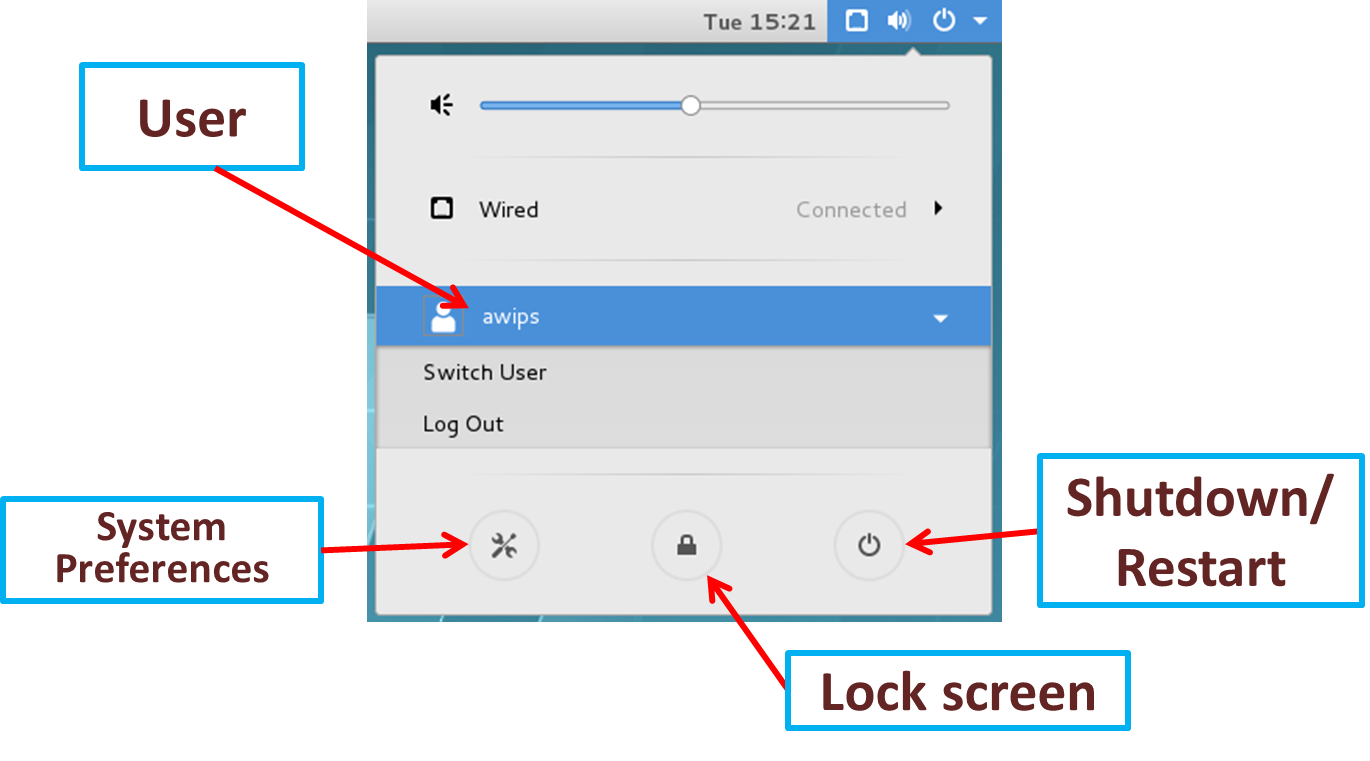
Note the screensaver doesn't respond to mouse clicks, but you can either use the keyboard to wake the screen saver or left mouse click and drag screen up (like swiping upward on a tablet).
There are 3 monitors on an LX workstation on a shared desktop. These monitors can be configured with a portrait or layout orientation.
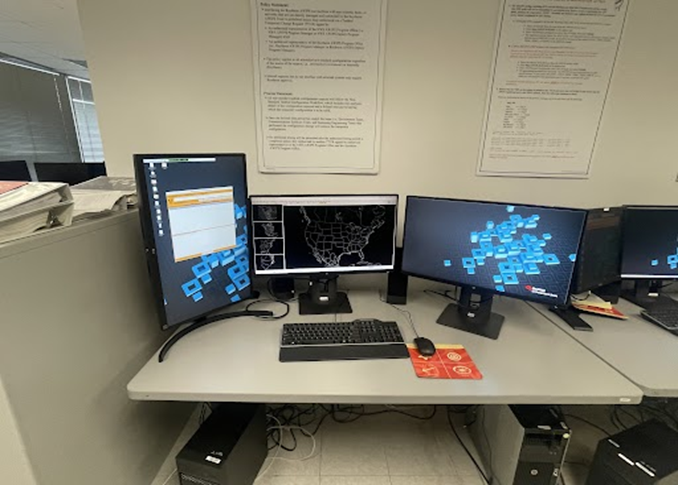
Cave is launched from the Applications-> AWIPS Menu on the upper-left part of one of the monitors on the desktop.
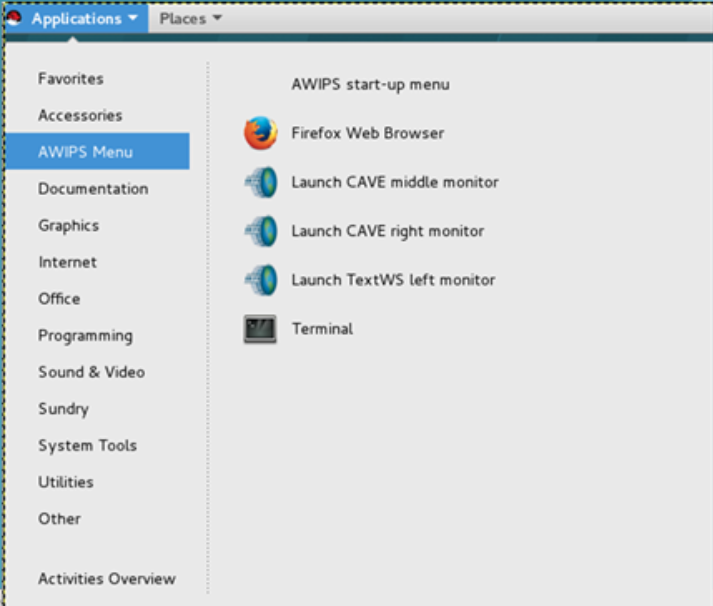
Maximizing display space is essential in AWIPS for many different windows, including CAVE. One tip is to use the maximize button in the upper-right part of the window to expand the window to fill the monitor.
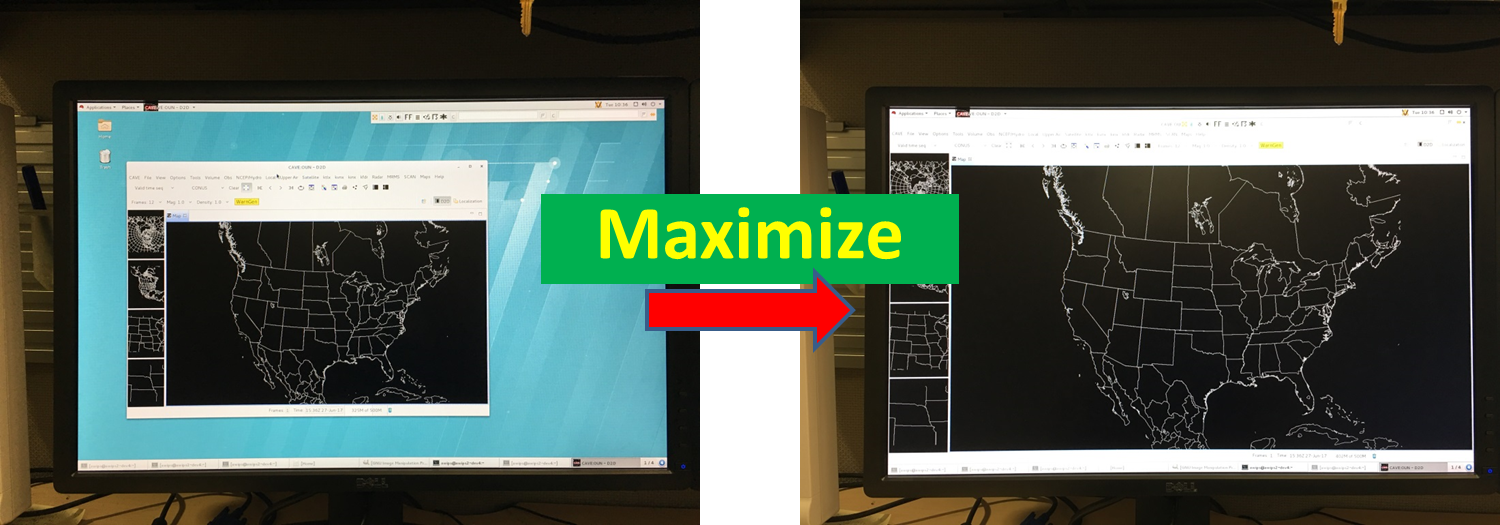
The middle monitor in AWIPS is unique in allowing a right click to generate a menu to launch applications like "Open Terminal".
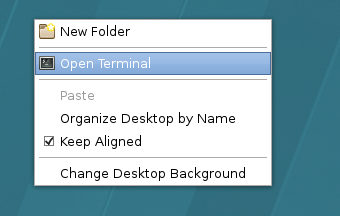
 

CAVE and Perspective Display

Cave display with the perspectives tab visible.

CAVE is the core visualization software for AWIPS, and it facilitates loading different suites of visualization software displays called perspectives:

D2D (Display in 2 Dimensions) - display multi-sensor data and issue short-fused warnings/advisories

GFE (Graphical Forecast Editor) - manage forecast grids and issue long-fused warnings/advisories

MPE (Multi-Sensor Precipitation Estimator) - manipulate precipitation estimates (advanced)

Hydro - interrogate river flooding and issue river flooding products

Localization - manage localization files

NCP (National Center Perspective) - for National Centers operations

Climate (not shown in image above) - used to issue climate products

CAVE is typically launched from the main Applications menu and "AWIPS Menu" submenu in the upper-left part of the Linux desktop on one of the monitors, but it can also be launched from a shell window using /awips2/cave/cave.sh with different command line arguments. For more information about CAVE command-line arguments see Chapter 25.10 of the System Managers Manual (available in the AWIPS2 VLab Community Library (requires standard NOAA LDAP password). Another useful reference page containing the CAVE - D2D User's Manual is the End Users AWIPS VLab page.

You can load multiple CAVEs per workstation, but each CAVE takes up a fixed amount of memory by default (WFOs 6GB for 20.3.2 and 8GB for builds after 21.4.1). While LX workstations typically have 32GB of memory available for WFOs, which theoretically could multiple CAVE sessions, the AWIPS Performance Group has recommended using no more than 2 CAVEs per workstation for heavy data intensive use. It is prudent to only load CAVEs and data when needed for workstation performance reasons. Typically CAVE is loaded full screen on each of the 27" monitors. The bottom of CAVE has a memory readout that you cave hover over with the mouse pointer to see how much of the available memory is being used:

The memory bar will turn red when you approach the limit for what CAVE has been allocated. Next to the memory bar there is a trash can icon that can be clicked to trigger "garbage collection" to free up memory. This will be covered more in the "Managing CAVE Displays and Memory Usage" WES video taken later.

CAVE is the visualization side of AWIPS, and it connects to the data management side of AWIPS called the Environmental Data EXchange (EDEX). At each office, CAVE has been configured to launch for a particular site (e.g. BOX for Boston) connected to an EDEX's Localization Server (to access localization files) and an Alert Server (to receive AWIPS alerts through the program AlertViz). In live operations, including service backup, you will always load CAVE as your local Site. When playing back data cases using the Weather Event Simulator 2 Bridge (WES-2 Bridge) machine, you will launch CAVE as different sites using multiple EDEXs. All the AWIPS localization files for CAVE and EDEX are managed through an intricate system of overrides with a specific hierarchy that is typically managed through the localization perspective or menus with override access in them:
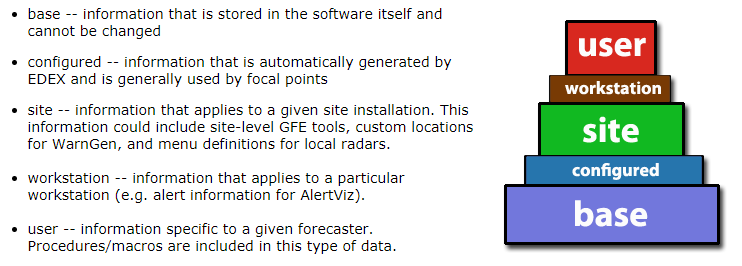

Overrides allow forecasters to copy a file the whole site can see and make a local copy to modify (e.g. user can override site, and site can override base). AWIPS localization is beyond the scope of this training, but it is good for forecasters to be aware of the concept of user and site overrides.

When launching CAVE with no optional arguments, it starts with the previously loaded perspective. Various icons and app-launchers can launch CAVE to start in a given perspective, like GFE. After launching CAVE, you will use the Open Perspective tool contained within the tool bar of CAVE (or the CAVE->Perspective menu) to change your perspective. This training will focus primarily on the D2D perspective.
CAVE's Open Perspective tool

While there are no obvious separators between CAVE core features and the perspective loaded, you can think of the fundamental CAVE components as the CAVE menu, the perspective tabs bar (containing a tab for each perspective loaded) like tabs on a browser, and the CAVE clock on the bottom status bar. The rest of the menus, frame controls, and data displays are associated with the perspective loaded. The perspective tabs, WarnGen button, frame controls, etc. will wrap around to a new line if CAVE is shrunk laterally, so you always can't refer to elements in the toolbar being in a fixed location.
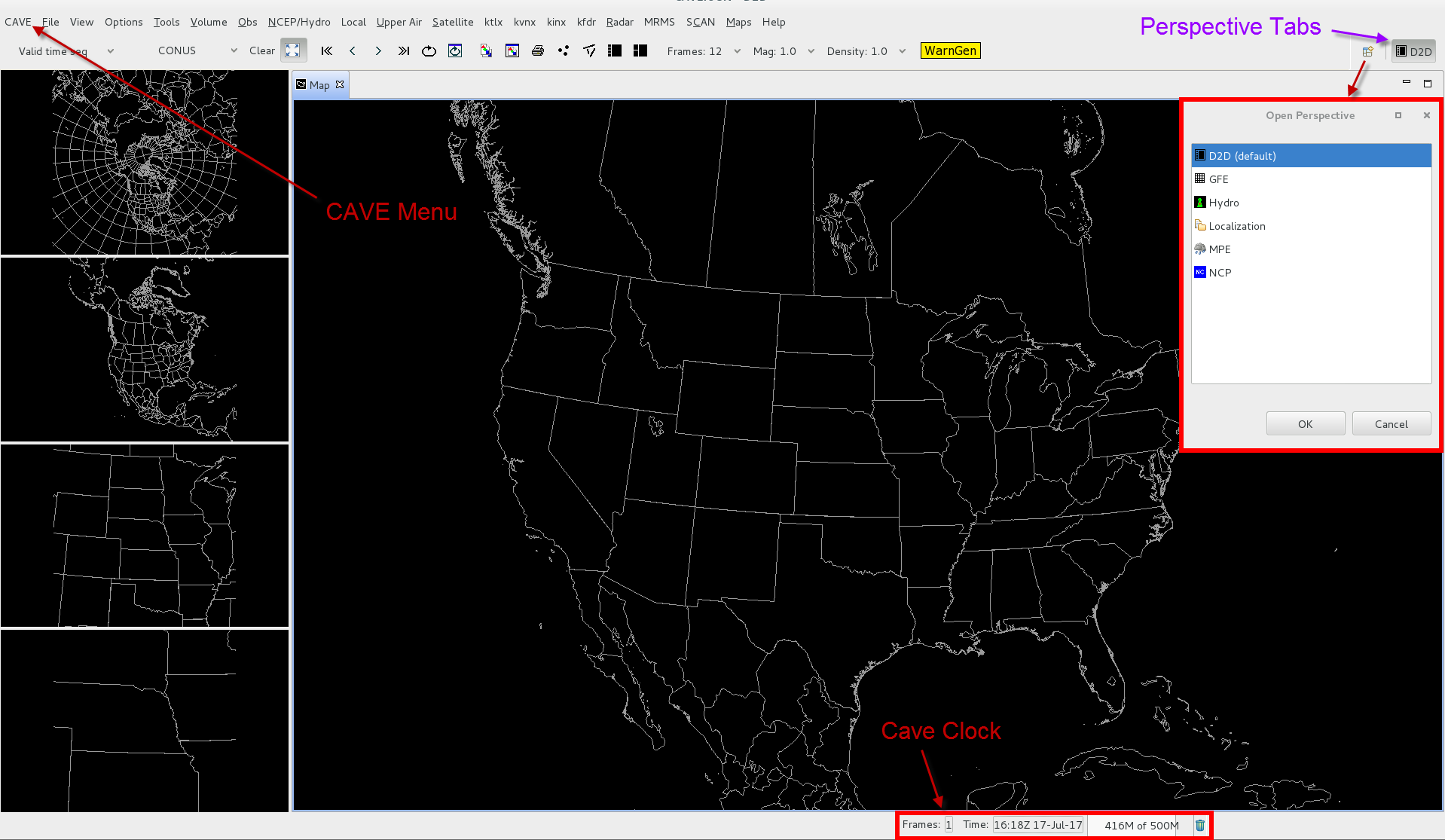
Perspective Display Pane and Map Editors

Each perspective display has at least one main display pane that is composed of different types of editors. Editors are atomic display elements in CAVE, and there can be map editors for viewing spatial data, an NsharpEditor for viewing Skew-T data, and even editors displaying lines of XML code you can modify. The default D2D perspective is unique in containing one map editor in the main pane and one map editor in each of the 4 side panes: 
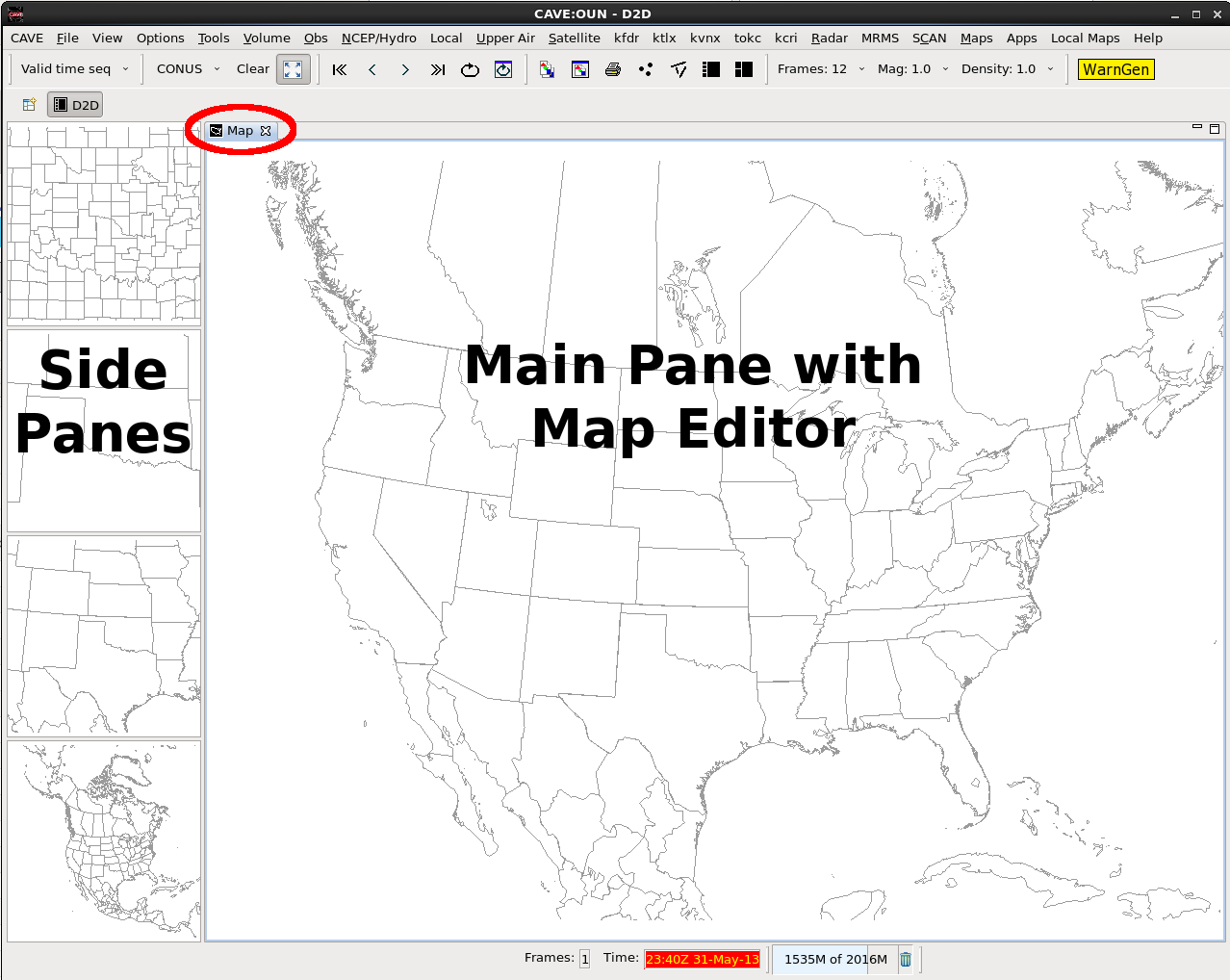
AWIPS-2 D2D Display

When you click on an editor to interact with it, any data or map loading requests from menus or loading procedure bundles will be completed in that editor. One important thing to know about map editors is that they function using a series of XML instructions for defining the product(s), map overlays, map projection, number of frames*, loop properties, etc. that can be saved in the perspective and edited using the localization perspective:
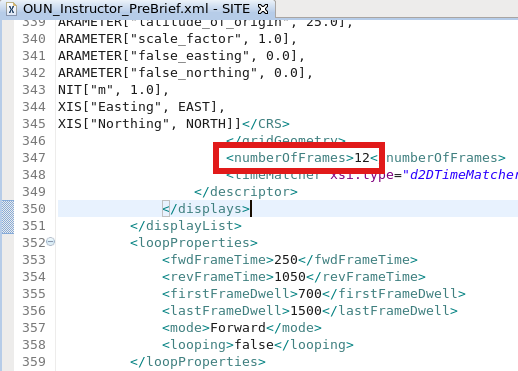
A .xml file launched from the Localization perspective with the Frame Count highlighted with the red box.

The XML representation is essentially a settings document that configure all aspects of the editor's display. This document can be saved in various ways, including procedures, display files, and perspective files which are described later.

*Note: If you are using an operational AWIPS 20.2.3 or later, you will see the frame number displayed with the total frame count at the bottom of the map editor window.

Most display manipulation in AWIPS is completed using simple perspective display menus and tools, but some of the newer innovations are having forecasters leverage the localization perspective. At this point it is important to think of your data and map loading/configuration in an editor as a series of instructions that are being translated into XML that you could modify in simple and complex ways.

Loading And Manipulating Additional Map Editors

The main display pane is a unique area for editor manipulation in any perspective. Multiple editors can be loaded in the main pane by right clicking on the top of the main pane or by selecting New->Editor from the CAVE menu.
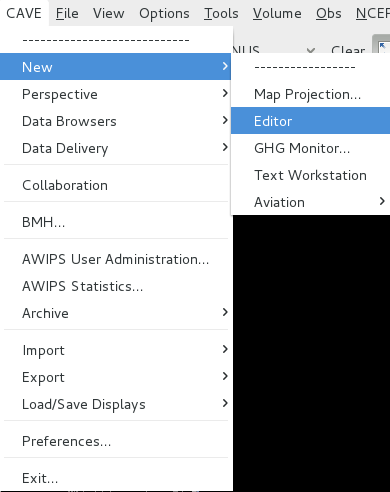
Loading a new editor.

Each new editor is displayed separately like tabs in an Internet browser that can be accessed by selecting the tab name or using Ctrl + Page Up/Page Down to cycle through the tabs. The tab names in the main display panel can also be renamed using a right mouse click on the tab which is important when loading multiple tabs. Renaming the tab isn't just cosmetic; it changes the name of the bundle used to display the editor which you will see when you save display bundles into a procedure (covered later).
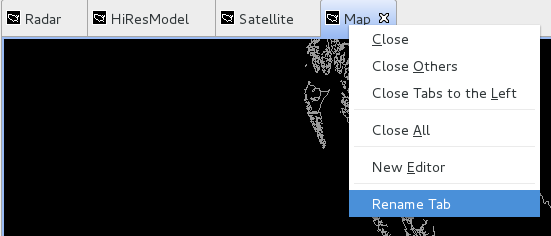
Renaming Tabs.

In addition to stacking multiple tabs next to each other, tabs can be moved around the main display and displayed simultaneously by dragging the tab and dropping it near the desired edge of the main display pane. When simultaneously displaying multiple tabs (see image below) each tab is independent of the others, so to interact with one tab to loop through or adjust the zoom, the user must first select the tab.
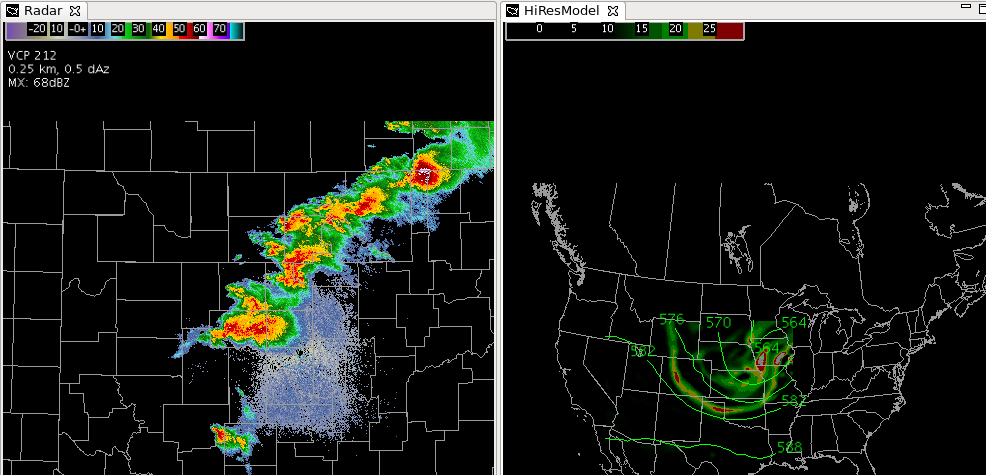
This is the what the display looks like after dragging one of the editors down and to the left until a vertical sepration bar appear.

Map editors have icons in the upper-right for maximizing and minimizing the editor. When editors are minimized, they are pinned to the side of the CAVE with an icon that can restore them in the display.

Minimized icons. Clicking on either icon will restore the map editor tabs along with the main pane.

Map editors have independent controls, so if you zoom in and step through time for the data loaded in one editor, none of the other editors will respond to changes in zoom and looping in your one editor. To link multiple editors together an AWIPS focal point can modify the display bundle XMLs in the Localization Perspective (see this 9panel radar example used in RAC), or if you are configuring a map editor in the D2D perspective, a forecaster can simply use the Four Panel Layout option accessible with a right mouse click on the map editor.

Map editors are unique because they can be configured as a Single Panel Layout (default) or a variety of multi-panel layouts that are linked when zooming, sampling, and stepping through different times. The older AWIPS builds only supported single panel and four panels.
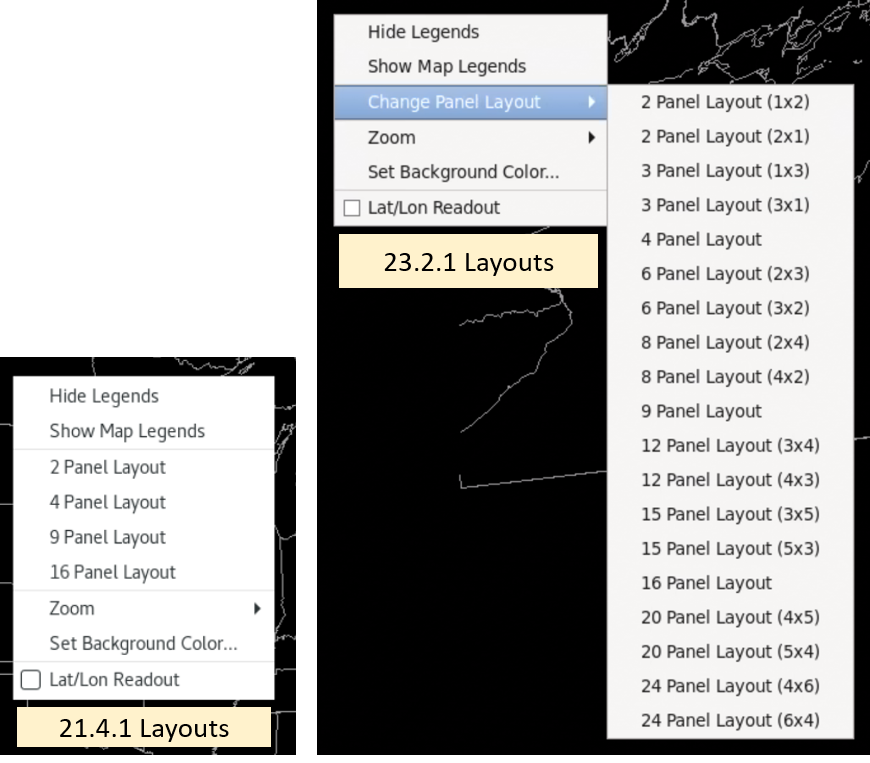
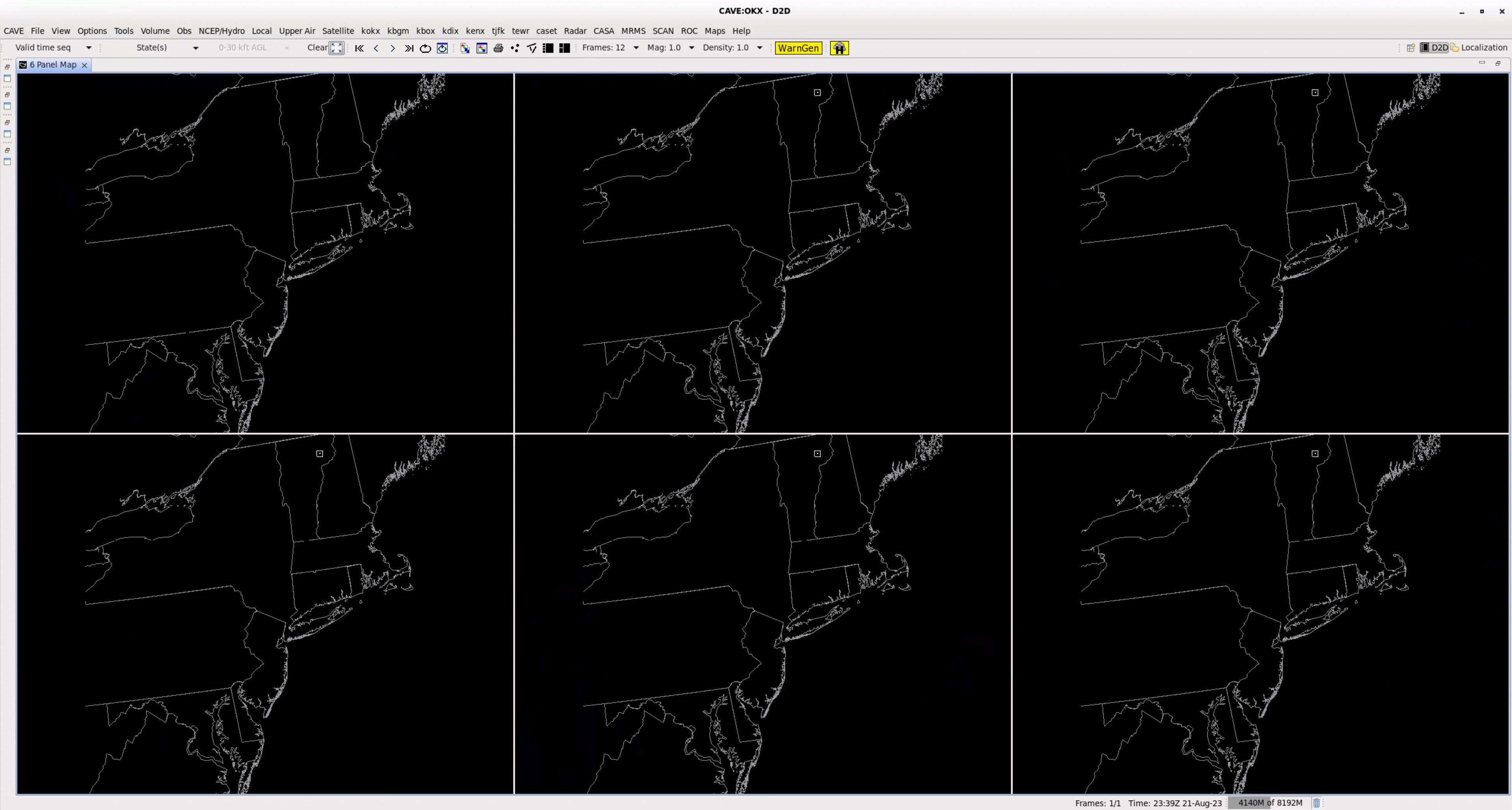
Layout menus

3x2 layout in 23.2.1

Side Display Panes

The D2D perspective is a unique perspective because it has multiple side panes that contain only one single editor that are used to view and store products. With a simple right click on the small pane you swap contents with the single active editor in the main pane ("swapping panes"). You cannot swap multiple editors at once into a single small pane. When data resides in the side panes, the right-click menu within the pane allows some minimal interaction such as looping and zooming on a subset of the data loaded. One major drawback of swapping panes is that every time data is swapped, the data is reloaded, which uses up memory and can take time for some types of data.

When the initial AWIPS software was developed, all panes were essentially limited to one editor, so the side pane layouts were essential in routine operations with D2D to rapidly swap in displays like other radars. Now that AWIPS has evolved to provide a configurable suite of editors and larger monitors have been implemented, more and more sites are migrating away from using the side panes in D2D to using highly configured perspective displays with groups of editors. If you want to maximize your editor display and shrink your side panes, you can move the vertical slider bar on the right side of the side panes far to the left, but the underlying eclipse software does not allow the side pane separator to be moved all the way to the left side of CAVE (limited to 10% of the width of the CAVE window). Fortunately there is a handy trick to effectively minimize the side panes by maximizing the main pane, either by 1) using the max/min buttons in the main pane window or by 2) double left clicking on the editor toolbar to toggle between max and min:
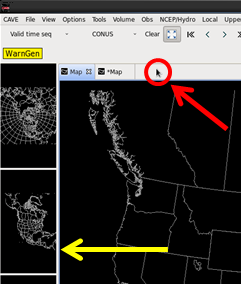
 

Unfortunately the maximized main pane with minimized side panes state can't be saved in the CAVE settings (i.e. Perspective Displays discussed later).

External Windows

There are numerous tools across perspectives that use external windows that do not attach to CAVE like the Radar Display Controls loaded from the Tools menu:

An example of an external window in CAVE.

Some of these windows are simple Graphical User Interfaces (GUIs) that users will interact with to alter the appearance of data in the main display like the Radar Display Controls GUI. Some of these windows may be interactive tables or other displays that can control the appearance of the main display, but also allow for more detailed data analysis like the Flash Flood Monitoring and Prediction program. Other external windows are applications intended for performing data analysis in an environment separate from the main display like the Four-Dimensional Stormcell Investigator. Most external windows are effectively separated from the CAVE display, but a small subset of external windows can be attached to a CAVE editor (i.e. dock-able) like the NSHARP control buttons (discussed later).

Managing external windows in operations is crucial because smaller external windows can be easily misplaced on the display or get lost behind larger windows. One important technique for managing external windows is to cycle through windows by holding down the Alt button while repeatedly hitting the Tab button.
The result of pressing the Alt+Tab keys on the keyboard.

CAVE Menu Capabilities

The CAVE menu contains a lot of different utilities for forecasters, focal points, and ITOs.  One particularly important capability to point out for forecasters is the Load/Save Displays menu that allows the user to save an individual Editor Display or save all configured editors in the Perspective Display:
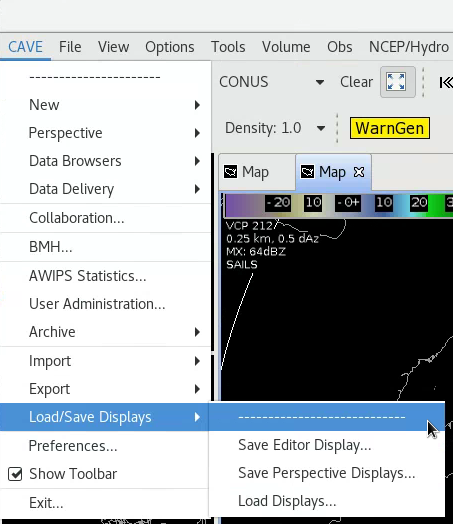
Perspective Displays are a powerful way to set up your workspace for different functions (e.g. aviation, severe weather, etc.). Below is a simple listing to identify the general functions of the menus:

New

Map Projection - create new Map Projection for a map editor

Editor - create a new Editor for a perspective's main display panel

GHG Monitor - launch the Graphical Hazards Generator (GHG) Monitor for issuing long-fused watches, warnings, and advisories

Text Workstation - launch a new Text Workstation (CAVE interacts with the last one loaded on a workstation)

Aviation - launch AvnFPS aviation software and its Configuration GUI

Perspective

D2D, GFE, Hydro, Localization, MPE, Other - launch a new perspective (same as CAVE open perspective button)

Data Browser

Product Browser - launch the Product Browser to directly load most data into a D2D editor rather than using perspective menus

Data Delivery

- manages special data subscription requests not on the Satellite Broadcast Network (e.g. NOMADS model data or MADIS observations)

Collaboration

- launch the Collaboration tool which will allow you to chat with other sites and share an editor display

BMH

- Broadcast Message Handler weather radio interface

AWIPS Statistics

- provides graphs of EDEX processing for ITOs to monitor AWIPS health

User Administration 

- launches a window for ITO to control user privileges

Archive

Archive Case Creation - launch the Archive Case Creation tool which forecasters use to create an archived case from the 7-day rollover for use with WES-2 Bridge

Archive Retention - launch the Archive Retention tool which will allow the ITO to configure the data retained in the 7-day rollover

Both of the archive GUIs require special permissions that the ITO can configure using the AWIPS User Administration Window.

Import

Background, Image, GIS Data, BCD File, GeoTIFF, LPI File, SPI File, Displays - import images, GIS data, or a saved XML Display file into the current editor

Export

Image, Print Screen, KML, Editor Display - save current editor as an image, PDF, KML or save the raw XML code in an XML Editor Display

Perspective Displays - save the entire perspective configuration including all editors as an XML Perspective Display

Load/Save Displays

Save Editor Display, Save Perspective Displays, Load Displays - same as Import and Export Editor Displays or Perspective Displays

Preferences

- set forecaster preferences (Collaboration, GIS Viewer, Mouse, Rendering - font magnification, Tear-Off Menus)

- set ITO or Focal Point preferences (General, Localization, NCEP, Paths, Performance, Product Browser, PyDev, Text Workstation, XML)

- most forecasters primarily use the Mouse settings, so setting preferences is not common

Show Toolbar

- toggles the toolbar of the perspective loaded

Exit

- close CAVE (can also click x in upper-right CAVE window)

CAVE Fundamentals Summary

In summary, CAVE is used to load different software perspectives. A perspective contains unique tools for a particular forecast application and at least one main pane for assembling collections of atomic display XML instructions called editors. These distinctions become particularly important when saving and reloading perspective displays and editor displays. From the CAVE->Load/Save Displays menu you can save all the characteristics (data, maps, colors, etc.) in a particular editor using the Save Editor Display menu, and you can save all characteristics of all editors in the perspective using the Save Perspective Displays. While we will cover more on memory usage in the "Managing CAVE Displays and Memory Usage" WES exercise video, there are a few general guidelines worth pointing out in the CAVE fundamentals section:

General CAVE Guidelines

  • load what you need as you go, not everything you could possibly use
  • the amount of data loaded, including frame counts, matters, so pay attention to frame counts and scale of your displays
  • trim frame counts back or reduce scales if you have memory or workstation performance issues
  • pay extra attention to model derived parameters like CAPE and their data scale (more later)
  • use multiple tabs instead of side panes to limit reloading data from a pane swap
  • spread memory intensive applications across multiple CAVEs if you have problems
  • if your memory bar on the bottom approaches the maximum available (8GB by default for WFOs operationally) it will turn red, and you can click the garbage icon to run garbage collection and free up some of the memory


Task: Transferring Screen Products Between the Main Display Pane and Side Panes
This task describes swapping display panes between the individual side panes and the main display pane, which allows multiple displays in the D2D perspective.
View Jobsheet
Task: Loading, Arranging, and Unloading Additional Map Editors
This task describes loading/unloading additional map editors, arranging map editors, and minimizing/maximizing editors.
View Jobsheet
Task: Saving Loading Editor and Perspective Display
This task describes loading/unloading additional map editors, arranging map editors, and minimizing/maximizing editors.
View Jobsheet

Map Backgrounds

Last modified date:

This lesson presents basic information on map overlays that can be loaded into a display panel and how the properties of those maps can be adjusted. There will be more detailed practice opportunities on this topic in WES Exercise #1 (CAVE Basics) on your office’s WES-2 Bridge machine.

Maps Menu
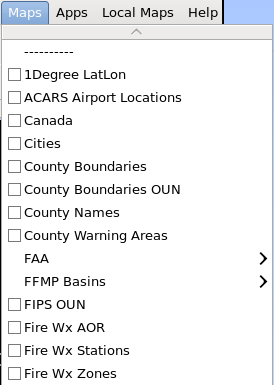
Maps pulldown menu.

The Maps menu provides the AWIPS operator the ability to display numerous configurable map overlays in a single editor. Maps loaded from the Maps menu originate from the AWIPS mapsdata database. Typically the AWIPS focal point imports the maps into the mapdata database, so they can be simply loaded from the menu as simple overlays that have no time stamp. Additionally, forecasters can choose to manually import their own WGS84 non-projected latitude/longitude shapefiles as map overlays in D2D by using an application launched from the CAVE->Import->GIS Data menu. The import GIS Data approach can also be used to assign time to a map (for situations like burnscars) and can allow the user to filter the map displays and manage the properties of the attributes with finer granularity than when loaded from the Maps menu. Importing shapefiles is beyond the scope of this course, so we will focus on maps loaded from the Maps menu. If you would like to know more about importing GIS Data and are on the Internet, see this link.

Most maps, like cities and counties, do not significantly cover up underlying data, similar to graphic overlays like the Hail Index radar algorithm. The commonly-used HiRes Topo Image map is an example of an exception which is more like a radar reflectivity image that covers up underlying data. Knowing how to combine maps with adequate, but uncluttered and distinguishable, information is an important skill that can significantly enhance the speed and effectiveness of your data analysis during operations.

Task: Loading a Map Overlay
This task demonstrates how to load a map into the main display panel.
View Jobsheet

Map Legend vs. Product Legend

The lower-right part of the editor contains product legends and map legends that can be accessed through right clicks on the general editor background ("Show Map Legends" or "Show Product Legends") or by hitting the Enter key on the numeric keypad multiple times.

Product legend. (product legend)

Map legend. (map legend)

You can toggle the map legends on and off by left clicking on the mouse with the pointer over the name. You can also change map display characteristics such as color, line width, line style, etc. through a right-mouse click on the map legend name, and you can individually set the Density and Magnification settings for a product or overlay independently from all of the other products in your display:

Result of right-clicking on a map legend text.

Task: Unload a Map Overlay
This task will demonstrate how to unload a map that is currently loaded in the main display panel.
View Jobsheet

Editing Map Characteristics

Once the map legend is visible, use the context-sensitive menu (right click) to change a map’s characteristics. All configurable map traits are listed and discussed below.

Change Color...

Each map is displayed as one color (gray is the default). The color can be changed using the “Change Color...” option of the map legend menu. This option provides an interface where any RGB or HSB color can be applied to the selected map.
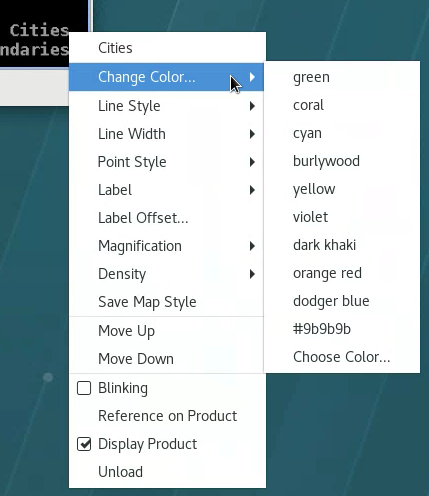
Line Style

Most maps, like county boundaries, are composed of line segments. The line style for a specific map can be changed under the “Line Style” option of the map legend menu. There are five possible line styles to chose from: Solid, Dashed, Dashed_Large, Dotted, or Dashed_Dotted. Solid is the default setting.

Selecting Line Style from the product legend

Line Width

Similar to line style, the line width of a map can be changed using the “Line Width” option. Four different line widths are available with the thinnest option being the default.

Selecting Line Width from the product legend

Point Style

For point-based maps like cities, the style of the point next to the label can be changed from a cross to a point or box.
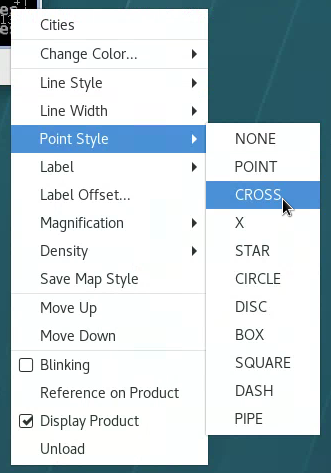
Label and Label Offset...

For maps with multiple attributes like cities, different labels can be selected like NAME or POPULATION. The X and Y offset of the label from the point can also be controlled with the Label Offset... menu.

Magnification

For maps with text labels, the size of the labels can be changed by using the “Magnification” option of the map legend menu. There are seven different magnification settings available between 0 and 2.5 with 1 being the default value. Note that changes in the Mag setting in the D2D toolbar will apply to all maps, while changing the setting in a map’s menu only will apply to that map.
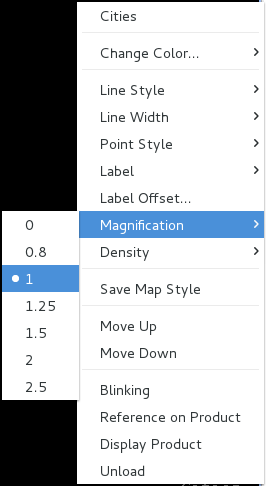
Selecting Magnification from the product legend

Density

For some maps like cities, the level of detail visible on different zoom levels can be adjusted. The number of markers or labels visible on a specific map is controlled under the “Density” option of the map legend menu. There are nine different Density settings available from 0 to Max, with 1 being a default baseline value and 0 not displaying anything. Like the Mag setting, the Density setting in the D2D toolbar will apply to all maps, while changing the setting in a map’s menu only will apply to that map.

Selecting Density from the product legend

Move Up/Down

Each map and product is a layer that can be moved up or down in the order in which they are displayed.

Task: Changing a Map’s Display Characteristics
This task demonstrates how to alter the default appearance of a map overlay by changing its display characteristics.
View Jobsheet

Editing Product Displays

Last modified date:

This lesson provides background information and step-by-step instructions on how to modify various product display characteristics.

Changing the Zoom and Center

The center mouse wheel is the primary way to zoom in or out in an editor. CAVE also provides several different pre-defined zoom factors that you can utilize for those who don't have a mouse wheel or those who desire a fixed display, say for capturing sets of images over the same location. The zoom factors are defined by the map size (in km) in the display panel.
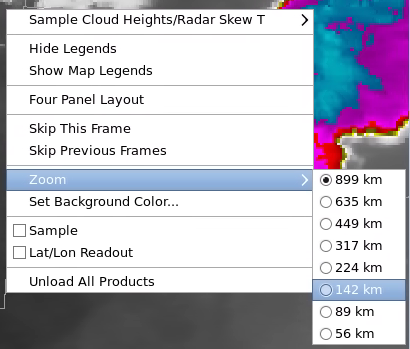
The zoom option in the display menu

Task: Zooming In/Out of a Product View
This task will demonstrate the different ways to change the zoom factor in the main display panel.
View Jobsheet

Changing the center point

When viewing a product at one of the default scales (i.e. WFO), the center of the product will always be the center point of that default scale. You can change the map center by panning the image with a left mouse click and drag or by zooming in or out on the map. The location of the mouse pointer when you use the scroll wheel will zoom relative to that location. 

Task: Panning a Zoomed-In Image in the Main Display Panel
This task will demonstrate how to pan the main display panel.
View Jobsheet

Sampling and Lat/Lon Readout

When products are loaded in an editor, data sampling and the latitude/longitude readout can be toggled on/off using the check box in the right click menu on the editor background (note this is different than right clicking on the product legend or map legend). Leaving sampling on can be distracting, and one best practice is to configure a long-left mouse click to sample on demand without having to use a menu selection.  This will be covered later in the Mouse Settings page and WES Exercise 1 Cursor Sampling and Lat/Lon Readout video.

Changing the Image Color Table of an Image Product

Image products like radar and satellite data use color fills from a color table to indicate the data value for a particular location. Existing color tables can be applied to an image, or the color tables can be edited and saved as new files. Changing color tables manually is temporary unless you save them in a procedure or have your AWIPS focal point assign a new one to the menu loading.

Switching color tables: The Image Properties GUI

Most often, when you want to use a different color table, you just select a new one from the "Imaging" GUI launched by clicking the Image Properties icon on the toolbar or by using Ctrl + I keyboard shortcut. Note you can identify button functionality by hovering the mouse over the button in the toolbar. The Imaging GUI lists the color table for each image product loaded in the main display panel. Clicking on buttons reveals a pull-down menu for the color table options.
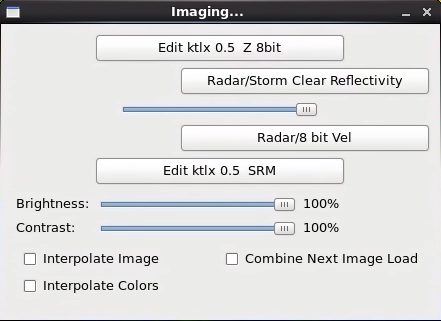
Image Properties GUI

Another essential aspect of the Imaging GUI is the Brightness and Contrast controls. These are frequently used to reduce the brightness of displays so you can make other overlays more visible.

The Combined Next Image Load allows you to define paired products that can be faded back and forth. The Interpolate Image and Interpolate Colors will resample and smooth the data, particularly for grid data.

Task: Switching the Color Table for a Radar Image Product
This task demonstrates how to change the color table to another pre-existing color table for a radar image product.
View Jobsheet

Editing color tables: The Color Table Editor

The Color Table Editor allows you to modify the current color table. The GUI can be a little overwhelming at first because it provides the user with several options to change the color scale.
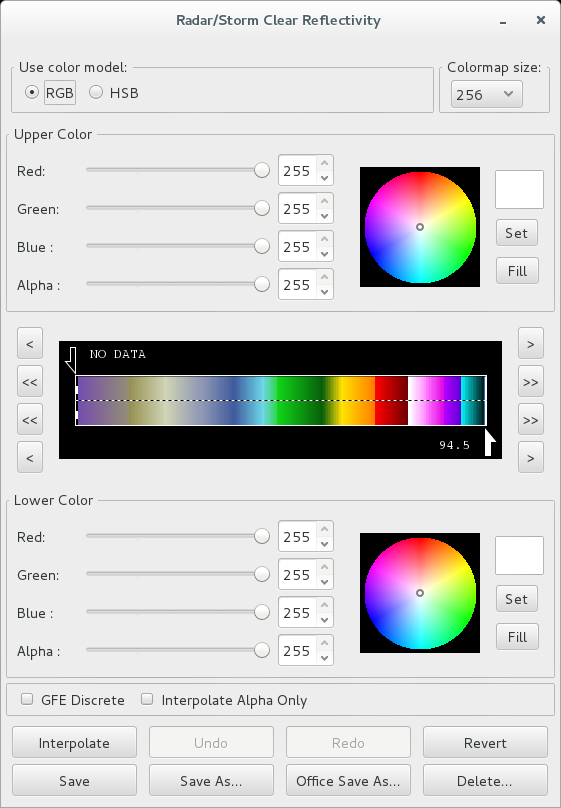
The Color Table Editor GUI

In the center of the GUI, the current color scale is shown with half-arrows on the top and bottom of the legend. Using the arrows, the operator specifies a range of data to define a color over. Depending on whether the image is a 4-bit or 8-bit/Super Res product, you can either fill that range of data values with a solid color or with a gradient of colors.

The colors used to fill or interpolate the range of values are determined from the two color panels in the GUI. These color selection panels give the user the option of using RGB (Red-Green-Blue) or HSB (Hue-Saturation-Brightness) color models to select a color. In addition to choosing colors, the transparency of the product can also be edited using the Alpha slider bar in the Color Table Editor.

When finished editing the color table, save the changes either to the old Color Table file or to a new file.

Task: Editing the Current Color Table
This task demonstrates how to make changes to the current color table using the Color Table Editor.
View Jobsheet

Blinking portions of a color table

Blinking the color table is a unique D2D perspective capability that can be useful at times to highlight important data. This can be useful for a warning forecaster who is color blind and who might have a difficult time distinguishing between two different colors used in a color table (even if the scale was specifically designed to mitigate this issue).

Task: Blinking a Range of Data Values
This task demonstrates how to select a range of values from an image product’s color table and make those colors blink.
View Jobsheet

Product Overlays

Last modified date:

This lesson provides instructions on loading multiple products into a single display, and it references tasks from previous lessons over loading and editing product displays.

Graphic Products vs. Image Products

When working in the D2D perspective within CAVE, it is important to understand the difference between image products and graphic products. In CAVE, graphics can be converted to images and images can be converted to graphics.

Graphic products

Graphic products are maps containing plotted or contoured data, soundings, or other plotted data. These products can be either observational data or model output products. Graphic products are beneficial for data analysis because multiple graphic products can be loaded into a single display panel and viewed concurrently over image products without masking the underlying data.
Example plot of METAR data

Graphic products contain less visual information than image products. Cursor sampling graphics only works for certain point measurements (e.g., surface observations). A single graphic product is displayed as one color, which can sometimes cause legibility issues. For instance, fields in a METAR station plot are all a single color, sometimes impeding interpretation. Further legibility issues can result from small font sizes or contour widths. Changing the panel Magnification and/or Density settings, or changing the product specific parameters (i.e., color, line width, etc.), can help mitigate some legibility issues with graphic product displays.

Image Products

Image products are continuous fields of data represented by color fills. The continuous color fill essentially creates a layer that can totally mask other layers of data underneath. The colors used in the color table can be changed or can be configured to blink, and the values can be sampled by right clicking on the background to select sampling or by configuring the mouse to sample using something like a long left click.
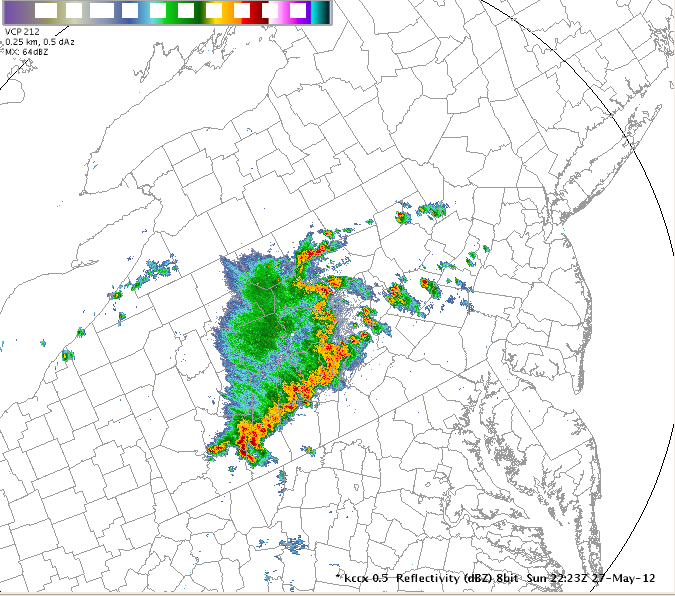
Example plot of radar reflectivity

Pairing Combined Images and Product Stacking

With the Combined Imaging button toggled on, when you load multiple images they are combined into one image where you can fade back and forth between the images using the +/- keys on the keypad or can toggle between images using the . on the keypad (with Num Lock on). The 0.5 Z/V product is a good example of this:
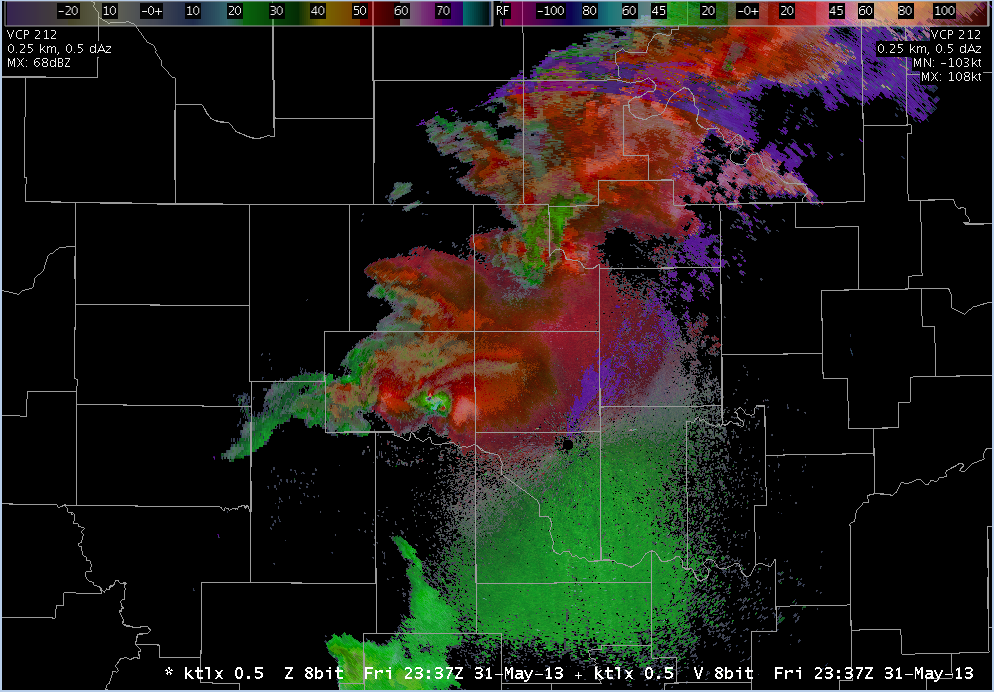
Result of loading Z and V products with the image combination icon toggled on.

With the Combined Imaging button toggled off, when you load multiple images, they are stacked on top of each other. If they cover the same areas with their continuous color fills, then the top image typically will hide the data underneath unless the alpha channel for that color has been modified in the color table editor. Stacking can still be a viable way of loading multiple image products in an editor, but you will need to toggle the visibility of the image products by clicking on the product legends.

Task: Overlaying Model Image on Radar and Satellite
This task demonstrates how to load a radar image on a satellite image and add a model image.
View Jobsheet

Importance of Loading Order

AWIPS operators commonly overlay graphics and image products on a single display panel. The sequential order of how products are loaded into the display panel is crucial to how those products update. The first product loaded into a display, by default, determines the Time Match Basis which is the frequency at which the frames in that display panel will update. This will put a * in the product legend to identify the Time Match Basis.

An example if time matching set to the satellite IR product.

Once you have multiple products loaded, you can assign the Time Match Basis through a right-click menu on the product legend. It is important to consider the frequency of the products when choosing which product you want to drive the updating as the Time Match Basis.

For instance, if a METAR product is loaded first, then radar data, the hourly METAR data drives the frame contents. Changing the time match basis to the radar data will allow the 5-10 minute resolution radar data to drive the frame contents. Surface observation time matching is unique in that once you load an image over the initial graphic, the time match basis cannot be reassigned to the surface observation.

Task: Setting the Time Match Basis of a Product
This task demonstrates how to set the time match basis of a product in order to change which loaded set of data controls the update frequency of all data sets loaded in a current CAVE window.
View Jobsheet

Different Types of Graphic Product Overlays

Graphic products more subtly overlay image products because they typically do not contain the continuous color fills of an image product. Graphic products can vary significantly in their functionality and in their look and feel. In warning operations they generally fall into three categories: radar product overlays, Volume Browser product overlays, and other product overlays.

Radar Product Overlays

Numerous radar graphic products can be overlaid on radar image products. This includes such products as Storm Track Information (STI), Tornado Vortex Signature (TVS), and Meso Rapid Update (MRU). The number of pages in a particular table will be noted in the product legend at the bottom right of the screen by x/y, where x is the current page being viewed and y is the number of pages in the table. Multiple pages of radar graphic tables are cycled through by middle-mouse clicking on the product legend.
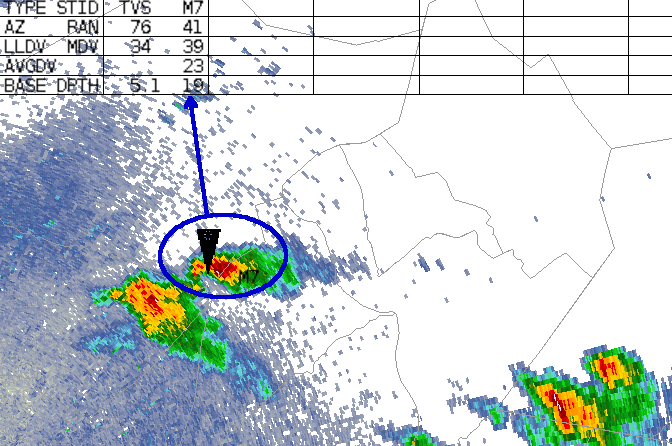
A TVS symbol overlaid on radar data

Task: Loading and Toggling Radar Graphic Overlay Products
This task demonstrates how to load and toggle a graphic product overlay into a frame after first loading an image product.
View Jobsheet

Volume Browser Product Overlays
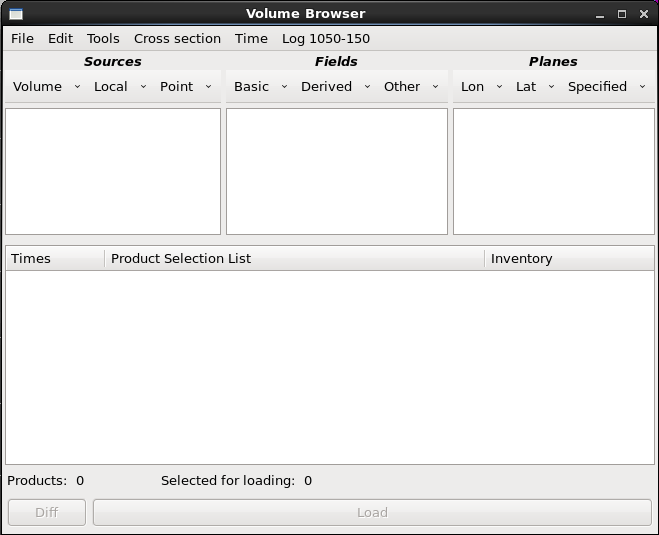
Volume Browser window.

The Volume Browser is a unique tool in the D2D perspective that loads grid data from a user-selected Field (e.g. vorticity)Source (e.g. NAM12), and Plane (500MB pressure). You can load plan view (horizontal), cross sections, time height displays, variable versus height, sounding displays, and time series by selecting the type of display from the simple menus at the top of the Volume Browser window. While many grid data fields can be loaded from the D2D Volume menu Families, the Volume Browser allows you to load specific fields in your coordinate of choice (e.g. temperature, height, pressure, etc.). A detailed description of the Volume Browser and its usage falls outside the scope of this course.  However, we will introduce some of the basics of the Volume Browser in the job sheets.

Task: Overlaying CAPE on a Base Reflectivity Product
This task will demonstrate how to use the Volume Browser to load a graphic overlay product (e.g., CAPE) in the same display panel as an image product (e.g., base reflectivity).
View Jobsheet

Other Product Overlays

Other AWIPS graphic products such as METAR observations, warning polygons, etc. are useful to overlay on radar image products. These products are mostly located under the Obs or NCEP/Hydro menus in CAVE.

Task: Overlaying a Surface Plot on a Base Reflectivity Product
This task demonstrates how to load a graphic overlay (METAR surface observations) in a display panel with an image product (base reflectivity).
View Jobsheet

Import Export

Last modified date:

Printing the Contents of the Main Display Panel

Making hard copies is a fairly straight-forward process in AWIPS. The Print GUI (File->Print or printer icon on D2D toolbar) gives you many of the basic options that you will see in any typical print dialog box: Portrait/Landscape, Scale, Copies, etc. Print GUI
When you print hard copies, most often the “Invert Black/White” check box should be selected. This option prevents using excessive amounts of black ink. Situations where you will want to toggle this feature off include printing an image product that uses a primarily grayscale Color Table (such as Satellite Data) or image products with Color Tables that use white and black as particular data values that would somehow make interpreting the hard copy difficult. The other unique thing about the AWIPS print tool is that it gives you the capability to change the CAVE magnitude and density settings from the AWIPS printer dialog. If you select the File checkbox, then you can export the editor contents as a PDF.

Another way to print within AWIPS is using the Export option (CAVE->Export->Print Screen). This option contains basic print settings and will not let you toggle between black and white backgrounds, nor will it let you control the density and magnitude in CAVE.
General tab of AWIPS-2's Print GUIPage Setup tab of AWIPS-2's Print GUI

Task: Printing the Contents of the Main Display Panel
This task demonstrates how to make a hard copy of the main display panel contents.
View Jobsheet

Exporting Screen Captures from AWIPS as an Image

Making images or animated GIFs is very easy in AWIPS using the capture utility under CAVE->Export->Image. To make readable images you should pay attention to image size and label readability. Resize your CAVE display so the editor with the data is the the desired pixel size. Second, increase the magnification of the product legend (right click on product legend or adjust Mag in the toolbar), so the fonts are clearly readable for the text legends. If you have multiple frames loaded you specify to create a separate image for each, and you can also create an animated gif. AWIPS has some video capture capability with the FFmpeg application (see the 17.2.1 tab on the AWIPS Builds page and the 17.2.1 Informational Overview for more details).

Task: Creating a Screen Capture of the Main Display Panel
This task demonstrates how to make an image file or a series of image files of the main display panel contents.
View Jobsheet

Text Products

Last modified date:

This lesson provides instructions on how to use AWIPS text windows to display a variety of text products commonly referenced by three-letter text product IDs or by 9-character Automation of Field Service Operations and Services (AFOS) Product Inventory List (PIL) references. For a comprehensive list of 3-letter text product IDs, see this NWS Weather Forecast Office Product Listing. For a detailed listing of AFOS PILs for most NWS offices, see this version of the afos2awips file (web contenttext file). These text products can be alphanumeric radar products generated by the WSR-88D or any of the text products generated by a WFO that are currently in the local database. On AWIPS, text products are viewed using the Text Monitor which can be launched from the CAVE->New->Text Workstation menu.

Displaying Alphanumeric RPG Products

While most products generated by the WSR-88D Radar Product Generator (RPG) can be displayed as graphical or image products in the D2D perspective, some products contain text information designed for display in a text window. These products are often referred to as Alphanumeric RPG Products. Some of these products are simply text products (e.g., Free Text Message) while others contain text information embedded within a graphic product and can only be displayed in a text window (e.g., adaptable parameters of the Tornado Vortex Signature).

Here is a list of the different alphanumeric RPG products you can view in a text window (including the three letter identifier for that product):

Alphanumeric RPG Products That Are Viewable in a Text Window
Product Name Three-Letter Identifier
Free Text Message FTM
Hail Index HAI
Mesocyclone MES
One Hour Precipitation OHP
One Hour Snow Depth OSD
One Hour Snow Water Equivalent OSW
Product List PTL
Radar Coded Message RCM
Storm Structure SST
Storm Total Precipitation STP
Storm Total Snow Depth SSD
Storm Total Snow Water Equivalent SSW
Storm Track Information STI
Supplemental Precipitation Data SPD
Three Hour Precipitation THP
Tornado Vortex Signature TVS
User Alert Message USM
User Selectable Snow Depth USD
User Selectable Snow Water Equivalent USW
VAD Wind Profile VWP

The steps for displaying these products are shown in the following task that covers how to view a VWP product.

Task: Loading the Alphanumeric Information for a VWP Product
This task demonstrates how to use a text window to access the attribute and adaptable parameter information embedded within a VWP product.
View Jobsheet

Displaying Office Text Products

In addition to RPG alphanumeric products, the AWIPS text window can display any text product currently in the AWIPS database. These products may be issued by your local office or by neighboring offices which are pertinent to your operations.
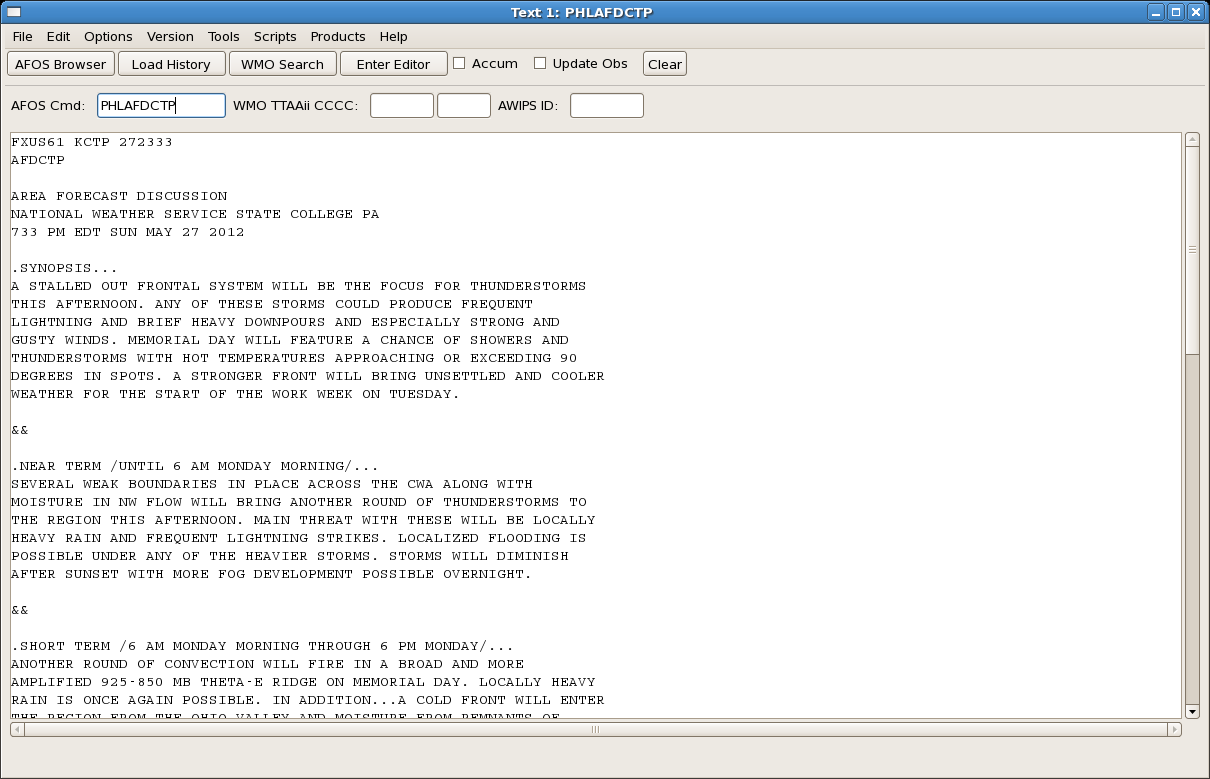
The Text Workstation showing the output of loading text product “PHLAFDCTP” through the AFOS Cmd field

There are several ways to access these products in a text window (see NWS Weather Forecast Office Product Listing for product listing). Like RPG alphanumeric products, the nine-letter ID (see AFOS PILs) for a product in the “AFOS Cmd:” entry field retrieves all instances of that product from the database. Alternatively, the AFOS Browser provides a GUI used to select the Node, Category, and Designator from menus that construct the nine-letter ID for a text product. The AFOS Browser is particularly useful for loading less common products. Lastly, you can use the Load History to open text products that have been viewed previously on that AWIPS workstation.

Task: Using the AFOS Browser to Load an Area Forecast Discussion
This task demonstrates the steps for using the AFOS Browser to view an Area Forecast Discussion (AFD) from your local office AWIPS database.
View Jobsheet

Mouse Settings

Last modified date:

This lesson provides a brief description of the mouse controls and user-configurable mouse settings, so you can adjust your own mouse settings. While many of the mouse settings are not routinely changed, there are some mouse settings that are commonly used. One WDTD recommended change to the AWIPS defaults is to enable image sampling with a long left click. This allows you to sample and roam on demand which is a critical skill in warning decision making.

Mouse Shortcuts Tables

The three-button mouse performs a number of actions, depending on where in the CAVE window the mouse pointer is located. Here, each button is referred to by number: Button 1 (B1), Button 2 (B2), and Button 3 (B3). If your workstation has a two-button mouse with a clickable scroll wheel, all references to Button 2 in this lesson refer to the clickable scroll wheel.
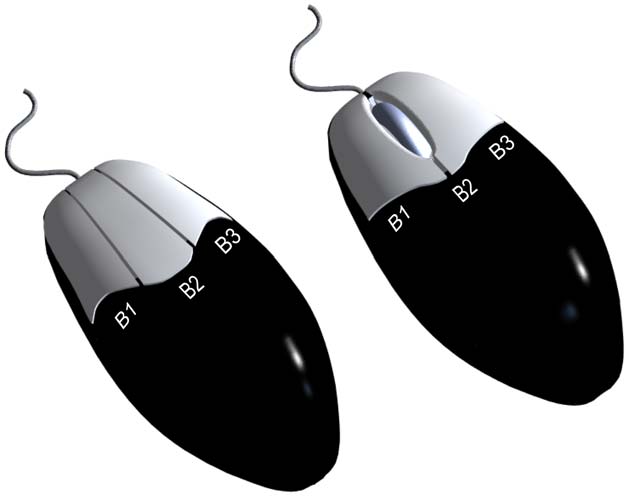
Two variants of the three-button mouse used to control AWIPS-2, with labels for each button

The tables below detail the different functions for each mouse button for the default AWIPS mouse settings. 

Mouse Functions for B1 (Left Mouse Button)
Function Mouse
Open pull-down menus in the menu bar Click B1
Create tear-away menus by selecting the dashed line in the pull-down menu Click B1
Make menu selection in menu Click B1
Activate menu buttons in toolbar Click B1
Toggle product on/off in product legend in main map editor Click B1
Drag slider to desired setting on a slider bar in a dialog box Press and Hold B1
Moving any of the following items in a main map editor and any other map editor: Point, Baseline, Distance Speed, WarnGen vertex, and Select Alert Area Press and Hold B1
Bring a window to front Click B1
Move a window or dialog box Press and Hold B1, then Drag Mouse
Pan across large display (Pan feature must be activated) Press and Hold B1, then Drag Mouse
Mouse Functions for B2 (Center Mouse Button or Clickable Scroll Wheel)
Function Mouse
Zoom in (Pan feature must be activated) Scroll Forward, Middle Click
Zoom out Scroll Back
Pan across large display (Pan feature must be activated) Press and Hold B2, then Drag Mouse
Toggle on/off Editability of tool in Tool Legend of main map editor Click B2
Insert/Delete vertices when editing on lines/vertices of warning box Click B2
Mouse Functions for B3 (Right Mouse Button)
Function Mouse Action
Swap small display pane with the large display pane containing the main map editor Click B3
Launch CAVE window options in title bar of CAVE display or dialog box Click B3
Toggle all product legends within selected map editor (small or large display pane) Click B3
Launch color table by selecting product in Product Legend of main map editor Click B3
Open respective pop-up menu on legend or over displayed products in any map editor/pane Press and Hold B3
Open pop-up menu on product name listed under Product Selection List in Volume Browser Press and Hold B3
Toggle Alert Cells in radar alert area Click B3

Configuration of Mouse Buttons

In AWIPS, you can set the mouse settings to your own personal preference. They are stored on the EDEX server under your username and are available on any workstation into which you log in. However, there are two issues with using modified mouse settings. One is your individual settings are not available to another user. If workstations are shared during active weather, you need to be familiar with the mouse settings of your collaborators. The default settings are always available. The second issue is the mouse setting configurations could possibly be reset after a server software upgrade if the settings were not preserved prior to the upgrade and migrated after the upgrade.

For the D2D perspective, there are two different mouse profiles available: Default Cave and AWIPS 1 D2D. The table shown here lists the default mouse settings for both Default Cave and AWIPS 1 D2D. Note that it is possible to overwrite the default settings. Therefore, this listing will help to restore the actual default settings.

Default Mouse Settings
Category Action Default Cave Event AWIPS 1 D2D Event
Navigation Zoom Out Scroll Back Left Click
Navigation Zoom In Scroll Forward, Middle Click Middle Click
Navigation Panning Left Drag, Middle Drag Middle Drag
Legend Interaction Show/Hide Resource Left Click Left Click
Legend Interaction Edit Resource Middle Click Middle Click
Editor Action Toggle Legends Right Click Right Click
Editor Action Show Color Edit dialog Right Click Right Click
Editor Action Sample Disabled Long Left Click
Editor Action Context Menu Long Right Click Long Right Click
Editor Action Clear Disabled Disabled

Note that you can assign multiple actions, like panning and zooming, to a single mouse control. Sometimes, these will not conflict, like setting left click to zoom out and show/hide resource (default). Sometimes these will conflict, like when left click is assigned to show/hide resource and sampling. In this instance, the sampling overrules the show/hide resource, so you can’t toggle the products with the left mouse button. If you encounter a conflict, try assigning one of the mouse controls to a different action (e.g., long left click for sampling and left click for show/hide resource).
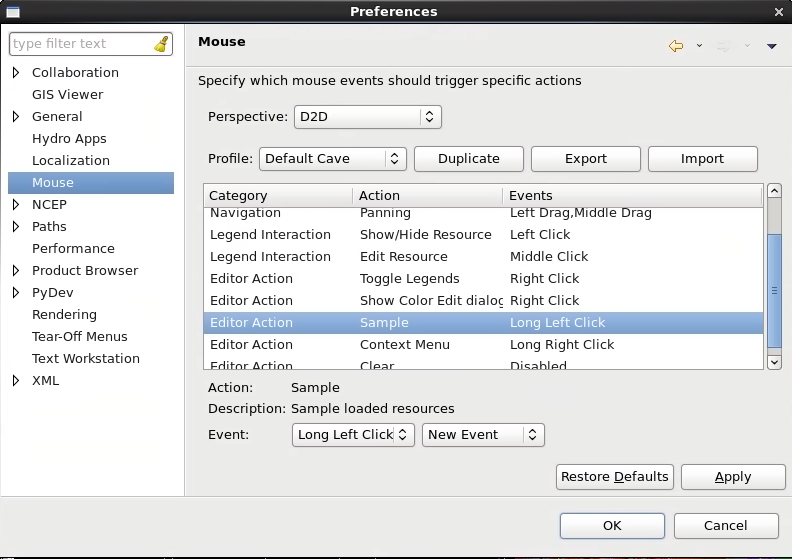
AWIPS-2 mouse preferences, housed within the main AWIPS-2 preferences

You can also have conflict with different actions in one mouse button, like left-click pan and long left-click mouse sampling (i.e., Cave Defaults modified with sampling turned on). This particular conflict can be mitigated by disabling the pan button in the CAVE toolbar or by rapidly double clicking and holding on the second click.

Alerts and Data Monitoring

Last modified date:

This lesson provides basic user instruction on the AWIPS alert management application called AlertViz. 

---------------------------------------

AlertViz Overview

The main interface for AlertViz is a thin window outside of CAVE containing a row of status icons (related to FFMP, FOG, SafeSeas, SCAN and SNOW alerts) and general AWIPS alert text log controls. AlertViz provides different alerts through the use of pop-ups, colors, and sounds. Your ITO can configure AlertViz to alert in different ways to tailor some of the notifications, but AWIPS by nature generates a lot of alerts that you will need to know how to manage. 

The AWIPS-2 alert management application, AlertViz, is a thin window which floats above CAVE or other display windows

Note: In live operations AlertViz is started when the user logs in, and it must be running for CAVE to launch.

Task: Move and Adjust Width of AlertViz
This task will demonstrate how to move the AlertViz bar in your window and how to adjust the width of the AlertViz bar.
View Jobsheet

Hiding the AlertViz Dialog Box

You can hide and show the AlertViz bar by toggling on/off the “Show Alert Dialog” option in a menu that appears by right-clicking on the AlertViz icon in the task bar on your machine's desktop. While hiding the AlertViz bar can reduce the clutter on your screen, there is one important consequence. When hidden, you cannot see certain text-only responses or alerts (i.e., alerts that have a low system priority). Alerts with higher priorities will still trigger pop-ups and sounds that the forecaster will see.
Access the “Show Alert Dialog” option by right-clicking the AlertViz icon in your system’s task bar

Text Section Log

The Text Section Log in AlertViz allows the user to obtain more detailed information on a message and to filter messages by category. A list of AlertViz messages can be launched from the AlertViz bar. The window that contains these messages provides the option to show more detail about a message in a split-screen format.

Task: Launch Text Section Log and Display Detailed View
This task will demonstrate how to launch the Text Section Log and show the details of a message within the log.
View Jobsheet

Alert Visualization Configuration GUI

The Alert Visualization Configuration GUI allows you to working with your ITO to configure message alerts to reduce notification distractions. The image on the next page shows what the configuration GUI looks like. Within this GUI, you can create and save different configuration files. Some of the properties that can be adjusted include the following:

  • Message text layout
  • Text message settings, such as the ability to show message priority and adjusting the blink/audio durations
  • Visual/audio settings for each of the different priorities from High (Priority 0) to Low (Priority 5) for different sources (CAVE, EDEX, FFMP, etc.)
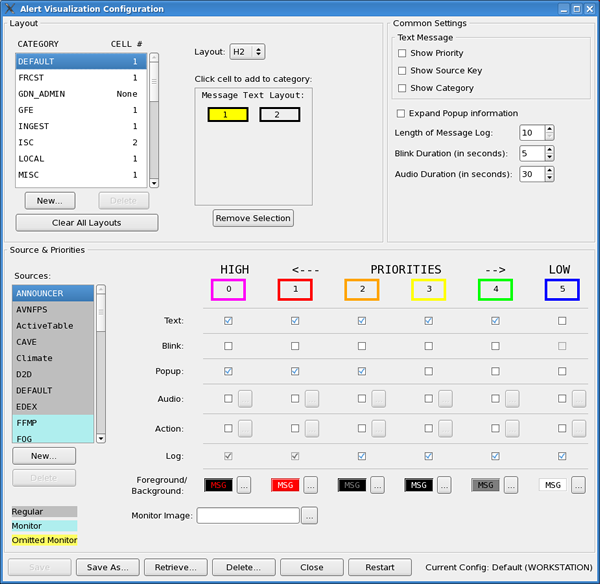
The AlertViz Configuration GUI

The Alert Visualization Configuration GUI is launched from the menu that appears by right-clicking on the AlertViz icon in the task bar on your machine. In this menu, you would select the “Configuration...” option and press the left-mouse button. See your ITO or local AWIPS Focal Point before changing any of your alert settings because you don't want to miss a critical alert!

Using the AWIPS Data Monitor

This lesson provides instructions on how to assess data outages. Because the AWIPS monitoring capability is not integrated in the WES-2 Bridge, this lesson requires a live AWIPS.

---------------------------------------
The AWIPS-2 System Monitor, used to do basic diagnosis on performance issuesThe AWIPS Data Monitor is part of the AWIPS System Monitor, which provides a status of the AWIPS Data (Radar, Point, Grid, Satellite, Local, Graphic, and Disk Usage) and the data ingest processes. The page is composed of collapsible tables with a data label and a corresponding state value. The state is characterized by one of four symbols: a green check mark, a red circle with a white “X”, a blue question mark, and a yellow triangle with a black exclamation point. Each one of these has a specific meaning.

  • A green check mark indicates that data are being received in a complete and timely manner.
  • A yellow triangle with a black exclamation point indicates that data are somewhat late (i.e., more than 20 minutes old) or the data disks are running at a somewhat high level.
  • A red circle with a white “X” indicates that data are very late (i.e., more than 40 minutes old) and/or very incomplete.
  • A blue question mark indicates that no files are present in the data storage for that data set (i.e., perhaps a dedicated radar is down for maintenance for an extended period of time).

Clicking on the plus sign (“+”) in the Data Monitor page provides a more detailed listing of products within each data type, as well as the respective state of each data product. If a symbol other than a green check mark appears in the status column of a particular data set, it is important to click on the plus sign to see which product(s) may have problems.

NOTE: It is important to note that a yellow triangle denotes a problem that is logged by the Network Control Facility (NCF), but not necessarily known by NCF controllers. However, a red circle denotes a problem that would be visible on a NCF controllers monitor. It is important to communicate any system problems with the NCF using local guidelines.

Note: The AWIPS Data Monitor is only available on a live AWIPS workstation.

Task: Loading and Using the AWIPS Data Monitor
This task demonstrates how to load the AWIPS System Monitor and how to navigate to the detailed listing in the AWIPS Data Monitor.
View Jobsheet

On this page